
Solution for Crashing Issues When Opening Revit 2013 to 2019 and Other Versions
Keywords: Revit, Flashback, Revit Open Flashback
Note: Due to various causes of crashes, this guide focuses on two of the most common solutions.
1. Disable Hardware Acceleration
Locate the Revit.ini configuration file and change the parameter for hardware acceleration to:
UseGraphicsHardware = 0
This setting disables hardware acceleration, which can resolve many crash issues.
Location of the Revit.ini file:

2. Delete Authorization Files
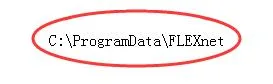
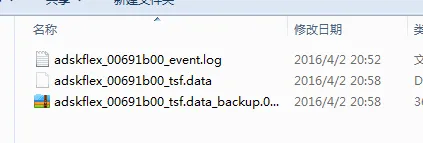
Navigate to the FLEXnet folder located in the ProgramData directory on your C drive and delete all files inside.
After deleting, your folder should look like this:

xuebim
Follow the latest BIM developments in the architecture industry, explore innovative building technologies, and discover cutting-edge industry insights.
← Scan with WeChat














Must log in before commenting!
Sign Up