
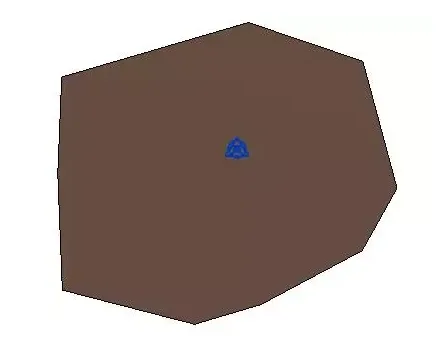
1. Start by creating a new project file. Switch to the site plan view, then use the terrain surface command to place various elevation points. This will allow you to create the terrain as illustrated below.
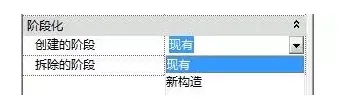
2. Select the site and, in the Properties palette, change the phase of creation to Existing.
3. To level the terrain surface, choose the Flat Area command. Then, select Create a new terrain surface identical to the existing terrain surface. You can flatten the area either by adjusting the elevation of internal points or by adding new elevation points manually.

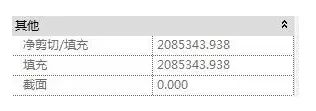
4. Finally, select the leveled site and check the Properties palette to view the excavation and fill volumes for the site.

xuebim
Follow the latest BIM developments in the architecture industry, explore innovative building technologies, and discover cutting-edge industry insights.
← Scan with WeChat












Must log in before commenting!
Sign Up