
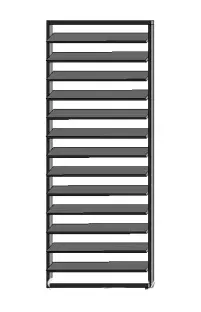
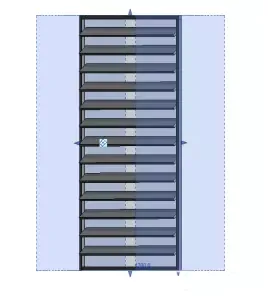
This louver was created by embedding a contour family into the vertical support of a curtain wall.
After loading the outline into the project, setting the curtain wall properties carefully is crucial, as these settings directly influence the look and functionality of the blinds.

Here is a detailed explanation of the modeling steps and the automatic embedding command analysis:
1. Open the metric contour family and draw a 100mm by 20mm contour to serve as the curtain. Add width and length parameters accordingly.
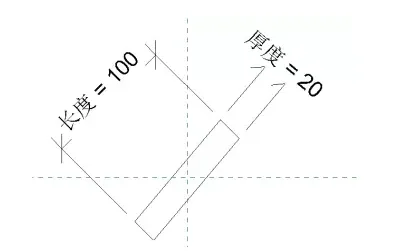
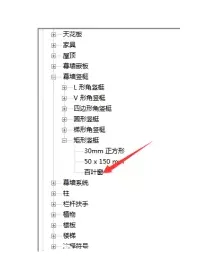
2. Load this into the project. Then, in the project browser, right-click on the 50mm by 150mm vertical rectangle type, copy it, and create a new blind. Double-click to replace the contour with the custom contour family you created.

3. Draw the curtain wall and adjust its parameters as shown in the diagram below. Note: The empty panels inside the curtain wall need to be loaded separately.
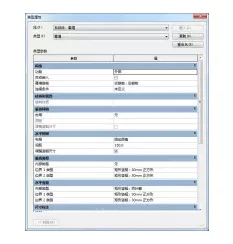
4. Click OK to complete the creation of the blinds.
Understanding the role of automatic embedding:
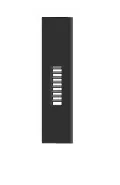
If automatic embedding is enabled in the curtain wall type properties, the curtain wall will automatically embed into the wall. If not enabled, it will remain unembedded.
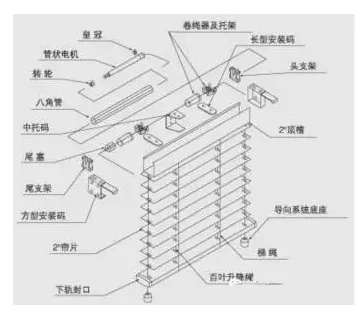
Construction diagram of the blinds.













Must log in before commenting!
Sign Up