
Step 1: Retrieve the CAD Pattern Fill File “acad.pat”
Method 1: Locate via File Path

Figure 1
Method 2: Search for “.pat” on Your Local Hard Drive
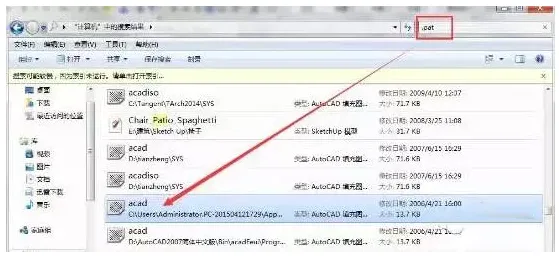
Figure 2
Step 2: Make a Copy of “acad.pat” and Save It for Later Use
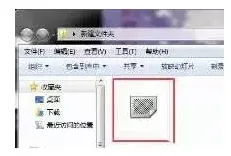
Figure 3
Step 3:
-
Open the material you want to edit in Revit. Access the Material Editor as shown below, then open the Fill Styles dialog box.
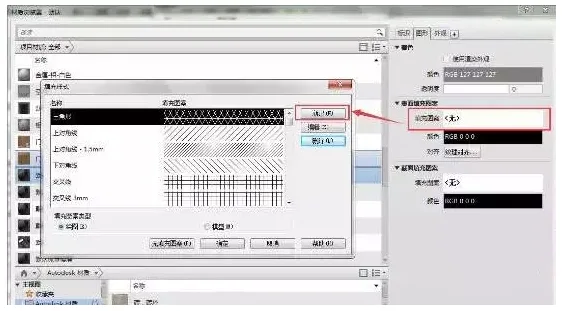
Figure 4
-
Click the New button to open the New Fill Pattern dialog box. Here, you can customize the pattern name and import the “acad.pat” file.
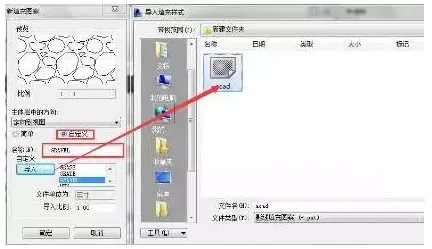
Figure 5
-
Locate the “GRAVEL” pattern within the imported file. Set the Import Scale as needed, then click OK.
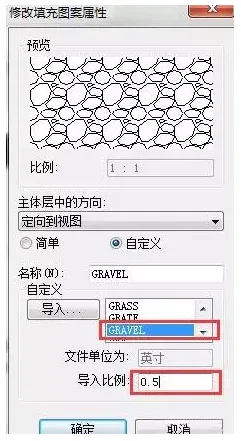
Figure 6
The resulting effect is shown below:
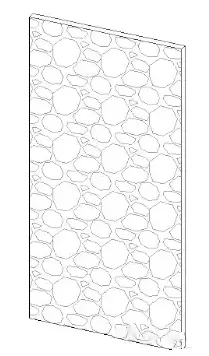
Figure 7

xuebim
Follow the latest BIM developments in the architecture industry, explore innovative building technologies, and discover cutting-edge industry insights.
← Scan with WeChat












Must log in before commenting!
Sign Up