
When opening a file, besides double-clicking it directly, we often use the software’s built-in Open command. On the left side of the Open dialog box, you’ll notice a default list called the “Location List.”
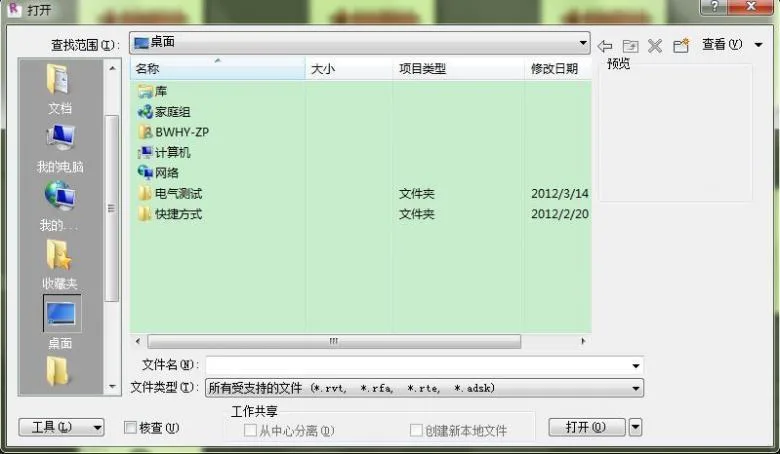
Next, in the “Location List” column, we add the folder locations we frequently use. First, in the middle selection area, navigate through your usual folders: My Computer > D Drive > XXX Folder > YYY Folder. Finally, find the ABC folder where your project or family files are often stored, and double-click to open it.
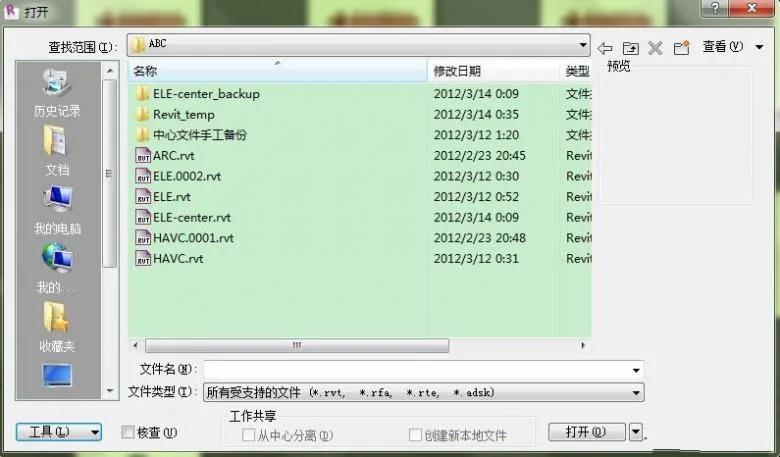
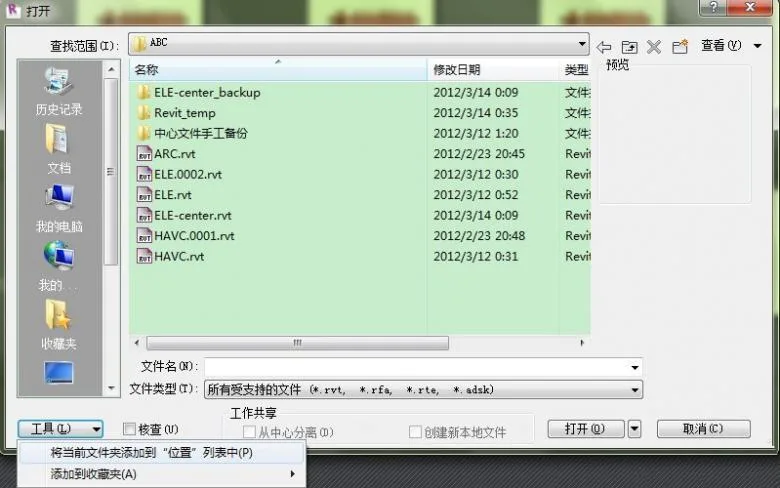
Then, click the “Tools” button located at the bottom left corner. Within the Tools menu, select Add the current folder to Location List by clicking the corresponding button.
Now, the ABC folder will appear in the Location List on the left, allowing for quick access.
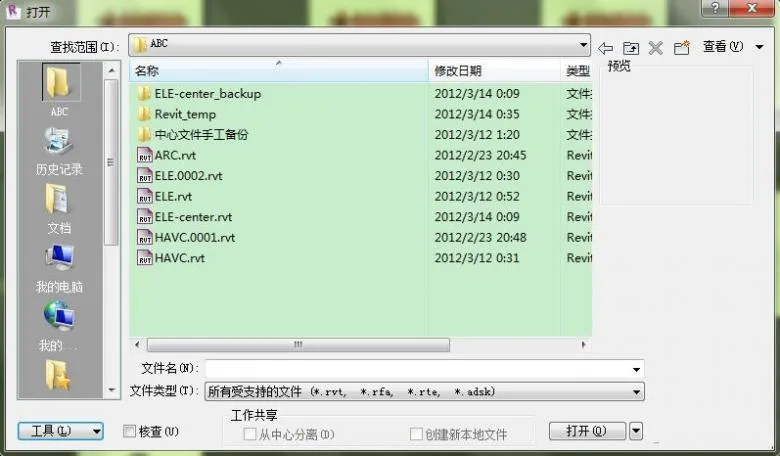
You can use the same method to add other frequently used folders. To organize them, simply drag and drop to adjust their order. If there are folders you no longer need in the list, right-click on them and select “Delete” to remove them from the Location List.













If you can speak