
In Revit, some imported CAD files may appear slanted, as illustrated in the image below:
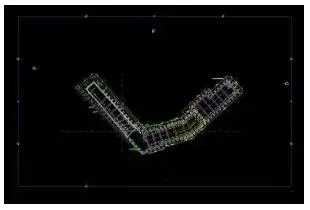
If you want the left side to be vertical before starting your model, here is the procedure to follow:
1. First, set the View Direction to Project North.
2. Open the crop region and make sure it is visible.
3. Use the Rotate command to rotate the crop box. Note that the start and end lines during rotation may appear opposite to what you visually expect, as shown below:
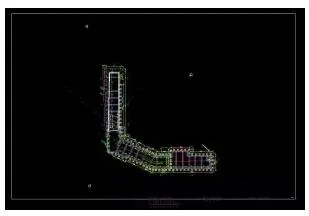
4. To revert the changes, either rotate the crop box back to its original position, or switch the direction parameter to True North and then back to Project North.
Summary:
True North represents the absolute coordinate orientation of the project, while Project North controls the view direction for global orientation. Commands that manage, position, and rotate Project North allow you to standardize the orientation across all model views. However, these commands affect only model elements and global views—they do not impact annotative elements.













Must log in before commenting!
Sign Up