
BIM Software Tip: How to Change the Background Color in Revit
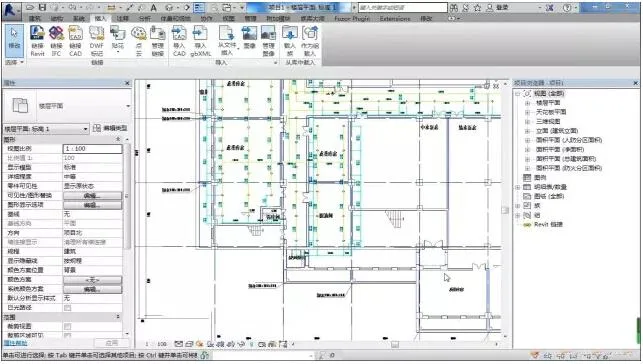
1. Open Revit 2016. By default, the interface background is white.
2. To change the background color, go to the menu bar and click Options. Then navigate to Graphics → Background Color, and switch it from white to black.

In Revit 2014, the options are slightly different. Under Graphics, you won’t find a background color setting. Instead, click the option to invert the background color, and it will switch successfully.

4. Here is the result after changing the background color.


xuebim
Follow the latest BIM developments in the architecture industry, explore innovative building technologies, and discover cutting-edge industry insights.
← Scan with WeChat












2017, I can’t confirm