BIM World
A Professional BIM Learning Platform


How to Create Custom Pipe Sizes in Revit

— When working on mechanical and electrical water supply and drainage designs, you might encounter pipes with diameters larger than those available in Revit by default. In such cases, it’s essential to add custom pipe diameters. Below, we will guide you through the process of adding the required pipe sizes in Revit.

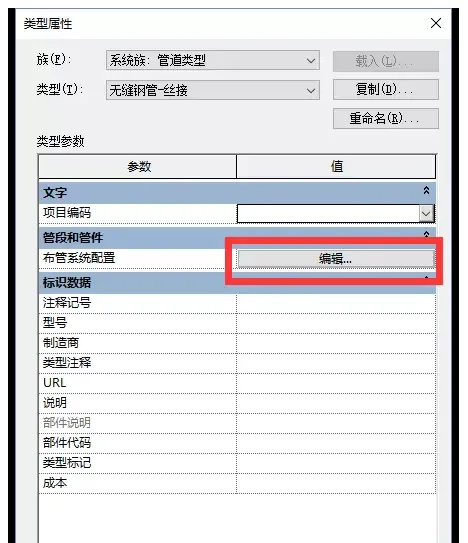
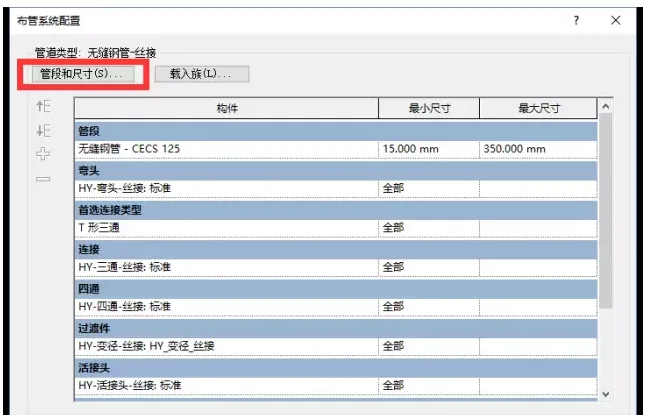
— First, navigate to the System tab and select Pipeline. This action will display the attribute panel as shown in the images below.

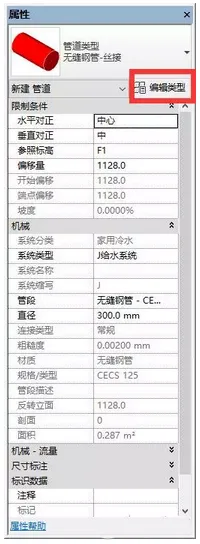
Method for Creating New Pipe Sizes in Revit

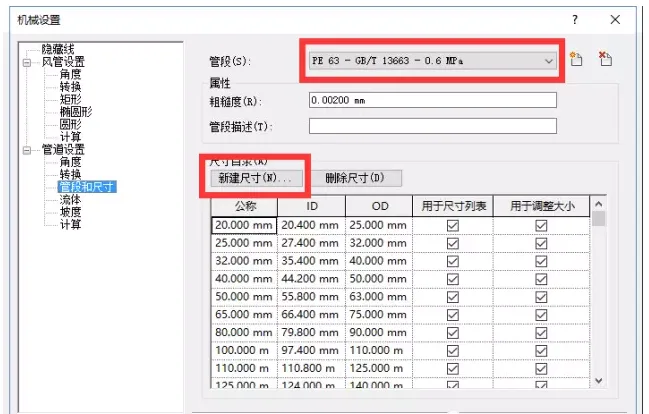
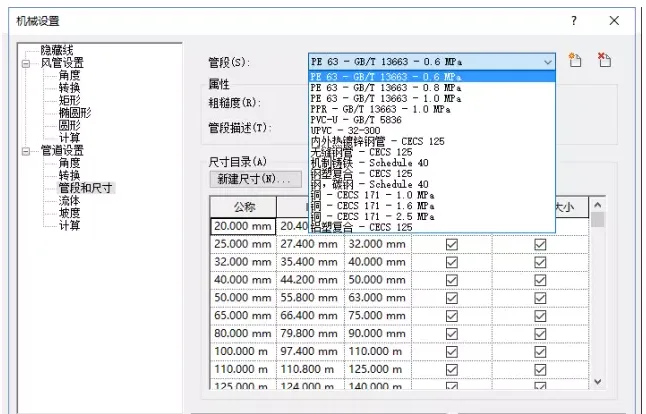
— Next, make sure to select the appropriate pipe type from the list.
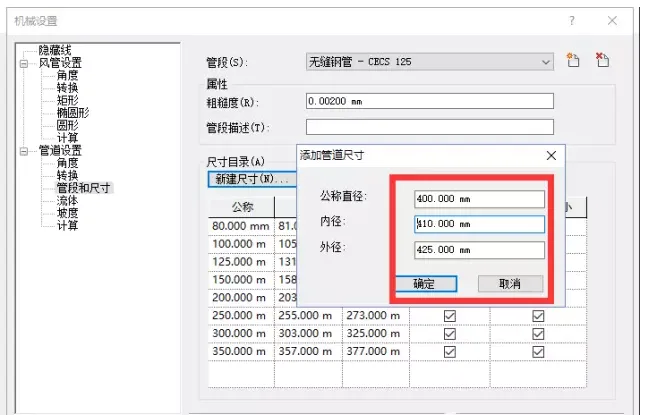
Method for Creating New Pipe Sizes in Revit

— After entering the desired pipe size, confirm your input by clicking both confirmation buttons.
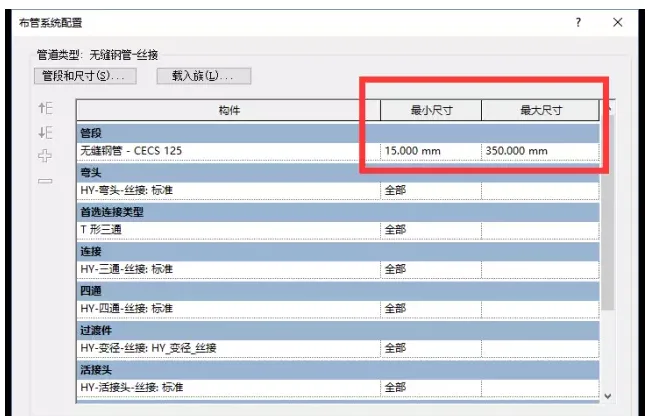
Method for Creating New Pipe Sizes in Revit

— You will then see the minimum and maximum pipe sizes. Update the maximum size diameter to the new pipe diameter you just added, and click OK to complete the process.
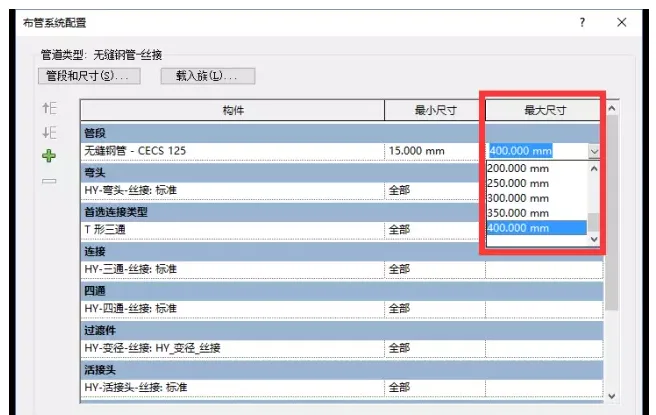
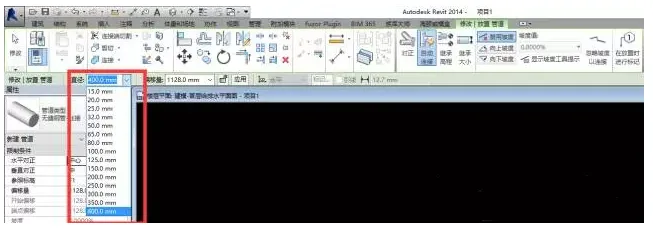
Method for Creating New Pipe Sizes in Revit

xuebim
Follow the latest BIM developments in the architecture industry, explore innovative building technologies, and discover cutting-edge industry insights.
← Scan with WeChat
Like(0) 打赏
BIM WORLD » How to Create Custom Pipe Sizes in Revit

Comment Get first!

Must log in before commenting!


BIM World, A Professional BIM Learning Platform

Stay updated on the latest architecture trends and share new building technologies.

Contact UsAbout Us

觉得文章有用就打赏一下小编吧

非常感谢你的打赏,我们将继续提供更多优质内容,让我们一起创建更加美好的网络世界!

支付宝扫一扫

微信扫一扫

Account Login

By signing in, you agree toUser Agreement

Sign Up