
Global Parameters are arguably the most significant new feature introduced in the 2017 version of Revit. They enable us to add parametric controls and apply formulas directly within a project environment, similar to how we edit families. This feature addresses a common limitation where various component parameters, especially those added for system families, could previously only be modified manually.
Let’s explore how to use Global Parameters effectively.
First, you can find the Global Parameters command on the Manage panel:
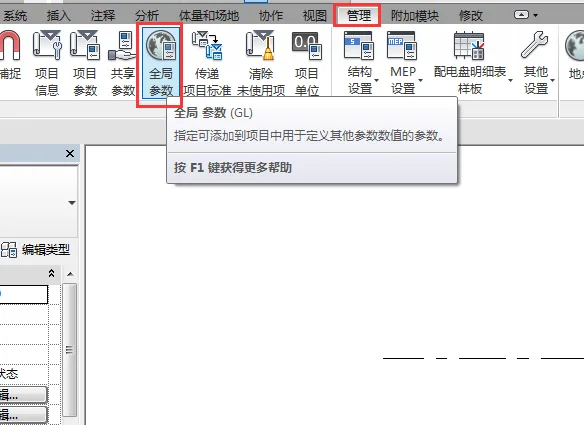
Clicking this command opens the Global Parameters panel, which resembles the family parameters panel found during family editing. It consists of three columns: parameter names, values, and formulas. Below the columns, you’ll find buttons for creating, editing, deleting, and reordering parameters.
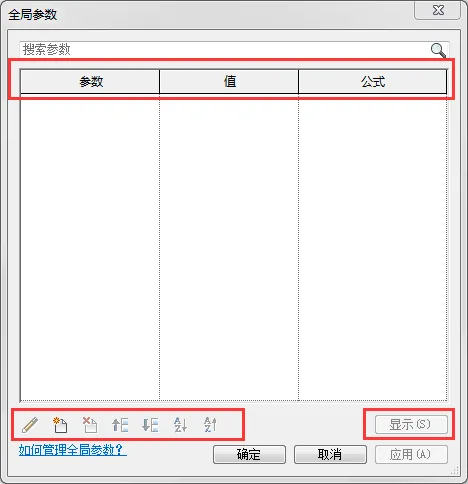
The process to add parameters here is similar to customizing families. You can create new parameters directly in the panel or create them while associating parameters after selecting dimensions or component parameters.
Without diving into examples immediately, let’s look at how parameters correlate. In the image below, the axis spacing is annotated with dimensions, and the wall is locked to the axis. When you select the dimension annotation, you’ll notice an additional label parameter panel appears in the contextual tab of the dimension in Revit 2017:
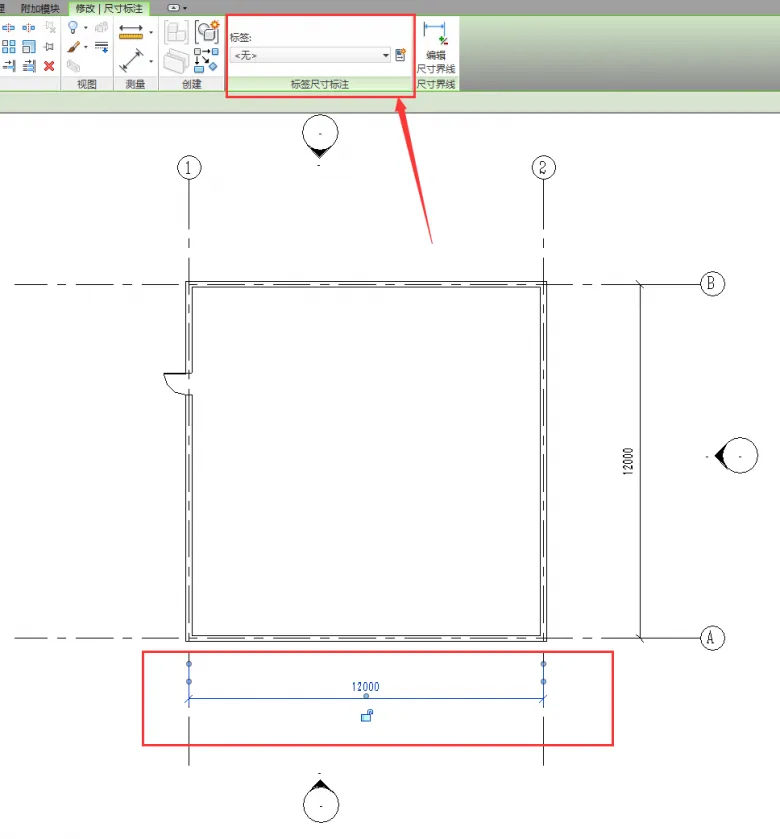
Using the dropdown menu, you can link the dimension annotation to an existing global parameter, just like in family customization. Alternatively, clicking the button next to the dropdown allows you to create a new global parameter.
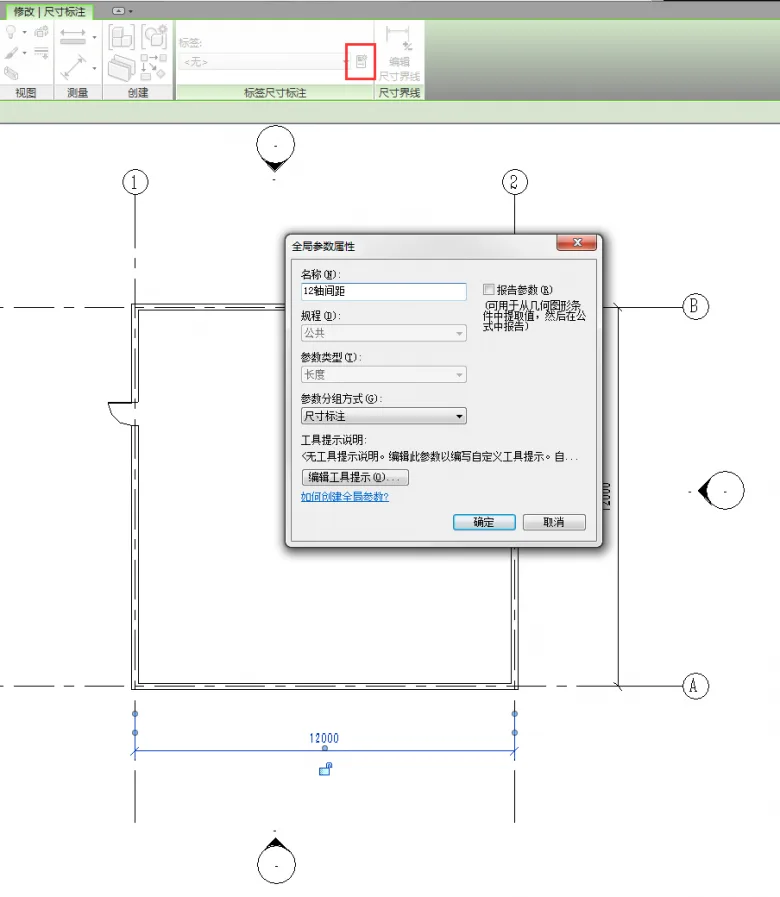
Global parameters function as instance parameters at the project level, so there is no need to select an instance or type when creating them.
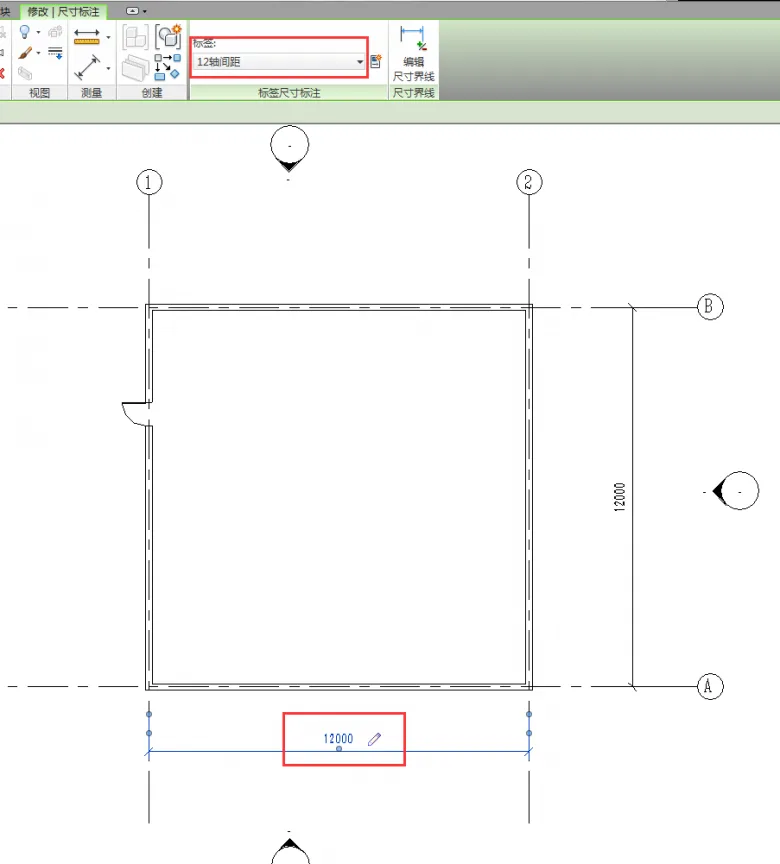
Once confirmed, the parameter name will appear as a label on the dimension annotation, alongside a pen icon on the right, indicating that the dimension is linked to a global parameter and can be edited accordingly.
Similarly, you can create a global parameter for the spacing between axes A and B. Opening the Global Parameters panel allows you to adjust these values. For example, if you modify the spacing for axis 12, axis 1 might shift to the right, which may not be desired. In such cases, you can control the component’s behavior by locking axis 1.
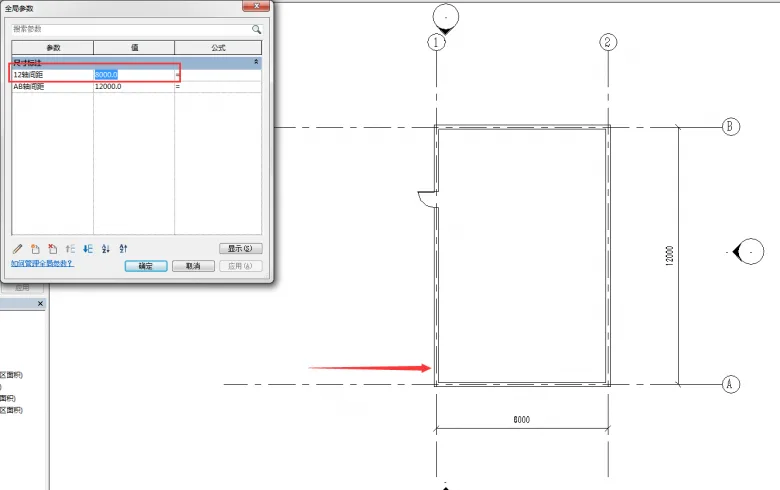
One powerful aspect of Global Parameters is the formula column, which lets you perform calculations based on existing parameters. For instance, you can use formulas to ensure the correct room area:
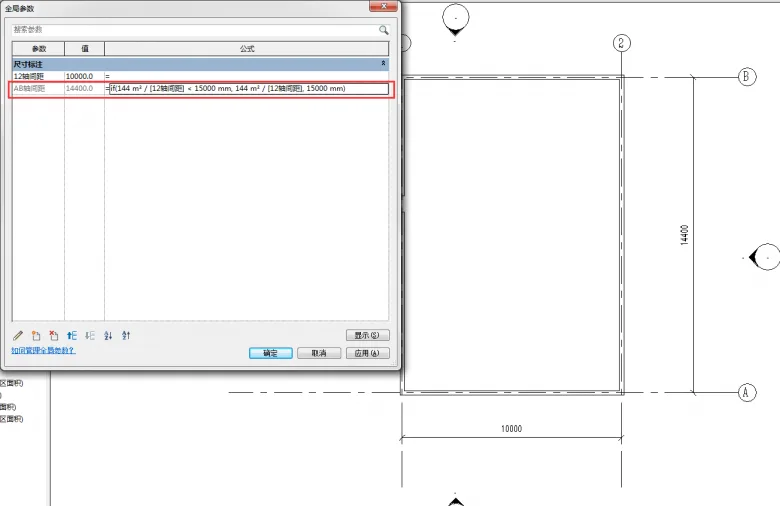
The use of formulas here is identical to the approach used in family customization, and supports conditional statements such as if.
Additionally, you will notice that family component parameters in Revit 2017 include an Associate Parameter button for family customization:
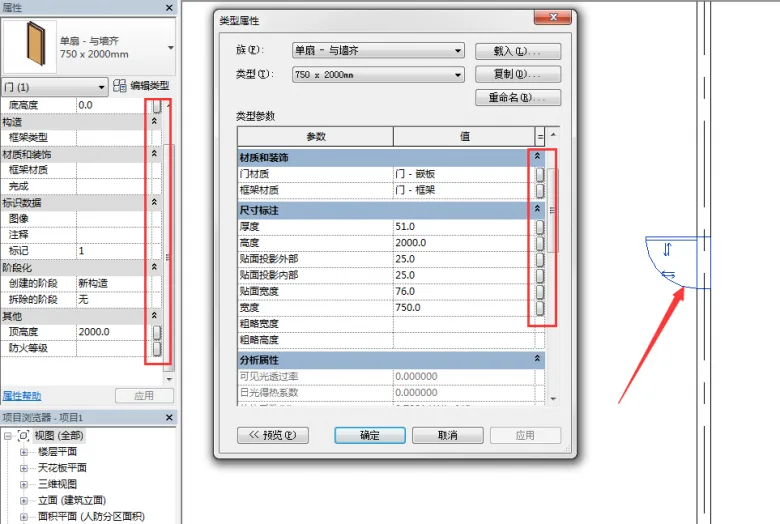
By using this Associate Parameters button, you can link dimensions, materials, and other component parameters to global parameters. This process mirrors the method used for family customization, providing seamless integration between project and family parameter management.













Must log in before commenting!
Sign Up