
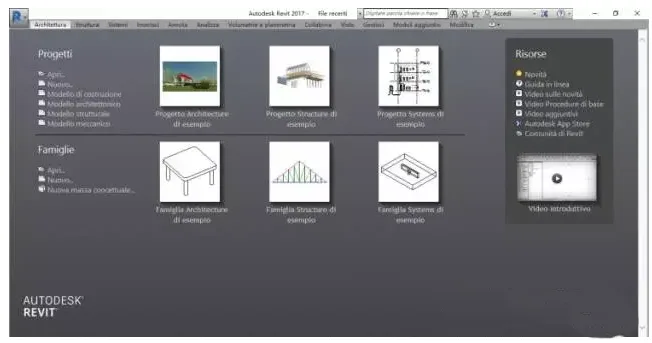
Under normal circumstances, after installing Revit 2017 software, opening the program will display an interface similar to the one shown below. (In this example, the template has been customized to suit personal preferences.)
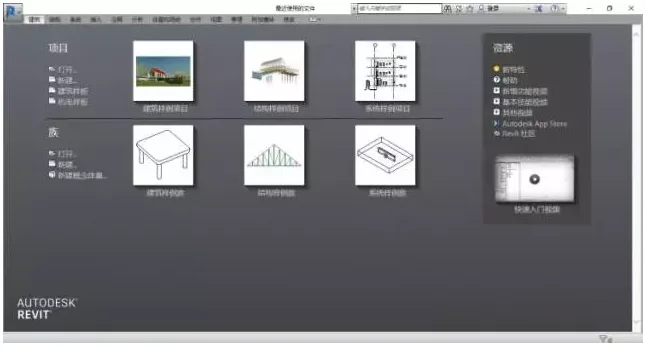
Here’s how you can quickly switch languages (such as English or others) with just one click:
First, right-click the Revit 2017 shortcut icon on your desktop.
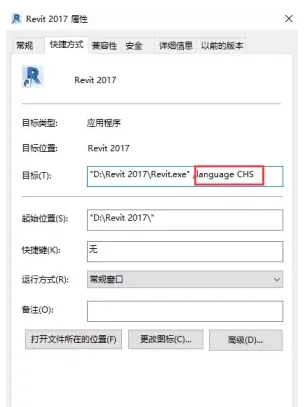
At this point, you will notice that the language is set to CHS (Simplified Chinese).
By changing CHS to ENU (English), the interface will appear as shown below when you open Revit:
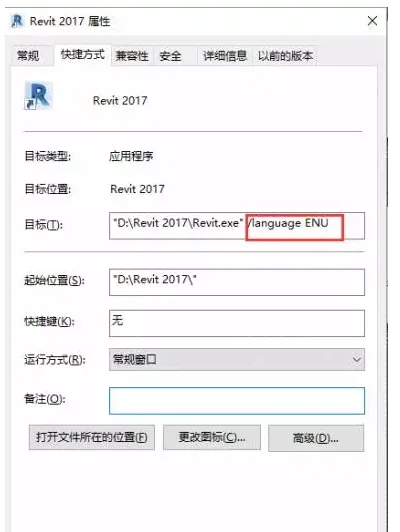
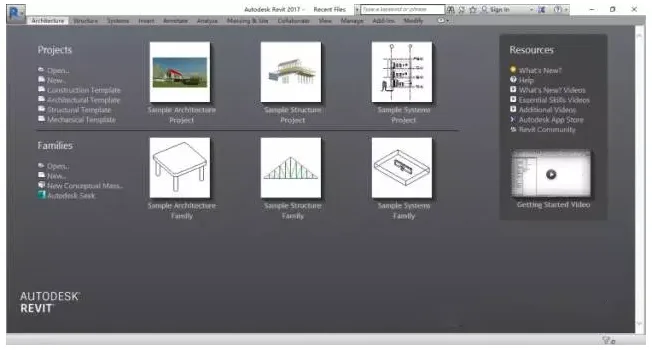
Similarly, you can switch to various other language interfaces.
However, please note that the Revit 2015, 2016, and 2017 versions do not allow arbitrary language switching to any country’s language interface.
This is because:
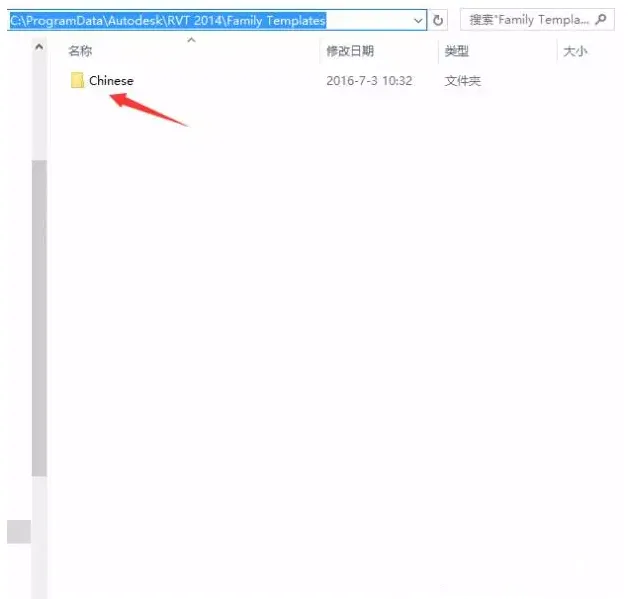
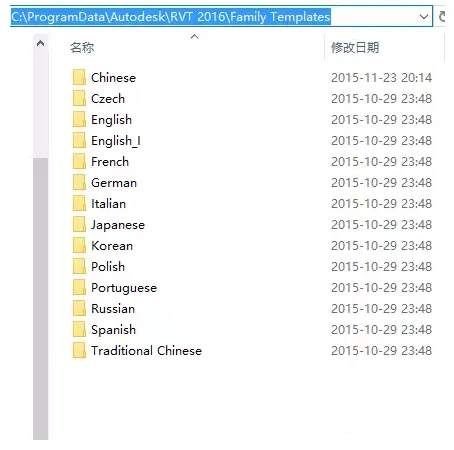
When you open Revit 2014, 2016, or 2017 (and Revit 2015 also has multiple language versions), the templates are linked at:
C:ProgramDataAutodeskRVT 2014 (or RVT 2016, RVT 2017) under the Family Templates folder.
The Revit 2014 version defaults to Simplified Chinese only:
Whereas the Revit 2016 and 2017 versions default to multiple languages, similar to Revit 2015:
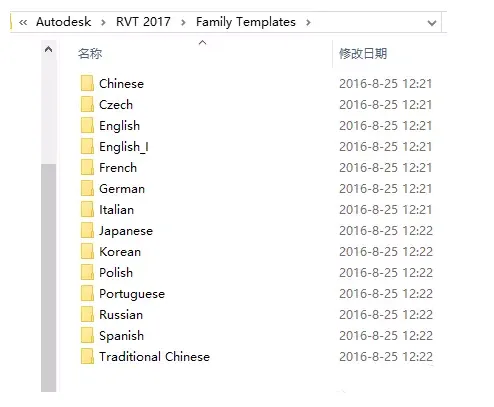
When changing language versions via desktop shortcuts, if the selected language matches one listed in the table below, the interface will switch accordingly. Otherwise, Revit will open using the language interface that was most recently active.
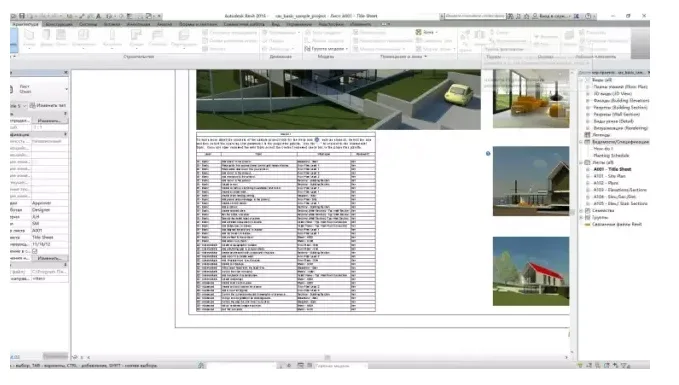
Examples of available language versions include:
Russian version:
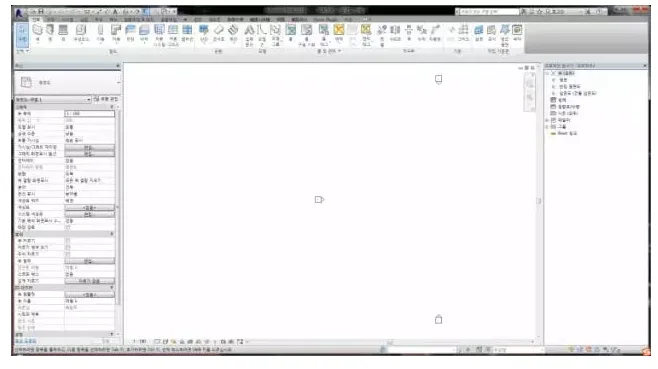
Korean version:
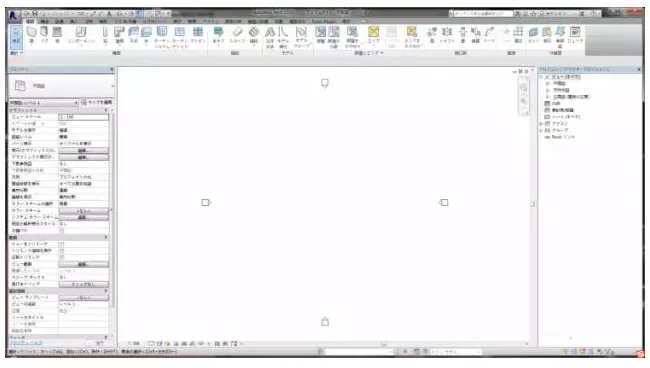
Japanese version:
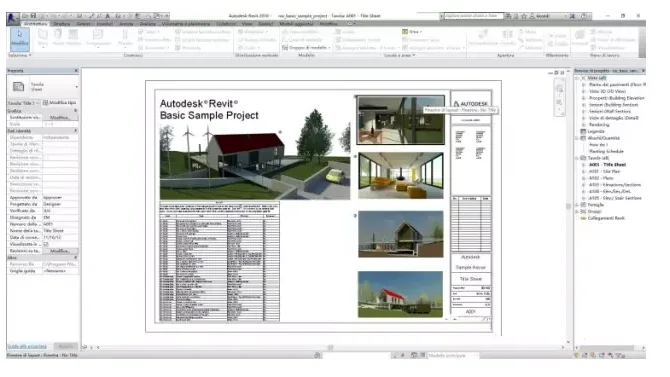
Italian version:













Must log in before commenting!
Sign Up