
When working with the plan legend of certain 3D components, there are times when you need to enter custom text. The most straightforward approach is to edit the 2D legend family of the component directly and input the desired text. However, this method can be cumbersome, and since the text applies to all components of the same project, it may not meet specific requirements.
So, how can you define a family that allows flexible customization of text on the legend?
1. Add Labels to the Standard Annotation Family Used as the Legend
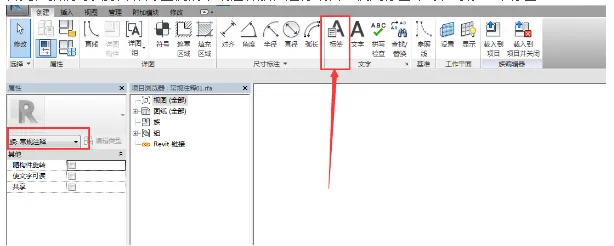
First, open the standard annotation family that serves as your legend and begin editing it. Use the label command to add a label.
In the pop-up dialog box, create a new parameter and set it as a family parameter. It is important to mark this parameter as an instance parameter to allow flexible text input for different instances.
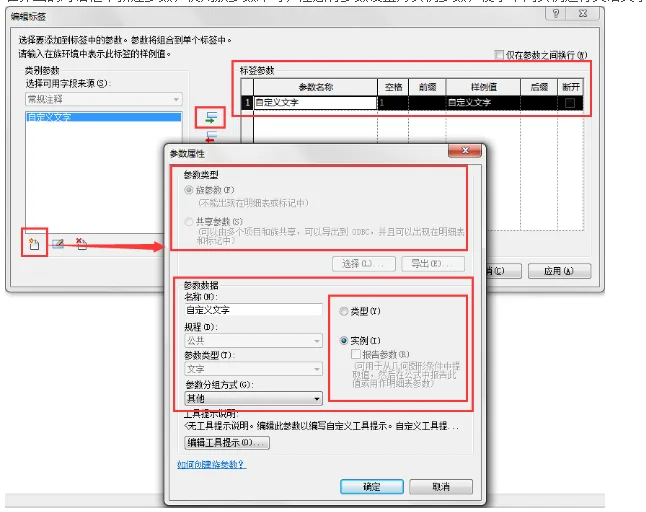
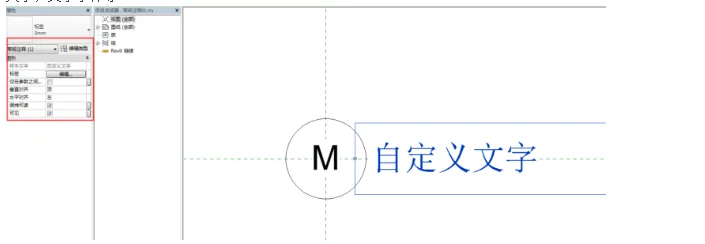
Add the new parameter to the list on the right side and click OK. You will now see the legend style. You can adjust the alignment (left, center, right), text size, font, and other label attributes to suit your needs.
2. Load the Standard Annotation Legend Family into the 3D Component Family and Link Parameters
Next, load the standard annotation legend family into your 3D component family for placement and positioning. Select the annotation family and locate the custom text parameter you created in its properties panel.
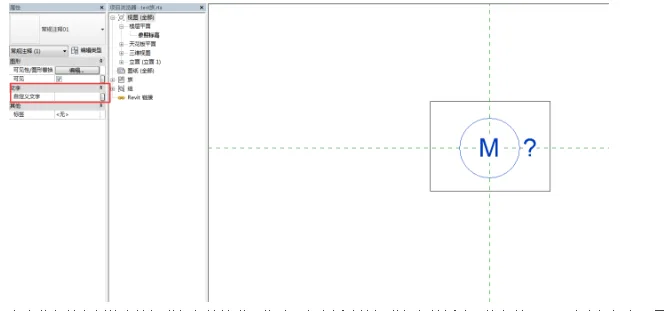
Click the small button next to this parameter to link it. At this point, you can create a new family parameter by clicking the “New” button. Be sure to choose whether this parameter should be an instance or type parameter based on your actual needs.
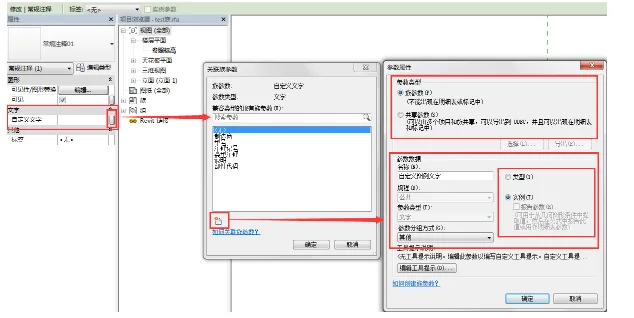
Once confirmed, the family definition is complete.
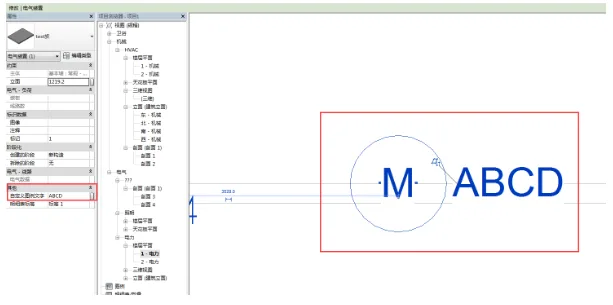
After loading the family into your project, you will find this custom text parameter available in the properties or type properties of the component family. Simply enter the desired text, and the legend will update accordingly.













Must log in before commenting!
Sign Up