
BIM Q&A | How to Modify or Customize the Protective Layer Thickness for Beams and Columns in Revit?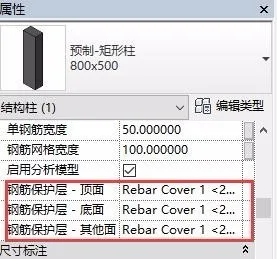
Begin by selecting the Protection Layer command from the Structure tab. Notice the ellipsis (…) icon in the command prompt bar—it appears grayed out at first.
Next, click on an element that includes a protective layer, such as a structural beam. Once selected, the ellipsis icon becomes active and clickable.
This ellipsis opens the settings for the steel reinforcement protective layer, allowing you to manually customize and modify its thickness according to your requirements.
We hope you find this tip helpful!

xuebim
Follow the latest BIM developments in the architecture industry, explore innovative building technologies, and discover cutting-edge industry insights.
← Scan with WeChat















Must log in before commenting!
Sign Up