
1. First, create a sample section view.
Adjust the scale, detail level, regulations, sub-regulations, visibility, filters, linked files, and working sets of the sample section view to match your desired style.
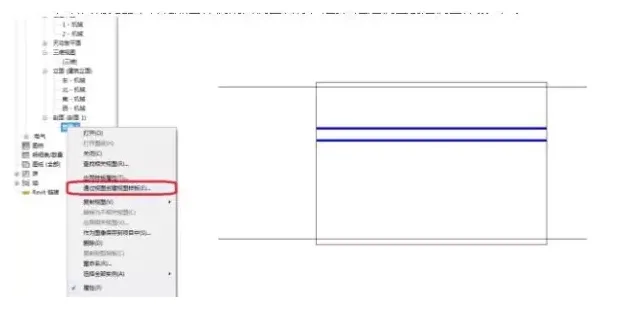
Right-click on the sample section view name in the Project Browser, then select Create View Templates from Views from the command menu.
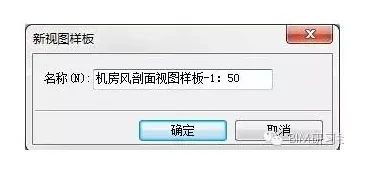
Next, enter a template name in the new View Template panel. The name should reflect the view classification and scale used in the template. You can also add a date suffix if needed.
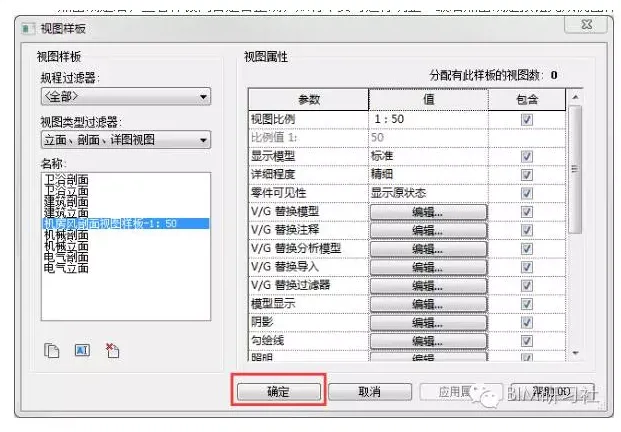
After clicking OK, review the template content to ensure accuracy. Make any necessary adjustments, then click OK again to finalize the creation of the view template.
2. Now, create a new section view using the section view template.
Click the Section View command. Before drawing the section line, click Edit Type in the Properties panel.
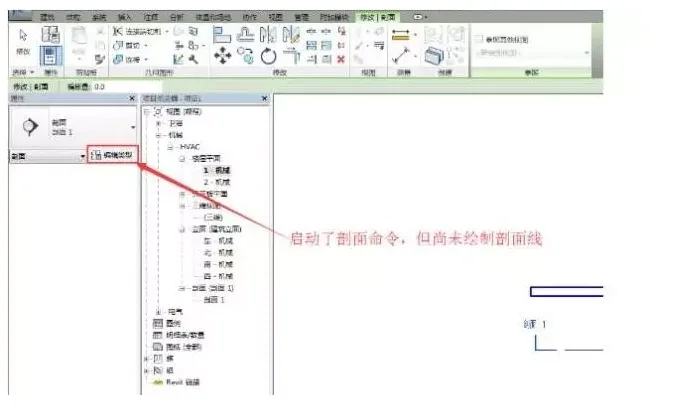
In the pop-up Type Properties panel, find View Templates Applied to New Views. Click the dropdown next to it, which defaults to None, to open the view template selection panel. Then select the view template you just created.
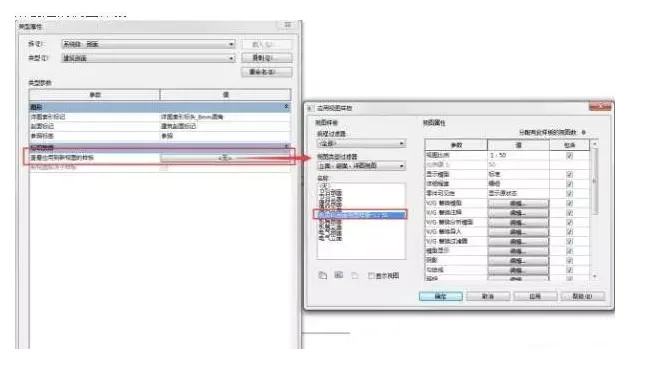
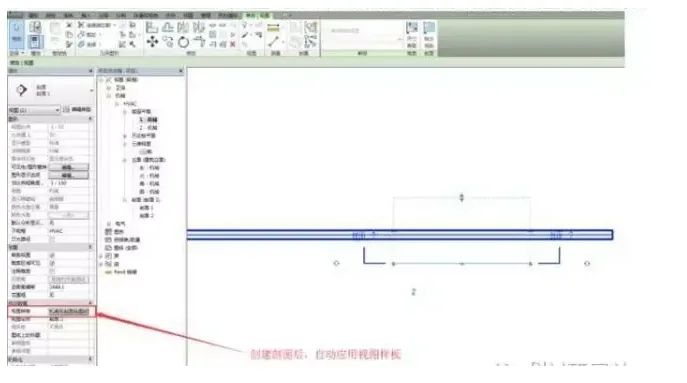
Click OK to confirm your selections and close all dialogs. Now, when you create a section view using this type, the corresponding section view template will be applied automatically.













Must log in before commenting!
Sign Up