
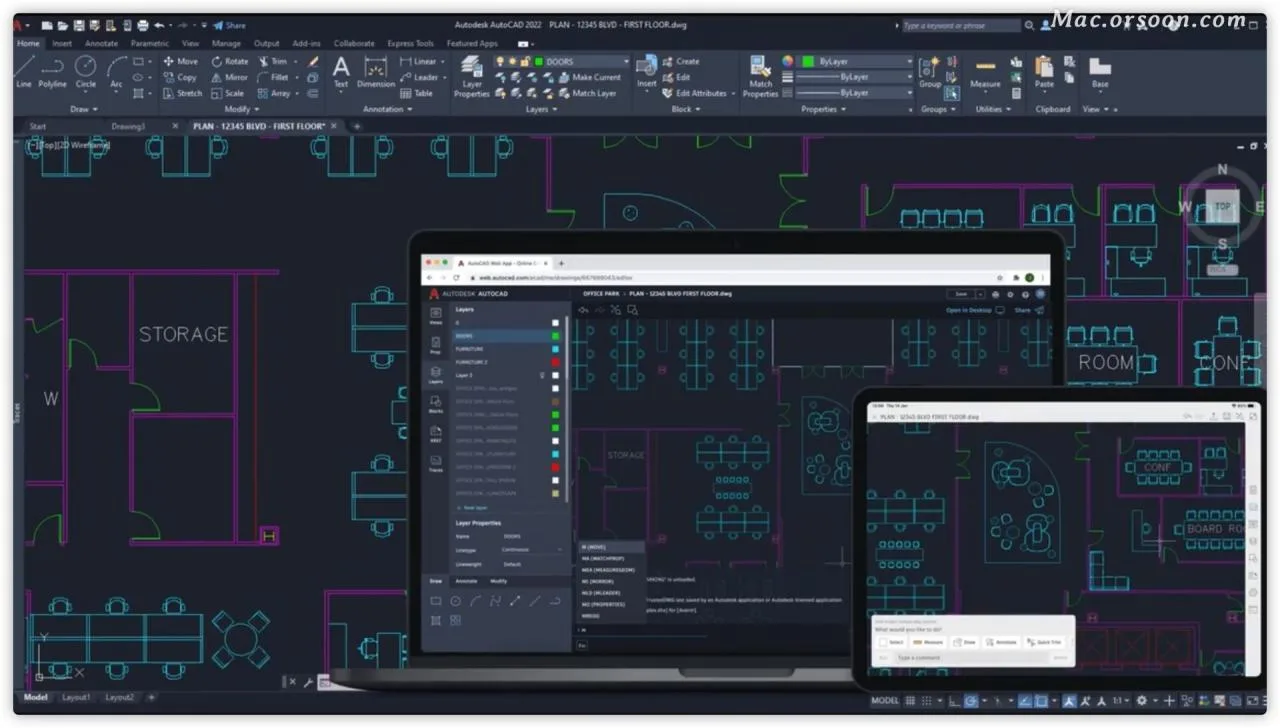
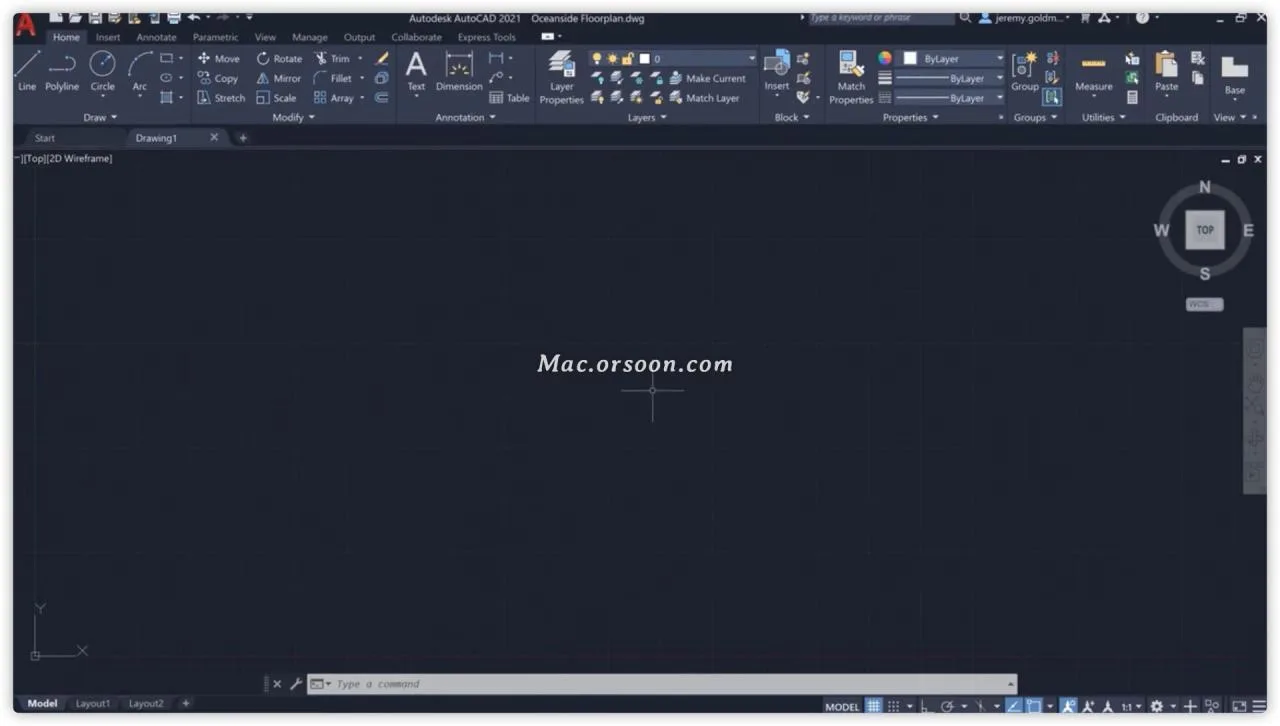
For the first time, AutoCAD 2024 and AutoCAD LT 2024 for Mac run natively on Apple Silicon Macs. AutoCAD 2024 for Mac is a powerful CAD software designed for creating, editing, and managing 2D and 3D graphics. It offers a comprehensive set of tools to help users efficiently complete engineering design and modeling projects.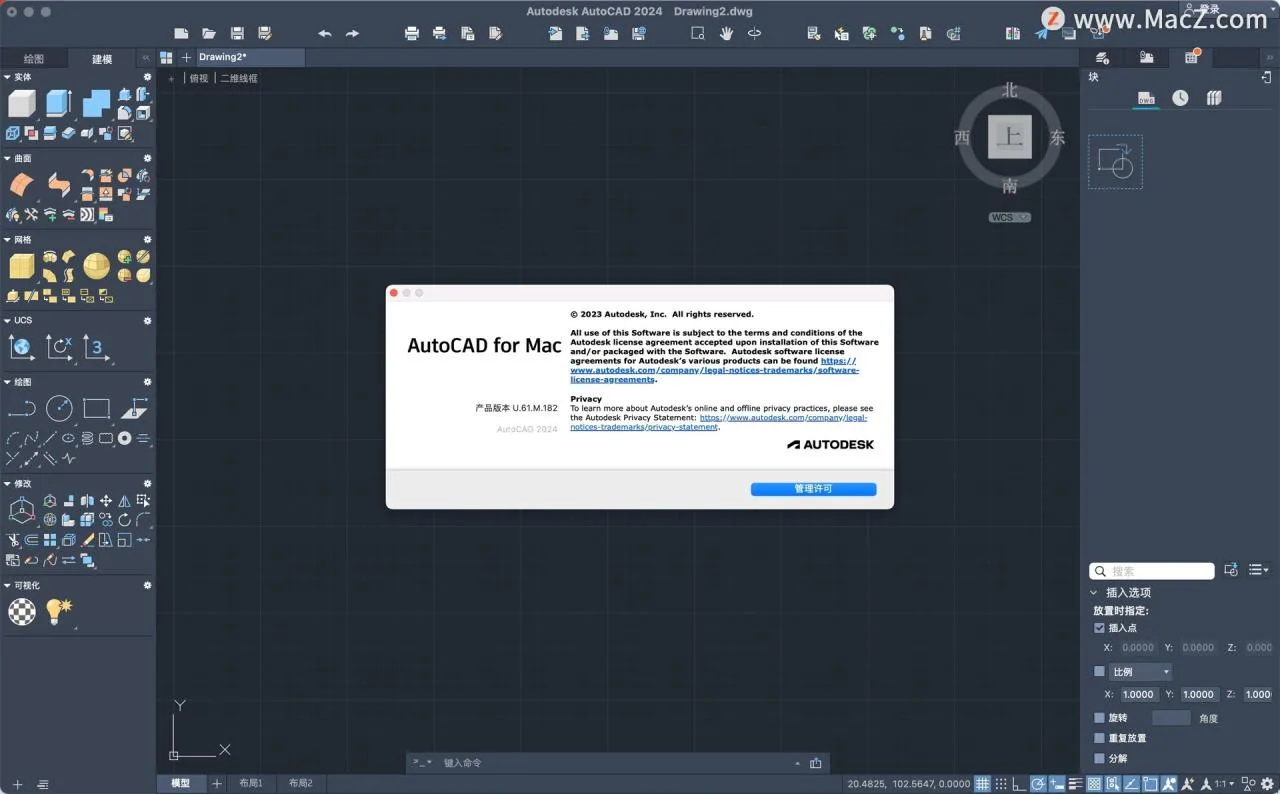
Key features of AutoCAD 2024 for Mac include smart objects, customizable toolbars, real-time collaboration, and cross-platform support. Intelligent objects automatically adjust and optimize graphics based on user input, enhancing drawing accuracy and efficiency. Custom toolbars allow users to personalize their workspace to boost productivity. The real-time collaboration feature lets multiple users work simultaneously on the same drawing, improving teamwork and communication.
AutoCAD 2024 for Mac supports various CAD standards and file formats such as DWG, DXF, DWF, STEP, and IGES, ensuring compatibility with other CAD software. It also offers advanced functionalities including 3D modeling, animation rendering, and automation tools to meet more complex design requirements.
In summary, AutoCAD 2024 for Mac is a robust CAD solution that accelerates engineering design and modeling tasks while providing versatile tools tailored to different user needs and workflows.
The latest AutoCAD 2024 and AutoCAD LT 2024 for Mac versions prioritize performance improvements and are optimized for Apple Silicon chips. These applications leverage the full power of Apple Silicon to speed up workflows and enhance productivity.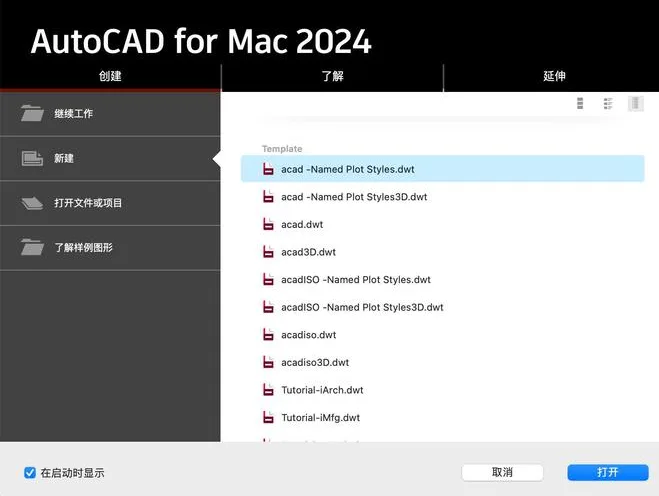
Latest Features of AutoCAD 2024 for Mac (Chinese Version)
Event Insights: Stay connected with project data throughout the lifecycle by tracking multi-user activities within DWG files. Activity logs provide detailed information on file changes and access, helping to bridge information gaps in collaborative workflows.
Smart Building Blocks: Replacement: Quickly locate and replace blocks using machine learning recommendations, recently used blocks, or manual selection, streamlining block management.
Smart Block: Placement: Automatically position and scale blocks in your drawings based on previous insertions within the DWG file, reducing clicks and saving time.
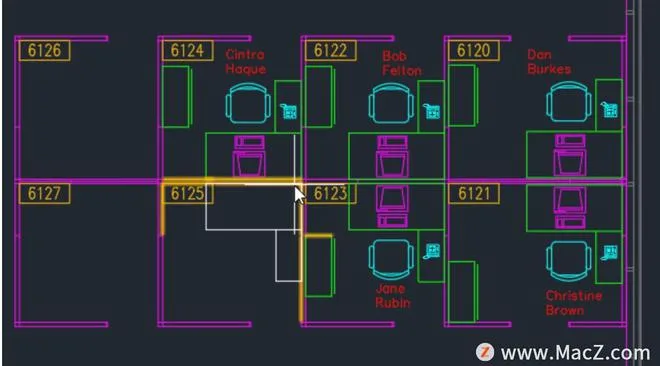
Tag Import and Tag Assist: Efficiently send and merge design feedback by importing comments from printed documents via mobile devices or PDFs. AutoCAD uses machine learning to interpret commands in tagged text, such as “MOVE,” “COPY,” or “DELETE,” and applies changes automatically.
Network Function: AutoCAD subscribers gain access to exclusive online features, including the AutoLISP API and batch conversion of drawings to PDF.
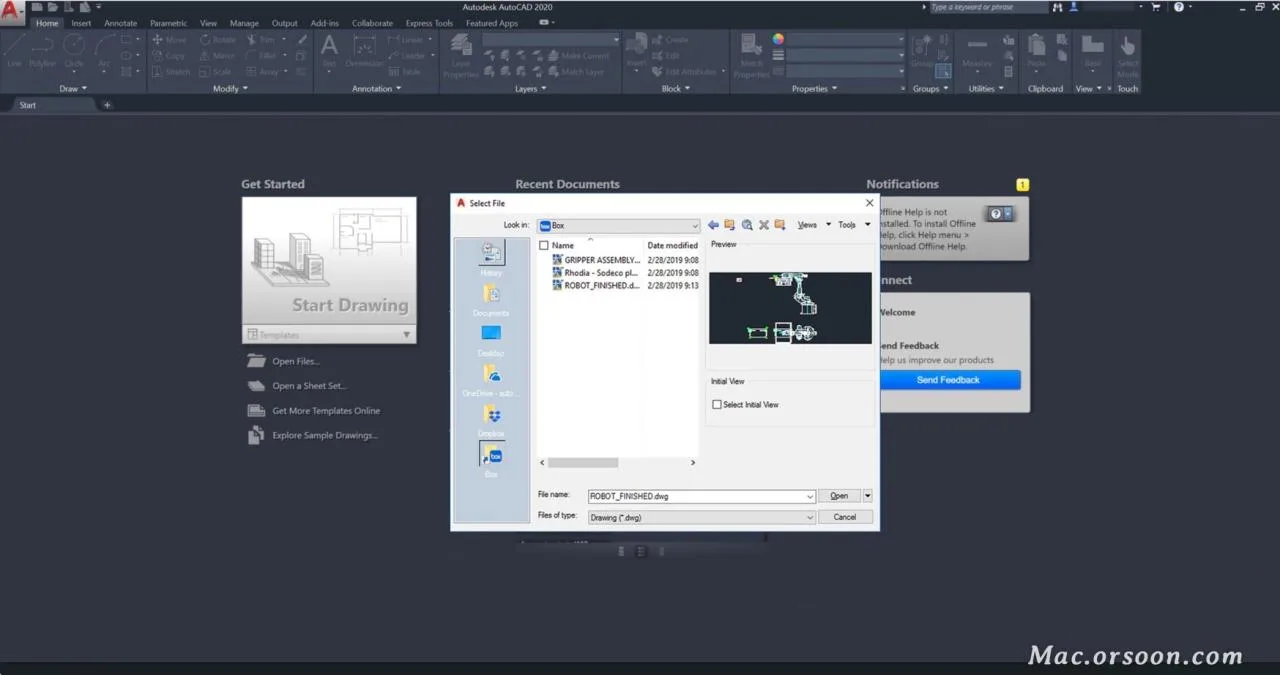
Enhance Your Workflow with AutoCAD 2024 for Mac
 |
 |
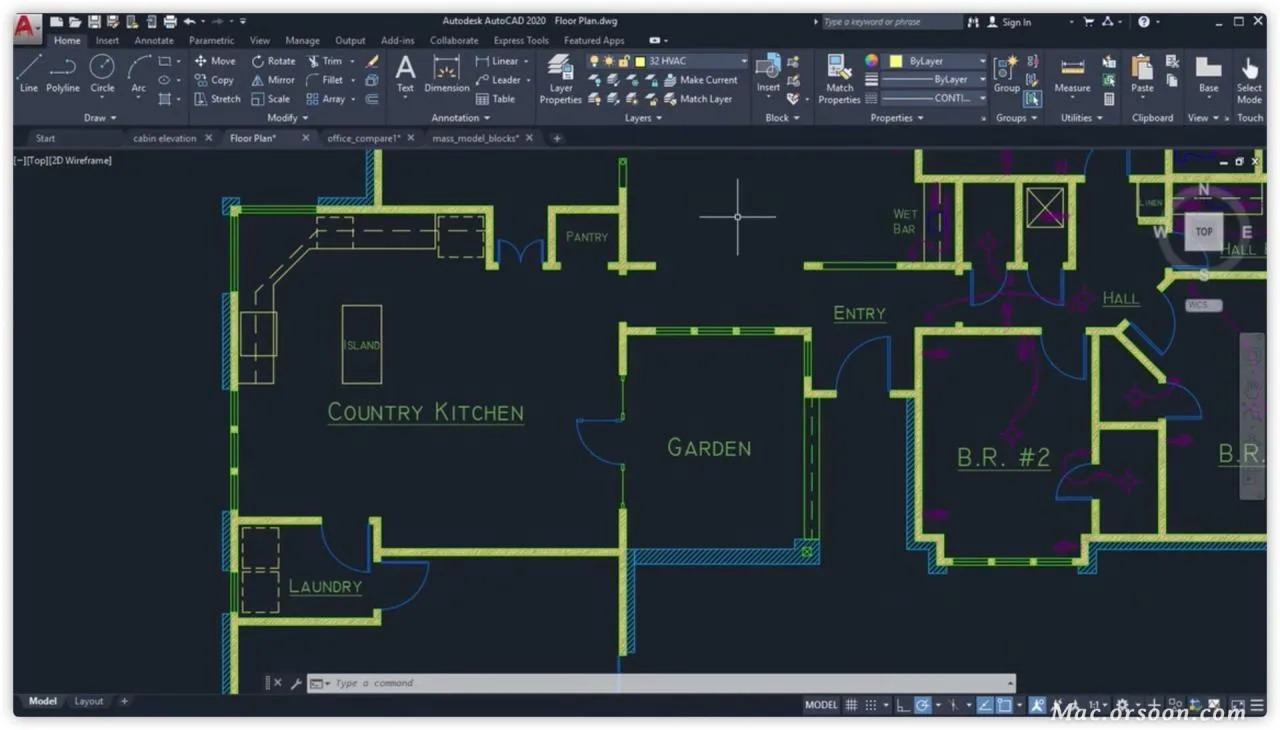 |
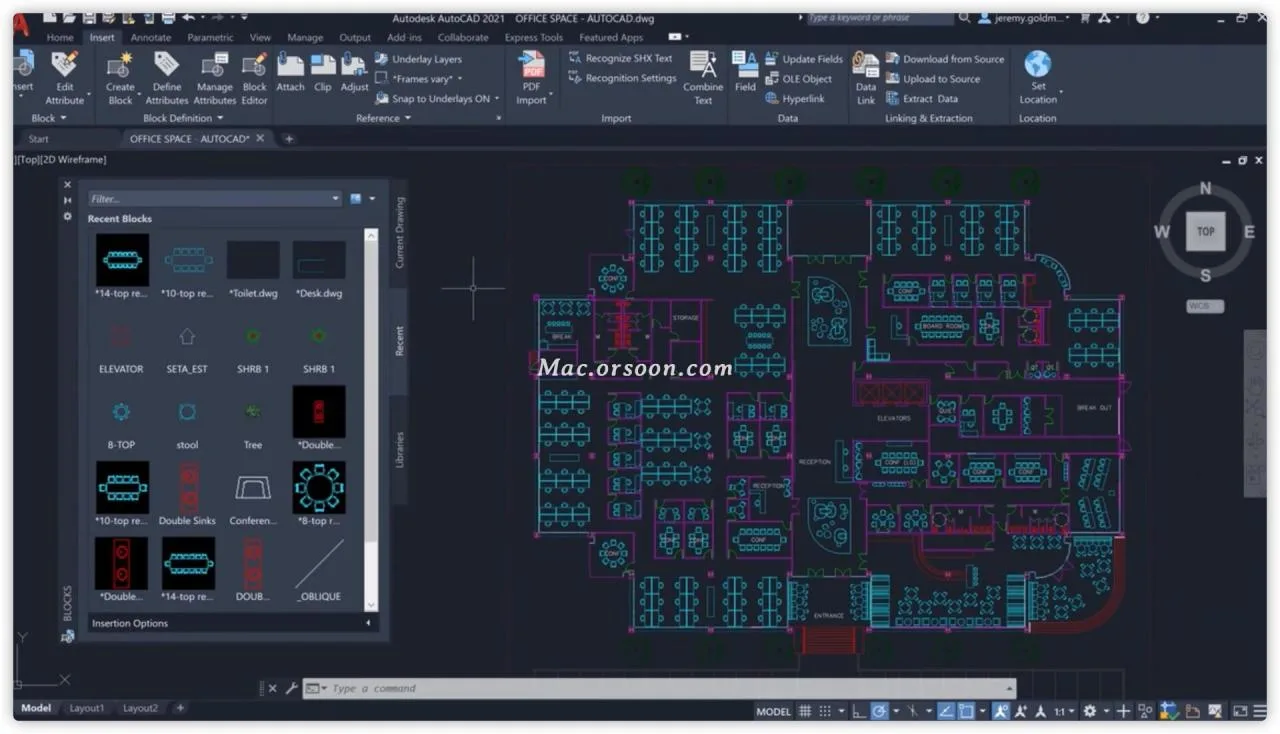
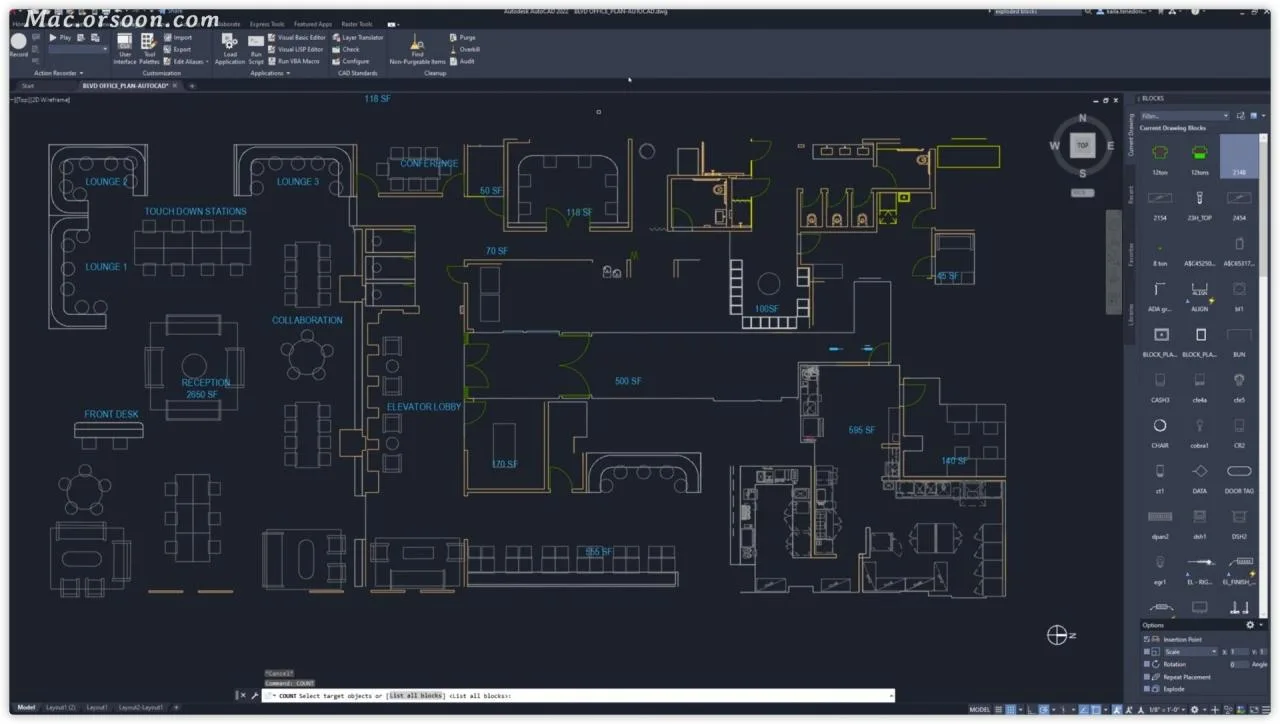
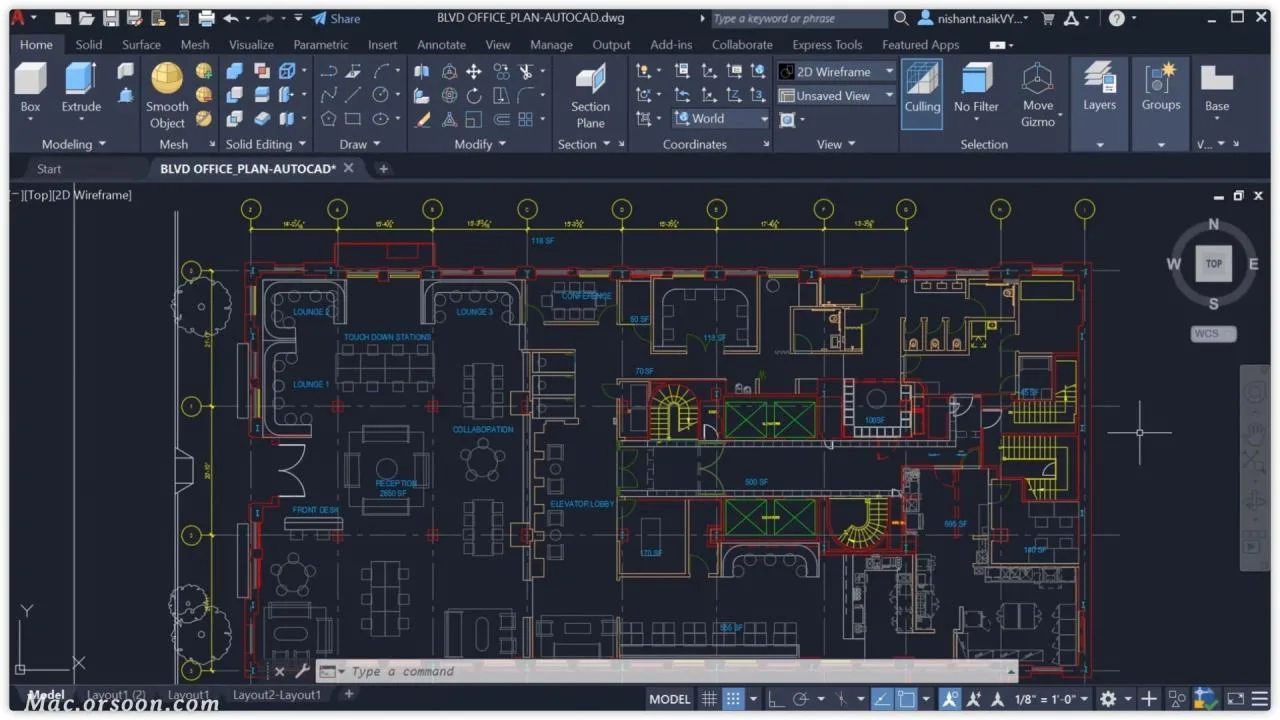
| Trace: Securely add feedback directly to the DWG file without altering existing drawings. | Count: Use the COUNT command to automatically tally blocks or geometry. | Share: Send controlled copies of your drawings to teammates and colleagues, regardless of their location. |
 |
 |
 |
| Push to Autodesk Docs: Export AutoCAD drawings as PDFs directly to Autodesk Docs. | Floating Window: Open drawing windows side-by-side within the same AutoCAD instance or across multiple displays. | Performance Enhancement: Enjoy faster drawing and 3D graphics rendering speeds. |
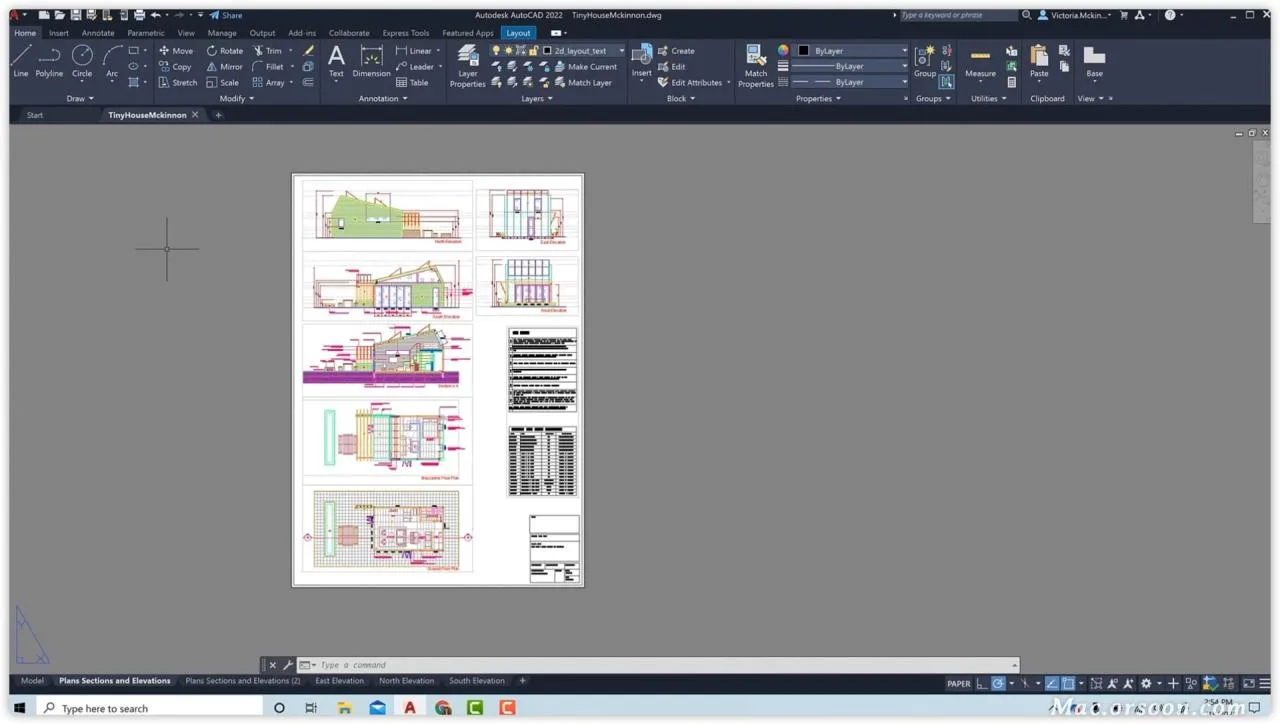 |
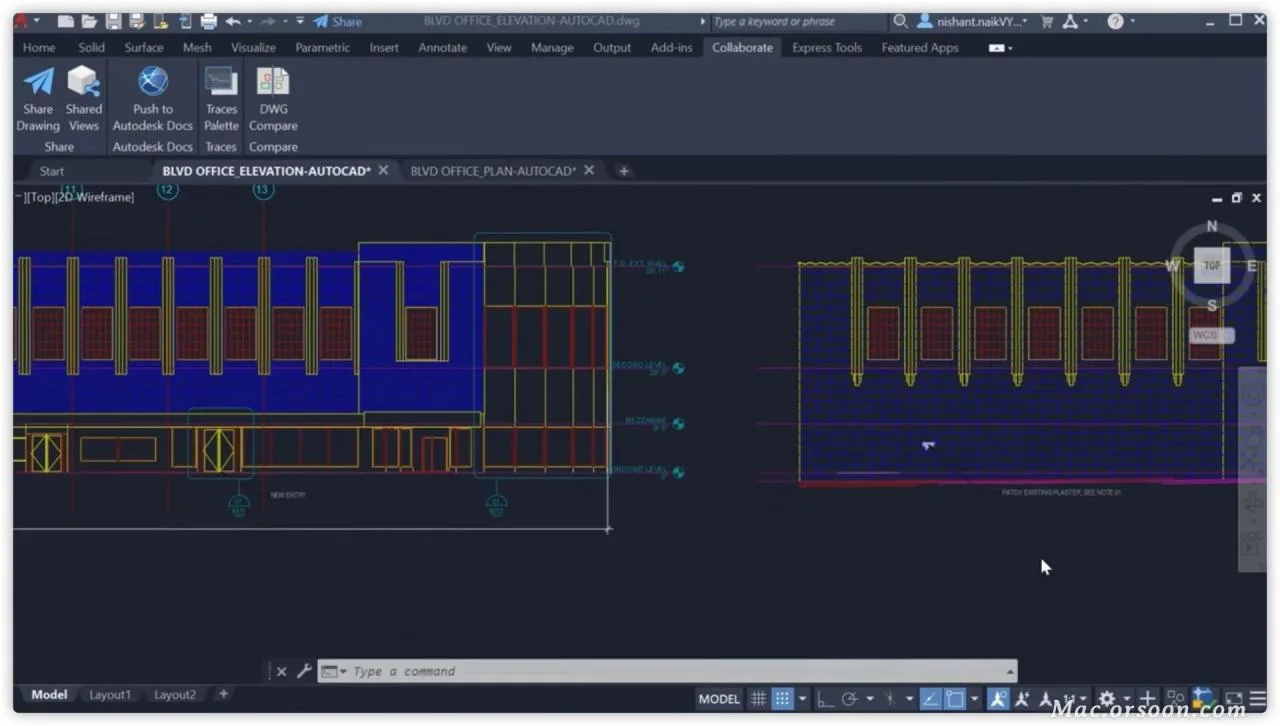 |
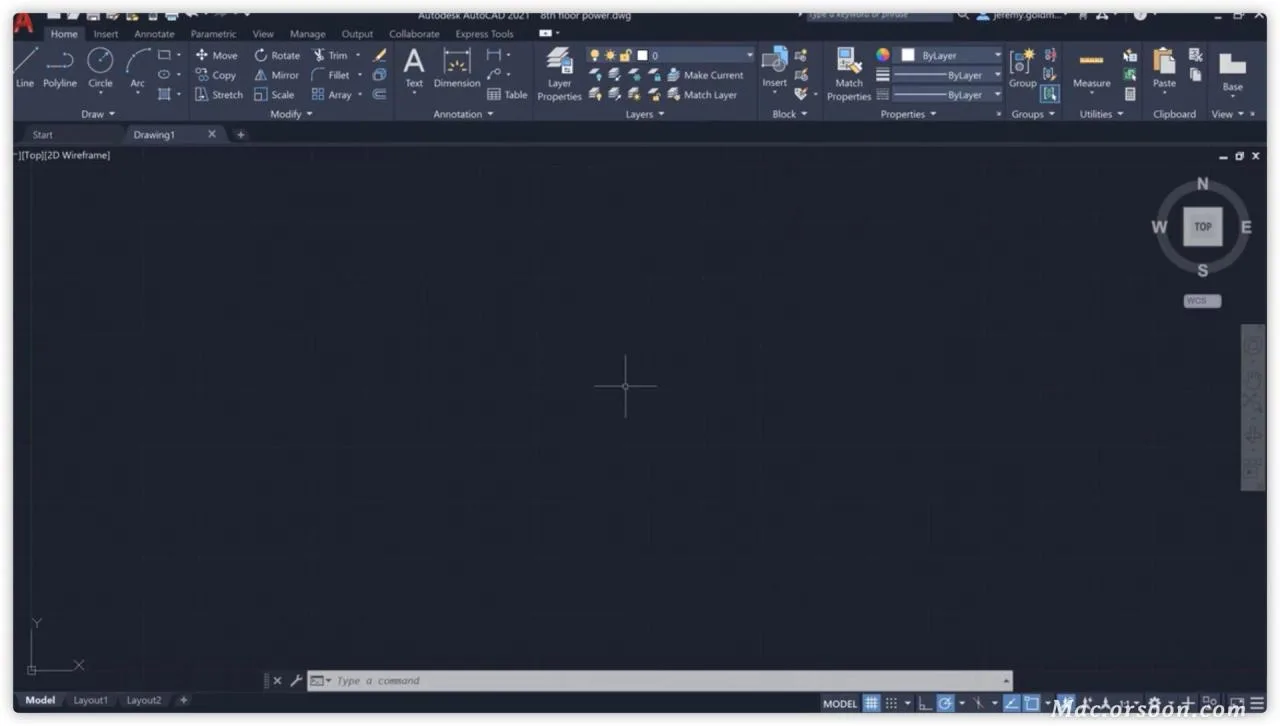 |
| Drawing History: Compare past and current versions to track the evolution of your designs. | External Reference Comparison: Compare two DWG versions, including those linked as external references (Xref). | Block Color Palette: View and manage block content in AutoCAD desktop or web applications. |
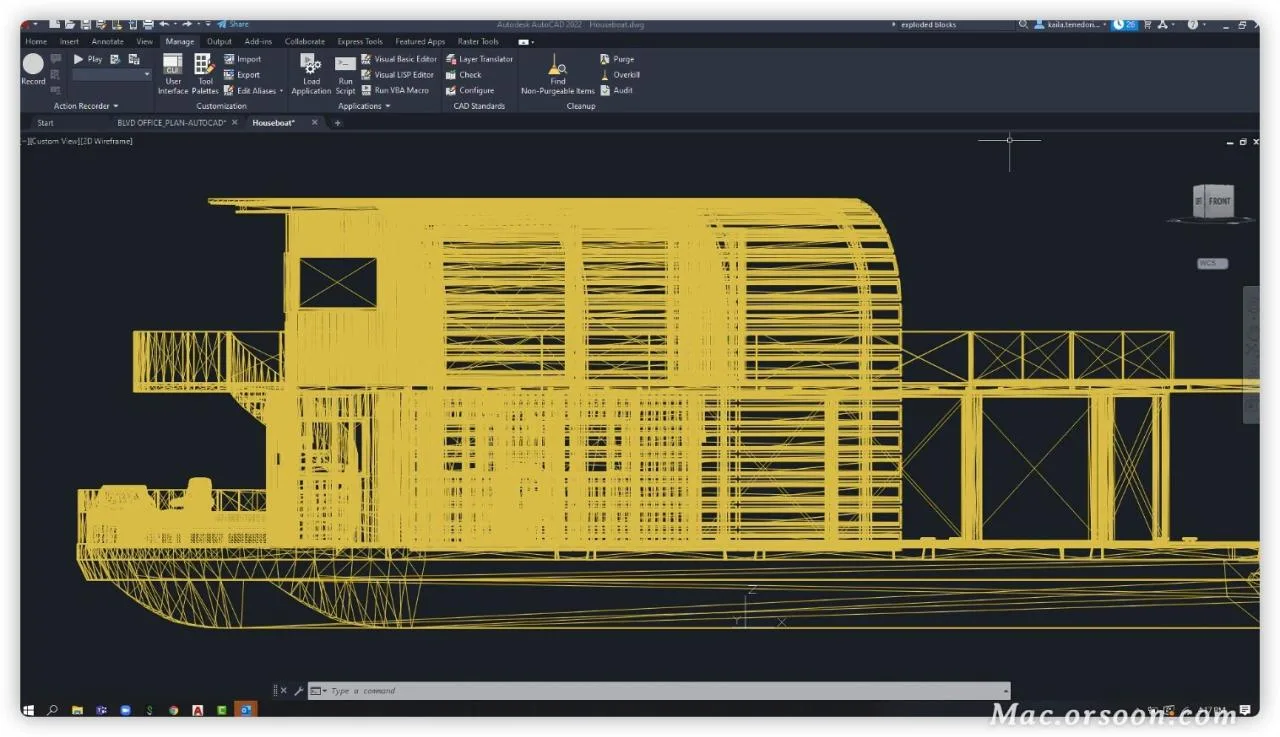 |
 |
 |
| Quick Measurement: Hover over graphics to instantly display nearby measurement values. | Cloud Storage Access: Connect to Autodesk cloud and other providers to access any DWG file. | Anywhere Access: Create, edit, and view CAD drawings via AutoCAD web and mobile applications. |
Additional Features
1. 2D Drafting, Drawing, and Annotation
- Text Settings: Create single or multi-line text (mtext) as a single object with formatting options for text, columns, and boundaries.
- Dimensions: Automatically generate dimensions with a preview by hovering over objects before placing.
- Leaders: Create leaders with various content types including text or blocks, with customizable guide lines and styles.
- Centerlines and Center Marks: Create and edit centerlines and center marks that move automatically with associated objects.
- Tables: Create tables with data and symbols, apply formulas, and link to Microsoft Excel spreadsheets.
- Revision Clouds: Highlight changes by drawing revision clouds around updates in your drawings.
- View Count: Save named views for easy access and apply to layout viewports.
- Layouts: Define drawing sheet sizes, add title blocks, and display multiple model views.
- Fields: Insert dynamic text that updates automatically based on field values.
- Data Binding: Create real-time links between Microsoft Excel spreadsheets and tables within drawings for synchronous updates.
- Data Extraction: Extract data from objects, blocks, and attributes including graphic information.
- Dynamic Blocks: Add flexibility to block references by enabling changes in shape, size, or configuration.
- Arrays: Create and modify objects arranged in circles, rectangles, or along paths.
- Parameter Constraints: Apply geometric and dimensional constraints to maintain design relationships.
- Clear: Delete multiple unnecessary objects at once with easy selection and preview.
2. 3D Modeling and Visualization
- Solid, Surface, and Mesh Modeling: Build realistic 3D models using a combination of modeling tools.
- 3D Navigation: Use orbit, ViewCube, and scroll wheel to navigate around 3D models.
- Visual Styles: Control edge display, lighting, and shadows in 3D views.
- Section Views: Create cross-sections through solids, surfaces, meshes, or regions.
- Rendering: Apply lighting and materials to enhance the realism of 3D models.
- Cloud Rendering: Render 3D models online without using local processing power or storage.
- Point Clouds: Attach point cloud files from 3D laser scanners as design references.
- Model File Generation: Generate 2D engineering drawings from 3D models including base, projection, section, and partial views.
3. Collaboration
- PDF Support: Import, export, or attach PDF files as references for sharing and reusing data.
- DGN Support: Import, export, or attach DGN files as reference maps.
- DWG Comparison: Compare two versions of drawings without leaving the current window.
- Drawing Sets: View, access, manage, and edit multiple drawings as a set.
- Model References and Imports: Attach Navisworks models as references or import models from other apps.
- Geographic Location and Online Maps: Insert geographic data and display maps from online services within drawings.
4. Installation and Customization
- Simplified Installation: Customize and speed up the setup process for AutoCAD.
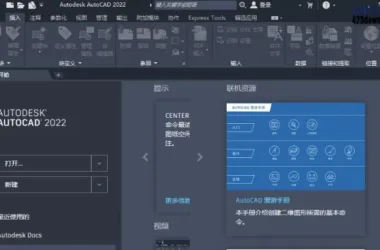
- Home Tab: Access files and useful content easily from the new AutoCAD Home screen.
- TrustedDWG™ Technology: Alerts users when a file may not be fully compatible due to previous software saves.
- CUI Customization: Customize the user interface to improve accessibility and reduce steps for common tasks.
- Safe Load: Set security restrictions for running executable files to prevent malicious code.
- Action Recorder: Record commands and inputs to create macros for repeated tasks.
- System Variable Monitor: Monitor system variables with alerts for deviations from preferred values.
- CAD Standard Inspector: Define and enforce CAD standards for layers, linetypes, text, and dimensions.
- API Support: Utilize ActiveX, VBS, AutoLISP, Visual LISP, ObjectARX, JavaScript, and .NET to control graphics and databases.













Must log in before commenting!
Sign Up