
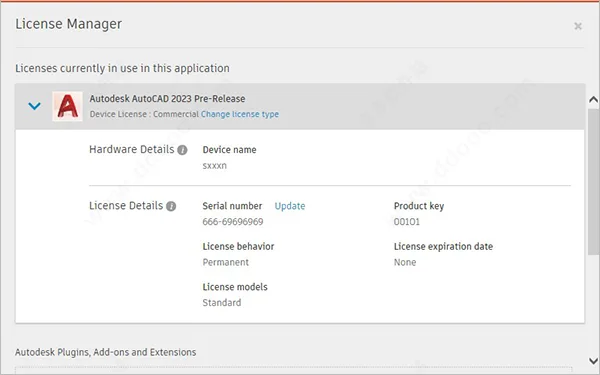
Autodesk AutoCAD 2023, commonly known as CAD2023, is a widely used computer-aided design (CAD) software favored by architects, engineers, and design professionals. It specializes in 2D drafting, detailed drawings, design documentation, and basic 3D modeling. While many CAD programs offer similar features, CAD2023 stands out with its intuitive interface and multi-document design environment. This makes it accessible to users of all skill levels, including those without extensive computer experience. In summary, it combines ease of use with a comprehensive feature set to meet professional demands.
CAD2023 also provides numerous shortcut keys and command lines that can boost productivity by up to 50% once mastered. Its powerful capabilities include 3D modeling and visualization, 2D sketching, graphics and annotations, real-time collaboration, and specialized toolsets—all designed to help users create precise 2D and 3D designs efficiently.
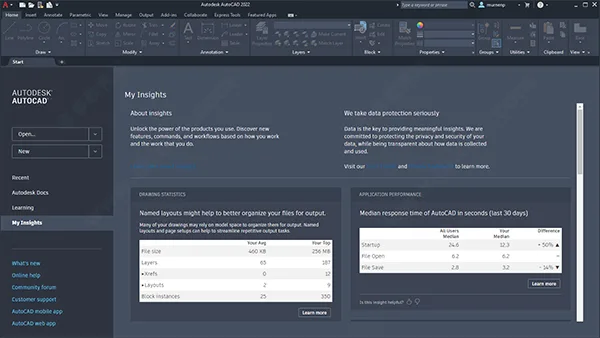
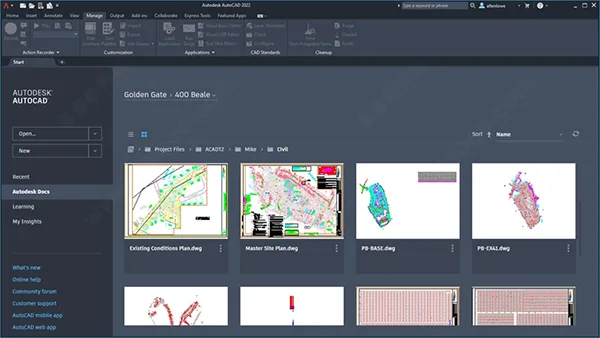
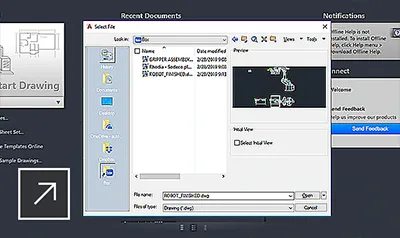
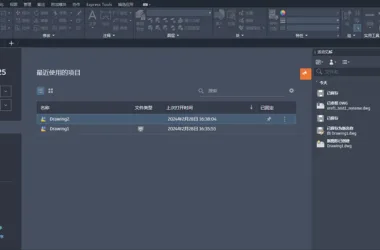
The latest release brings several improvements. A key addition is the My Insights feature, which offers personalized usage data and actionable recommendations based on your interaction with Autodesk products. Integration with Autodesk Docs is also enhanced for improved performance. Previously, users had to wait for thumbnails and file properties to fully load before working with AutoCAD. Now, opening an Autodesk Docs folder instantly displays a list of DWG files, allowing continued work as thumbnails load in the background, significantly improving user experience.
Note: This version of CAD2023 includes a registration tool, serial number, and activation key for free, unlimited, and permanent use. However, it is based on an Alpha test version and is not recommended for production use due to possible data loss or instability. For official or Chinese-language versions, please check this site for future updates.
CAD2023 Installation Guide
Important: Make sure your Windows 10 version is 1809 or higher before proceeding.
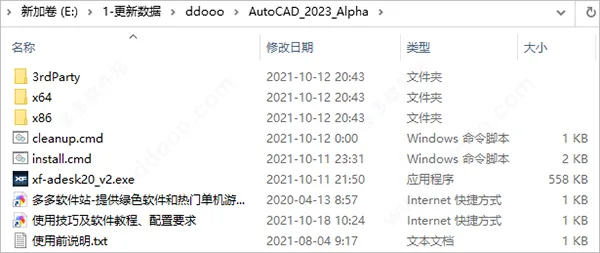
- Download and extract the installation package to access CAD2023 and the registration tool.
- Run
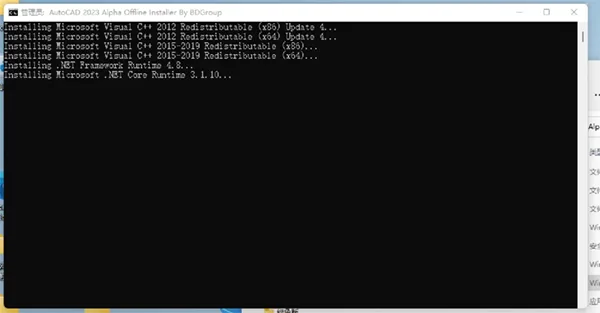
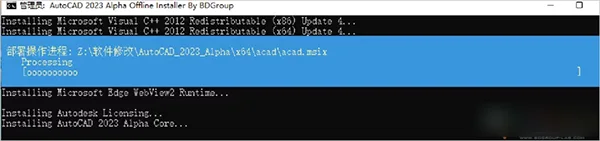
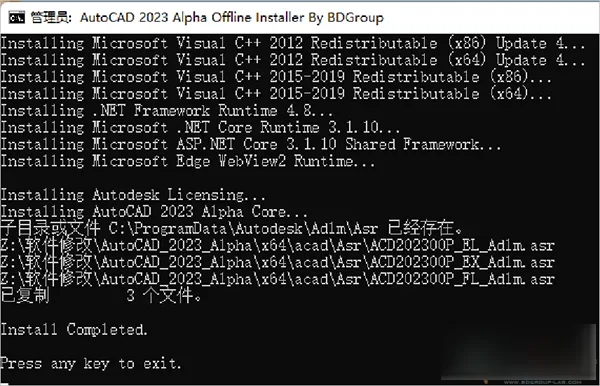
install.cmdas an administrator. - Wait until the installation finishes. If no red text appears in the command prompt, the installation was successful.
- Installation is now complete.
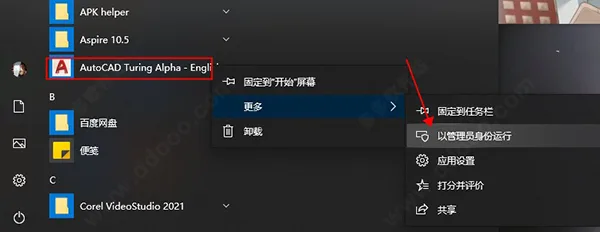
- Launch CAD2023 from the Start menu.
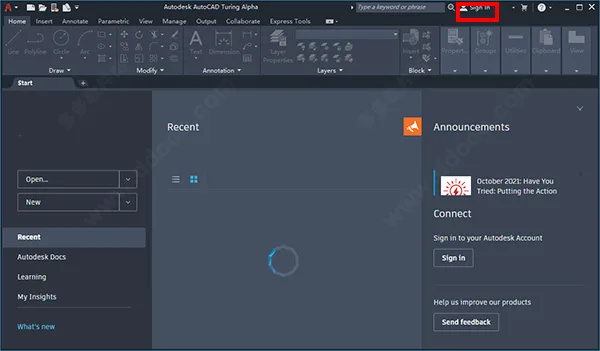
- Click “Sign In” at the top-right corner to open the registration page.
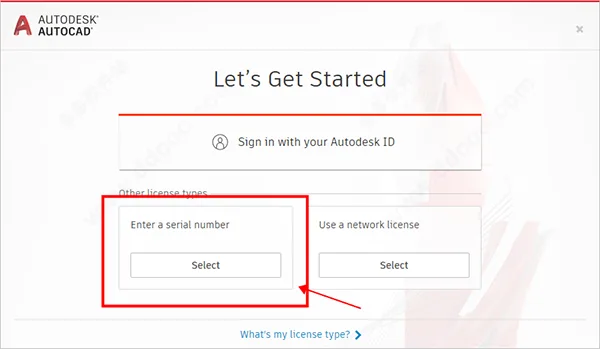
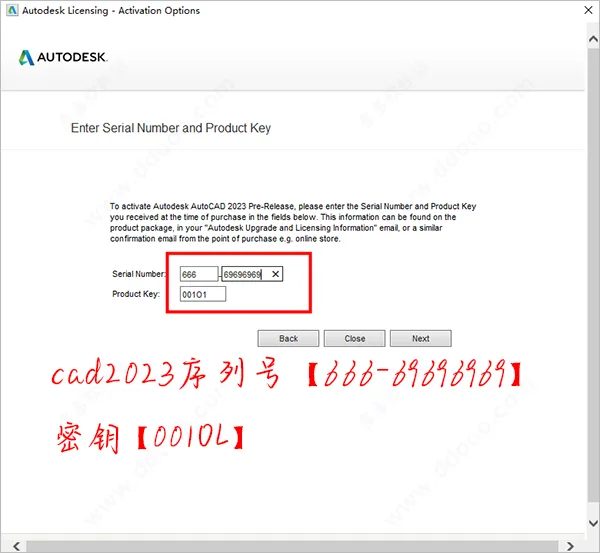
- Select “Enter a serial number” and input the CAD2023 serial number and key.
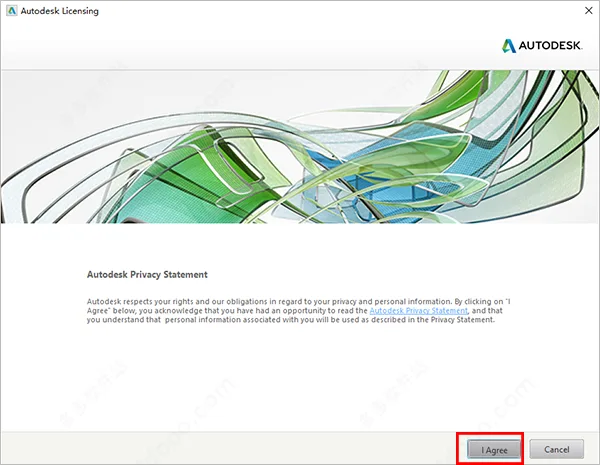
- Accept the license terms to continue.
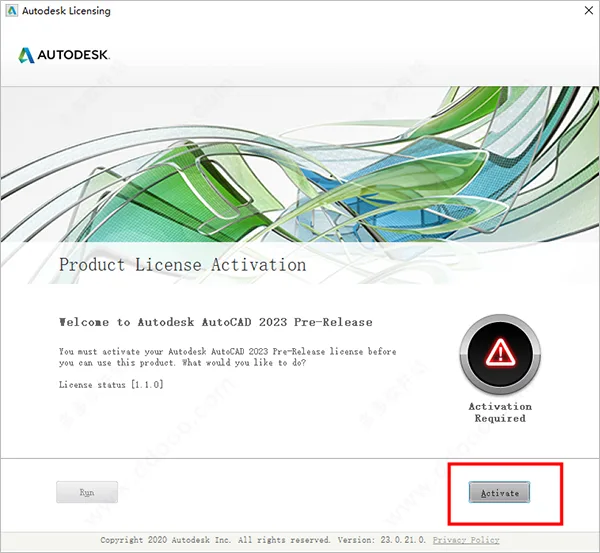
- Click “Activate” to begin activation.
- Enter serial number
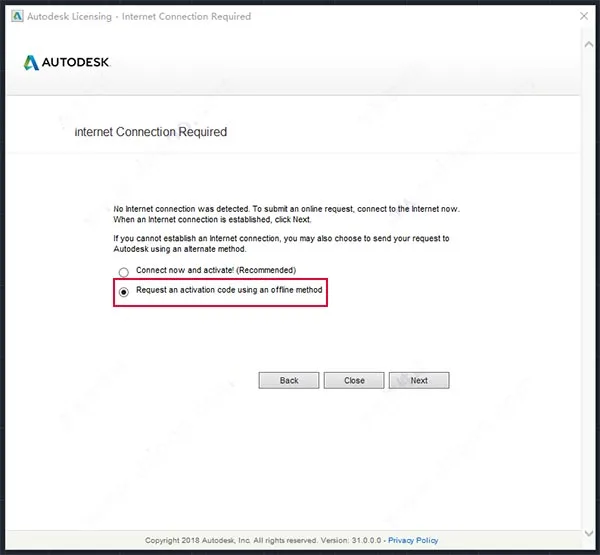
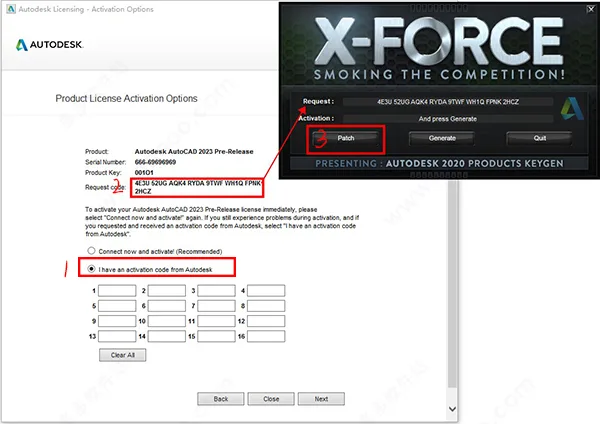
666-696996969and key001O1, then click “Next”. - Select “Request an activation code…” and click “Next”.
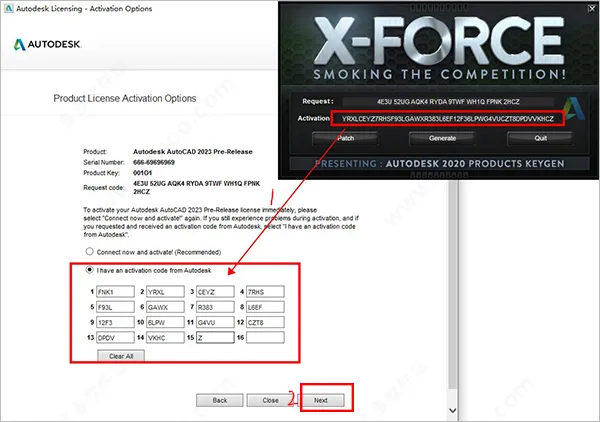
- At the registration window, choose “I have an activation code…”. Run the “xf-desk20-v2.exe” keygen, paste the request code from CAD into the keygen’s request field, then click “Generate”.
- Copy the generated activation code back into the software and click “Next” to complete the activation.
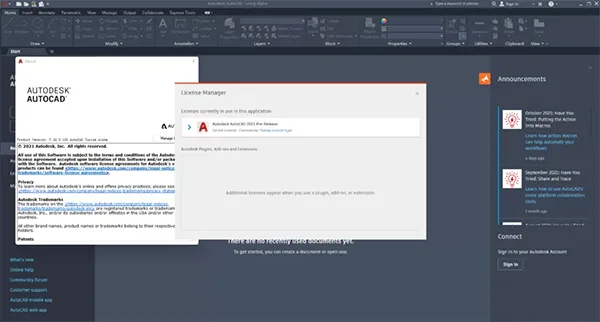
- After activation, CAD2023 is fully unlocked for unlimited use without restrictions.
Version Highlights
- Fully independent from ODIS; installation uses only built-in system commands.
- No full network connection required during installation, ideal for users with limited internet access.
- Removal of most unnecessary external components.
- Retains all original features, offering the complete experience of the latest version.
How to Uninstall
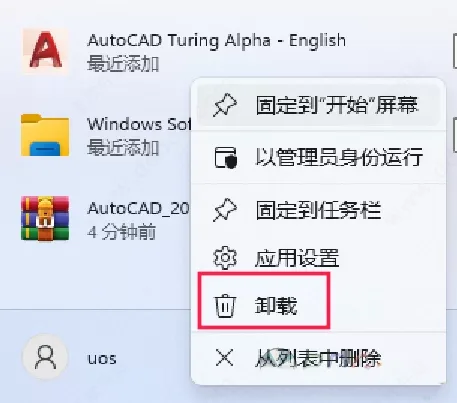
- Manually uninstall the program via the Start menu.
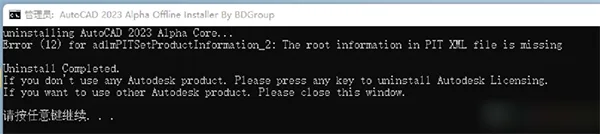
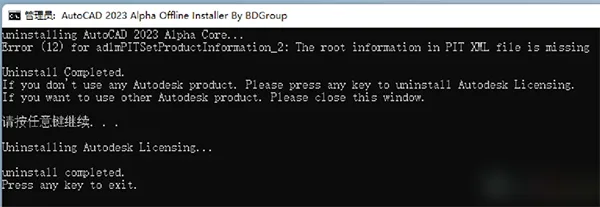
- Run
cleanup.cmdas an administrator to remove residual files. - If you no longer plan to use Autodesk products from 2020 or later on this machine, press any key to finalize the cleanup; otherwise, simply close the window.
New Features in CAD2023
- My Insights
Located on the Start tab, this feature provides personalized usage insights and suggestions based on your AutoCAD activities. It recommends commands and features to try, helping to enhance your productivity. - Improved Autodesk Docs Integration
Accessing Autodesk Docs files directly from the Home tab is now faster. When opening a Docs folder, a list of DWG files appears immediately, enabling work to continue while thumbnails load in the background. This is a significant upgrade from previous versions. - Additional Enhancements
Performance improvements affect the “Count” command, Autodesk Docs folders, and the Home tab, resulting in smoother operation.
Introduction to CAD Drawing for Beginners
- Learn about 20 fundamental commands, including drawing tools like Line (L), Rectangle (REC), and Polygon (POL).
- Get familiar with modification commands such as Offset (O), Copy (CO), and Move (M).
- Understand the use of layers, a core CAD functionality.
- Learn to use blocks, another essential CAD concept.
- Master assembly and printing techniques.
- Learn how to annotate CAD tolerances and fits, an important skill for precision engineering.
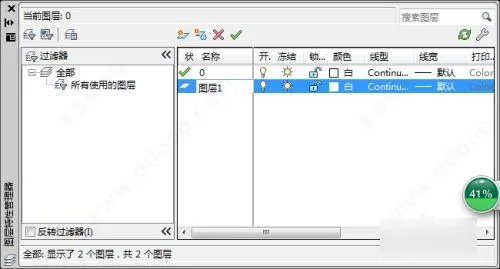
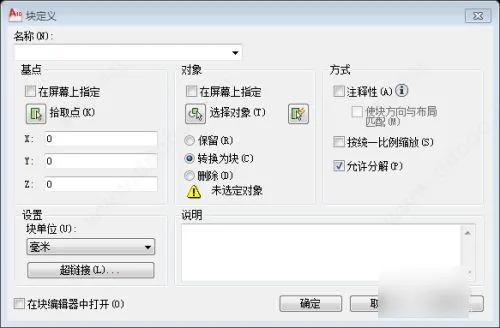
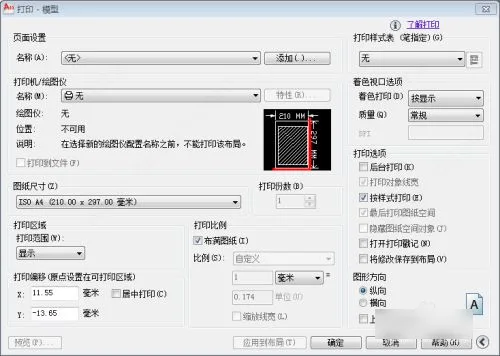
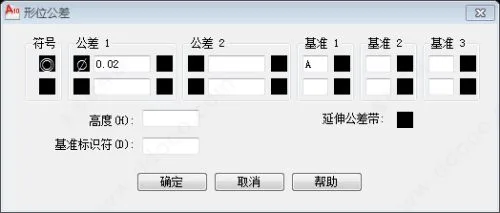
How to Draw a Dotted Line in CAD
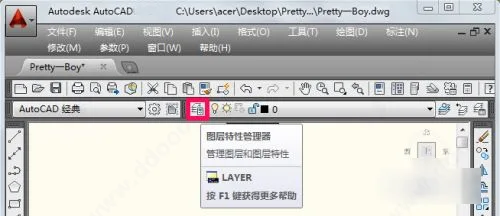
- Start by creating a new layer to keep your drawing organized. Open the Layer Properties Manager.
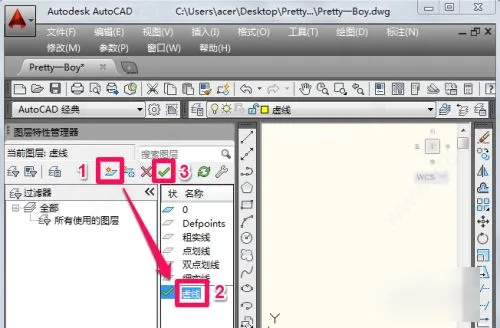
- Click “New Layer,” name it (for example, “Dashed Layer”), and set it as the current layer.
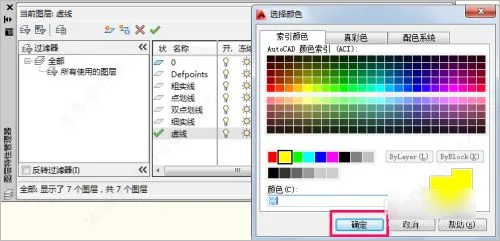
- Define the layer color by clicking the color option.
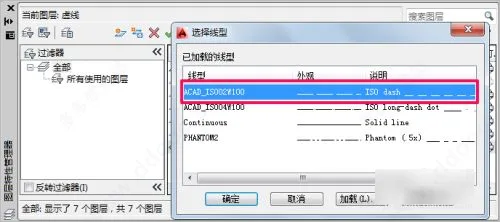
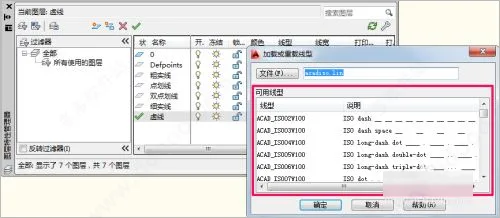
- Set the line type for the layer by clicking the line type option.
- Load and select additional line types as needed.
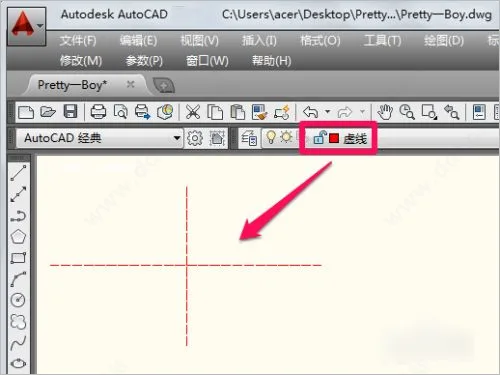
- After setting the color and line type, use the drawing tools to create dashed lines. In this example, red dashed lines are used for clarity.
Software Advantages
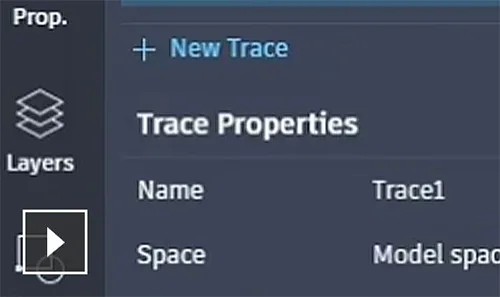
- Tracking: Review and add feedback directly on DWG files without modifying the original drawings.
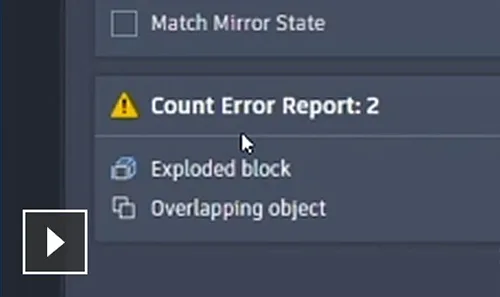
- Counting: Use the COUNT command to automatically tally blocks or geometric elements.
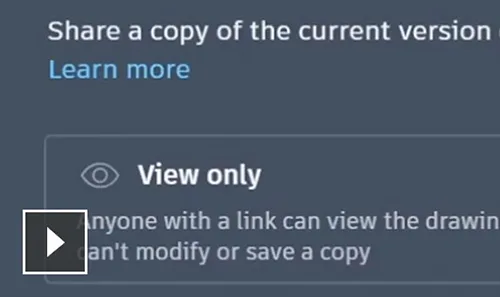
- Sharing: Share controlled copies of drawings with teammates and colleagues, enabling access from any location.
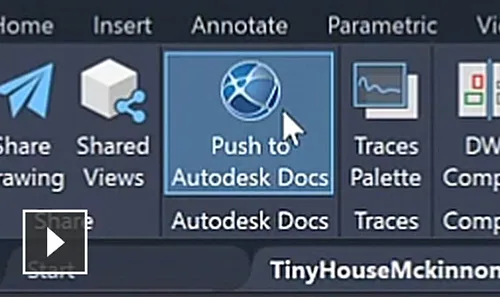
- Push to Autodesk Docs: Export CAD drawings as PDFs directly to Autodesk Docs.
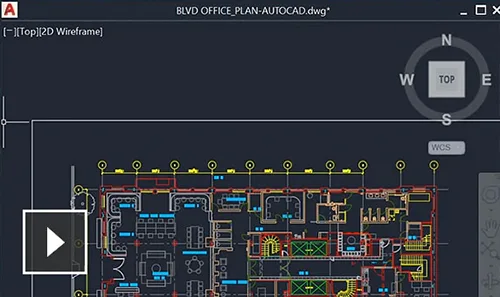
- Floating Windows: Detach graphics windows within the same AutoCAD session to view side by side or on multiple monitors.
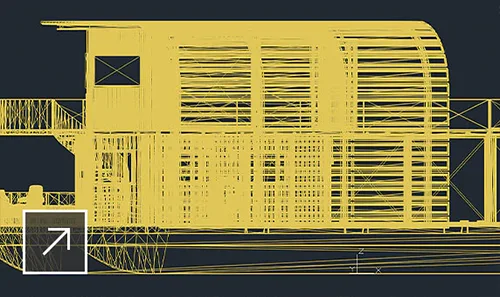
- Performance Enhancements: Enjoy faster drawing and 3D graphics rendering.
Additional Enhanced Features
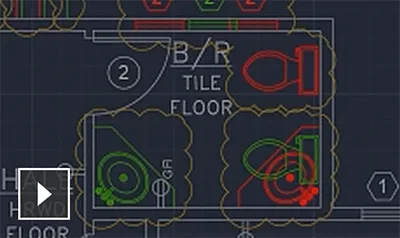
- Graphic History: Compare previous and current versions of drawings to track project evolution.
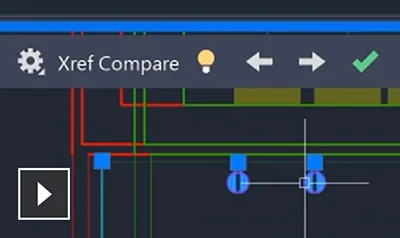
- External Reference Comparison: Compare two DWG files including external references (Xrefs).
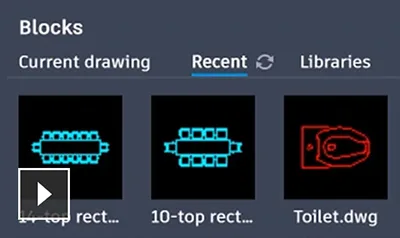
- Block Palette: Access block content from both desktop and web AutoCAD applications.
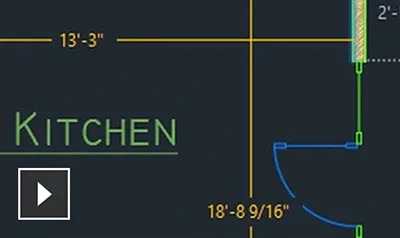
- Quick Measurement: Hover your mouse to instantly view nearby measurements in the drawing.
- Cloud Storage Integration: Access any DWG file via Autodesk Cloud and major cloud storage providers.
- Work Anywhere: Create, edit, and view drawings through AutoCAD’s web or mobile apps.
Locating and Adjusting CAD Point Styles
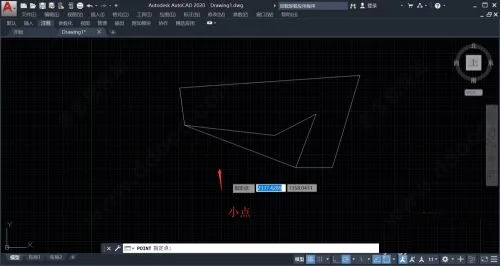
- Click anywhere in the drawing area to create a point.
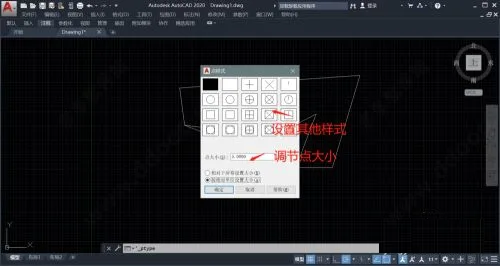
- The default point style is relatively small. To adjust it:
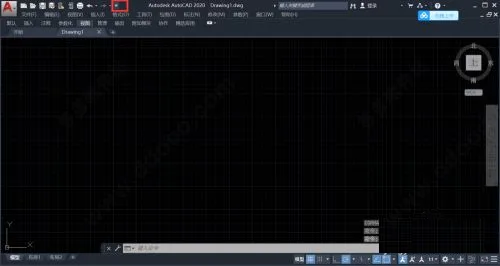
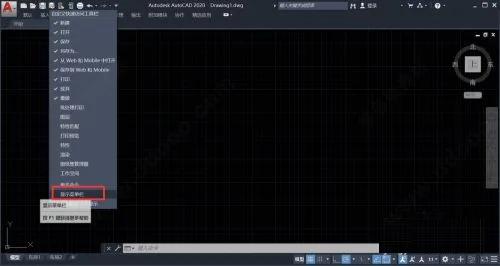
- First, unhide the menu bar by clicking the button shown below and selecting “Show Menu Bar”.
- This step is necessary for some CAD versions where the menu bar is hidden by default.
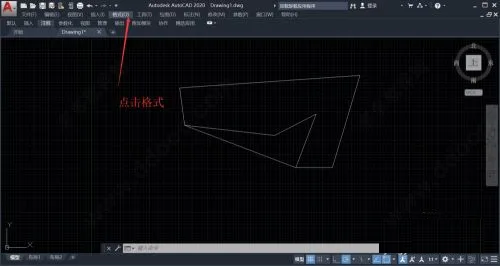
- Click “Format” in the menu bar.
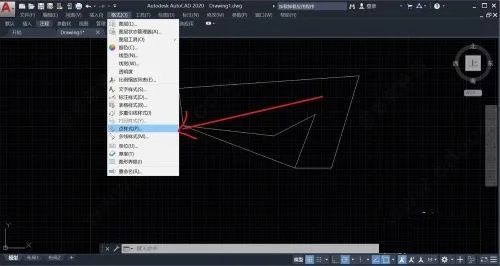
- Select “Point Style” from the dropdown to open the point style settings.
- Choose a point style that fits your drawing needs and click “OK” to apply.
Complete List of Shortcut Key Commands
- ALT + TK: Quick selection
- ALT + NL: Linear annotation
- ALT + V4: Quickly create four viewports
- ALT + MUP: Contour extraction
- Ctrl + B: Toggle Grid Snap Mode (F9)
- Ctrl + C: Copy selected object to clipboard
- Ctrl + F: Toggle Object Snap (F3)
- Ctrl + G: Toggle Grid Display Mode (F7)
- Ctrl + J: Repeat previous command
- Ctrl + K: Insert hyperlink
- Ctrl + N: Create new drawing
- Ctrl + M: Repeat previous command
- Ctrl + O: Open file
- Ctrl + P: Print current drawing
- Ctrl + Q: Toggle Save dialog
- Ctrl + S: Save file
- Ctrl + U: Toggle Polar Mode (F10)
- Ctrl + V: Paste clipboard contents
- Ctrl + W: Toggle Object Tracking (F11)
- Ctrl + X: Cut selected content
- Ctrl + Y: Redo
- Ctrl + Z: Undo
- Ctrl + 1: Open Properties dialog
- Ctrl + 2: Open Image Explorer
- Ctrl + 3: Open Tool Palette
- Ctrl + 6: Open Image Data Atom
- Ctrl + 8 or QC: Quick command
- Double-click middle mouse button: Show all images
CAD2023 System Requirements
- Processor: Recommended AMD Ryzen 5 3500X or Intel i5-9400F and above.
- Memory: Minimum 8GB; dual-channel 16GB or higher recommended.
- Display: Standard monitor resolution of 1920 x 1080 with true color support.
- Storage: At least 6.0 GB of free space; SSD SATA3 or high-end NVMe M.2 SSD recommended.
- Graphics Card: Recommended AMD RX580 8GB or NVIDIA GTX1660 6GB or better.













The software has expired
Not expired, can be downloaded normally
Thanks for sharing.
How is it in English
Expired
The download link has been updated and is now available for download.