
Installation Requirements
AutoCAD 2025 and its specialized toolsets require a 64-bit Windows operating system that is currently supported by Microsoft. Autodesk will discontinue support for products running on Windows versions no longer supported by Microsoft. Before installing any Autodesk software, please ensure your Windows system is fully updated.
If you want to install Autodesk ReCap Pro alongside AutoCAD 2025, you can download it here.
Microsoft .NET Framework 4.8 is required for AutoCAD 2025. If it’s not already installed, it will be automatically installed during setup. Note that .NET Framework 4.8 also requires a supported Windows version.
Event Insights: New Features in 2025
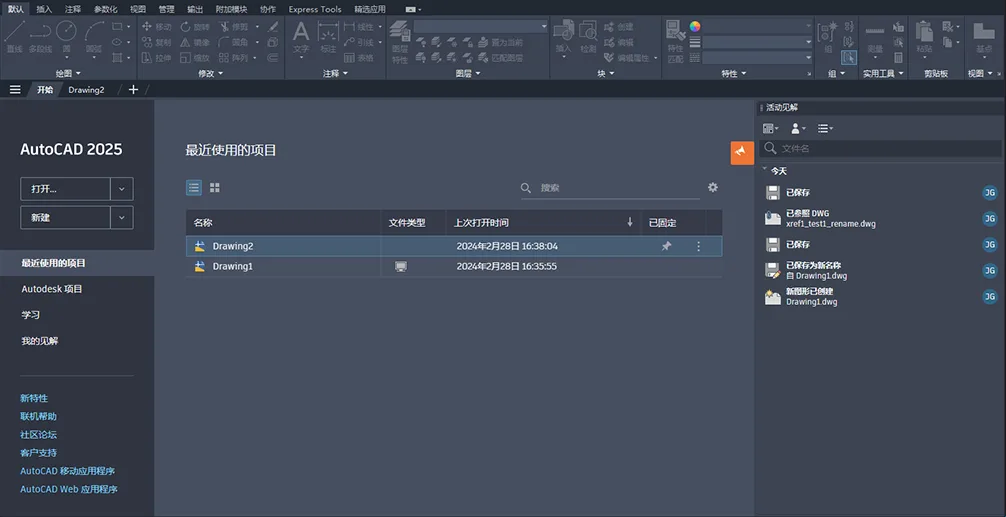
The new Activity Insights palette lets you track graphical changes and compare graphic histories. You can record activities and filter events by type, user, and date.
For example, you can review detailed information about the number and types of objects removed during a specific ‘Cleared’ activity:

DWG history is now integrated into Activity Insights. When saving files on supported cloud storage platforms such as Autodesk Docs, Google Drive, OneDrive, Box, or Dropbox, new file versions appear as “version” activities within the palette. Clicking ‘Compare’ on a ‘Version’ activity allows you to view differences between the current and previous versions.

You can also view graphic activities without opening the file. On the Home tab, click Recent Projects, select a drawing, then click the vertical ellipsis and choose ‘View Activity Insights’ to open the palette displaying the activity.

New System Variables
ACTIVITYINSIGTSUPPORT – Enables or disables the ‘Activity Insights’ feature.
Deprecated Commands
DWGHISTORY – This command is no longer necessary as its functionality is now integrated into the ACTIVITYINSIGHT OPEN command.
DWGHISTORY CLOSE – Similarly deprecated; functionality included in the ACTIVITYINSIGTSPLISE command.
Deprecated System Variables
DWGHISTORYSTATE – Deprecated; replaced by ACTIVITYINSIGTSTATE.
Import Tags from Autodesk Docs (New in 2025)
In addition to the existing “Tag Input” feature, you can now link PDF tag files from Autodesk Docs directly into AutoCAD. This allows drafters to efficiently view and merge revisions.

Create tags on PDFs within Autodesk Docs and synchronize them so collaborators can view these tags directly in AutoCAD’s “Track” workspace. The PDF markup remains linked to the AutoCAD drawing, ensuring that any updates to the markup are visible to all collaborators.
Smart Block: Search and Conversion (New in 2025)
AutoCAD 2025 introduces enhanced Intelligent Block features to streamline your design workflow. You can now convert multiple instances of selected geometry into blocks with ease.
When selecting geometry to convert, AutoCAD highlights all identical instances. You can then choose to convert both the selected and highlighted instances into blocks.

If converting to an existing block, you have several options: select from similar blocks identified by machine learning within the current drawing, recently used blocks, or your block library. Note that machine learning recommended blocks are exclusive to AutoCAD.
Once you select an existing block definition, you can adjust scale and rotation to control how the block replaces the instances.

Alternatively, you can convert the source object or a selected instance into a new block. In the “Transform” dialog, define the new block by specifying its name and insertion point, which defaults to the center of the selected geometry.

Quickly converting repetitive shapes into blocks reduces design redundancy and improves organization.
New Commands
BCONVERT – Opens the “Convert” dialog box to convert selected geometry and identical instances into blocks.
-BCONVERT – Command-line option for converting selected elements and identical instances into blocks.
New System Variables
- BLOCKEXCLUDECOLOR – Sets the highlight color for instances excluded from block conversion.
- BLOCKINCLUDECOLOR – Sets the highlight color for instances eligible for block conversion.
- BLOCKTARGETCOLOR – Sets the highlight color for the instance used as the basis for a new block definition.
Intelligent Block: Object Detection Technology Preview (New in 2025)
AutoCAD 2025 includes a technology preview that uses machine learning to scan graphics and identify objects suitable for block conversion. But what exactly is a technology preview?

When you initiate object detection, the geometry is analyzed by AutoCAD’s machine learning service. If suitable objects are found, the palette notifies you. Click ‘View Objects’ to review the detected instances.

In review mode, a “Detection” toolbar appears at the top of the drawing window, offering navigation and management tools for detection results. Detected objects are grouped into sets of similar objects — each collection represents a group that can be converted into block instances.
Within each set, the main instance (highlighted with a blue border) serves as the block definition for new blocks or determines insertion scale and rotation when converting to existing blocks.

If you identify incorrect sets or instances during review (e.g., a set lacks similar objects), you can report errors via the ‘Detection’ toolbar. This feedback helps improve the machine learning service’s accuracy.

Main Considerations
As a technology preview, object detection will continue to evolve. It currently performs best with flat-view graphics and is expected to support more object types over time.
At present, object detection works optimally with:
- Single door
- Double door
- Toilet
- Bathtub
- Urinal
- General lighting symbols
Note: Since detection relies on machine learning, results may not always be fully accurate or complete. For best results, set your drawing units to real-world measurements before running detection.
While in review mode, the following commands are temporarily disabled:
- BEDIT
- COMPARE
- COUNT
- COUNTLIST
- PLOT
- PUBLISH
- REFEDIT
- TRACE
- XCOMPARE
New Commands
- DETECT – Opens the “Detection” palette and starts object detection.
- DEETECCLOSE – Ends detection review.
- DEETECCONVERT – Opens the “Convert” dialog to convert highlighted instances into blocks.
- DETECTPRIMARY – Sets the detected instance used to create a new block definition.
- DEETECREMEOVE – Removes the selected instance from the set.
- DETECTREVIEWNEXT – Shows the next set of detected objects.
- DEETECREVIEWPRV – Shows the previous set of detected objects.
Improved Fill Patterns (New in 2025)
The HATCH command now allows you to create fill patterns easily, even without existing boundary geometry.

You can draw fill shapes using polylines, circles, or rectangles, or apply pattern fills along specified paths.
Updated Commands
- HATCH – Fill enclosed areas or selected objects with patterns, solids, or gradients.
New System Variables
- HPDRAWMODE – Controls drawing mode when defining patterns or new boundaries to fill.
- HPPATHALIGNMENT – Specifies path alignment for pattern or fill application.
- HPPATHWIDTH – Defines the width of the path to be filled.
Esri Maps Integration (New in 2025)
Five new Esri map styles are now available to assign geographic location information to your drawings.
Access these maps via Insert tab > Location panel > Set Location > From Esri Map.

Alternatively, type GEOGRAPHICCLOCATION in the command line and select ‘Map’.
The five new Esri base map styles include:
- Esri Open Street Map
- Esri Imagery
- Esri Street Map
- Esri Light Gray
- Esri Dark Gray

Tracking Updates (New in 2025)
Tracking features have been enhanced with improved toolbars and the ability to edit external references while in ‘Edit Graphics’ mode.
Tracking Toolbar
The ‘Tracking’ toolbar now clearly indicates whether you are editing tracks (TRACEEDIT) or graphics (TRACEVIEW). The ‘Settings’ dropdown can be pinned to stay open and dragged to a new location, similar to a palette.

Edit External References in ‘Edit Shape’ Mode
When ‘Tracking’ is active, REFEDIT is enabled during ‘Edit Drawing’ mode, allowing you to modify external references.
Tag Input and Tagging Assistance (New in 2025)
Tag input and assistance features have been improved for better integration of graphic revisions from tagging files into your drawings. Key enhancements include:
-
- Tagging assistance now supports external references.
- When inserting revision clouds with markers, you can choose between rectangular or polygonal shapes. Rectangular clouds use the highlighted boundary as their size and shape, while polygonal clouds approximate the detected marker’s shape.

-
- You can now add multiple text tags to assist with text insertion. This means you can combine multiple text strings from various tags into a single multiline text or multileader object. When the “Tag Assist” text dialog opens, click “Select Tag Text to Add,” then choose the tag to include.
- In “Edit Graphics” mode, the “Settings” dropdown includes “Annotation Styles,” allowing you to set the current text and multileader styles conveniently when using “Tag Assist.”















Where are the registration machines, serial numbers, activation keys
Where are the registration machines, serial numbers, activation keys