

AutoCAD 2024, developed by Autodesk, is a powerful computer-aided design software used for creating both 2D and 3D designs. It is widely adopted in architecture, engineering, and construction industries. AutoCAD 2024 provides a comprehensive suite of tools including drawing and annotation, layer management, blocks and dynamic blocks, external references, layouts and viewports, output options, 3D modeling and visualization, cloud storage and sharing, data extraction, and much more.
Installation Steps
- Download the AutoCAD 2024 software folder, as shown below.

- Right-click on “AutoCAD_2024_Simplified_ChineseWin_64bit.dlm_002_002.sfx” and choose “Run as administrator”.
- If needed, change the automatic decompression path, then click “OK”. (You can delete this file after installation.)
- The installation package will decompress automatically. Please wait for this process to complete.
- The software will initialize; please be patient until this finishes.
- Agree to the terms of use by checking the box, then click “Next”.
- Choose your preferred installation path and click “Next”. Keeping the default path is recommended.
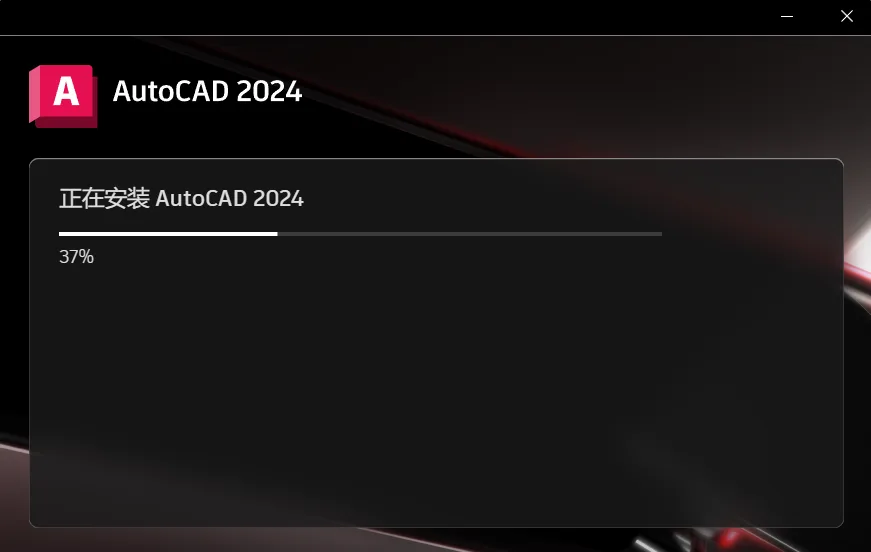
- The installation will proceed. Please wait patiently until it finishes.
- When prompted, select “Later”.
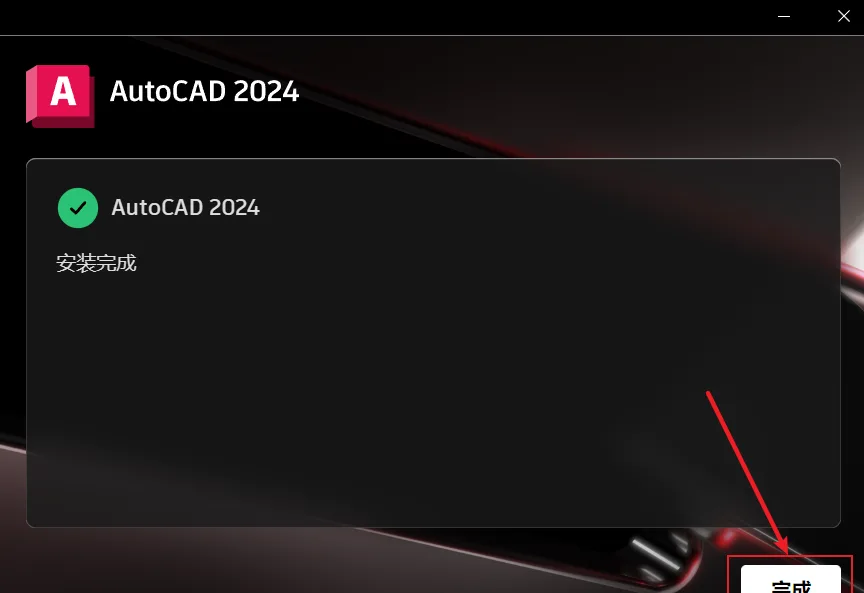
- Finally, click “Finish” to complete the installation.
Activation Steps
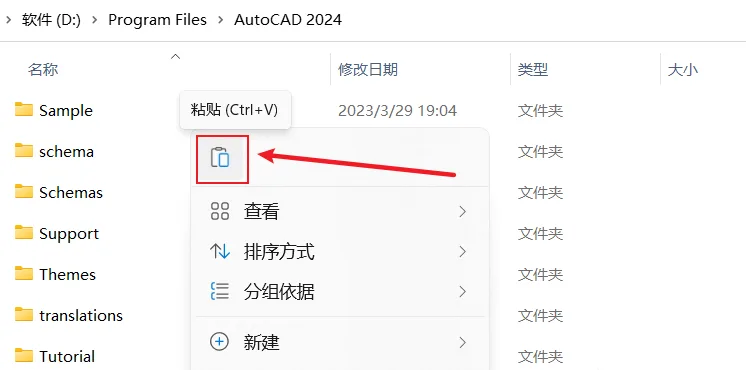
- Go to the crack folder, copy “acad.exe”, then paste and overwrite the existing acad.exe file in the AutoCAD 2024 installation directory.
- Double-click the AutoCAD 2024 icon to launch the software.
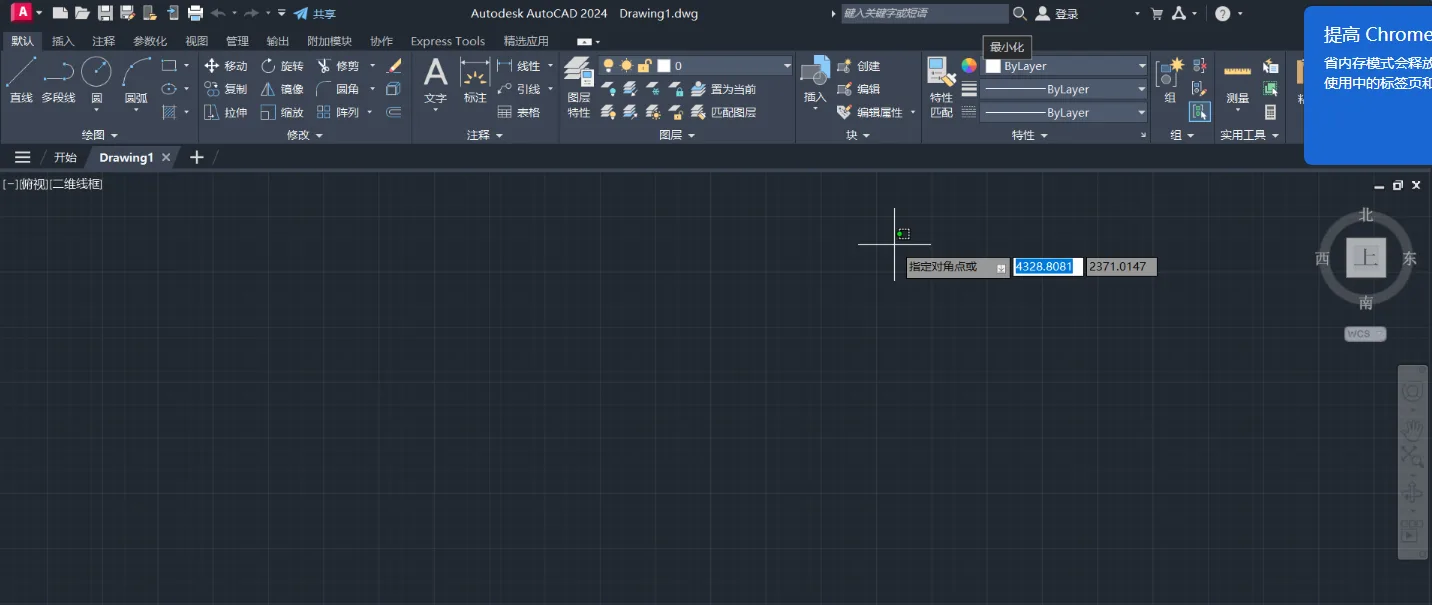
- The software will start up.
- Installation and activation are now complete.
What’s New in AutoCAD 2024
Explore the latest features and improvements in AutoCAD 2024.
Key Features
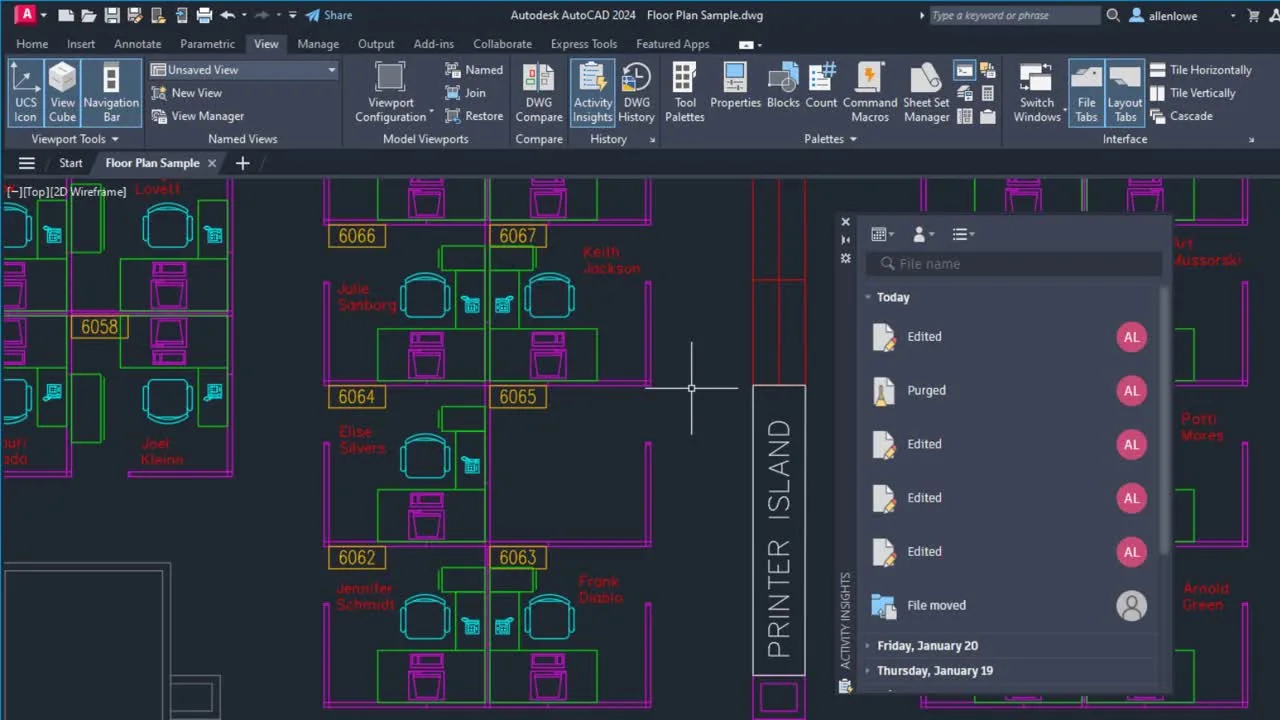
New Features Overview (Video)
Watch this video to see key enhancements and new capabilities introduced in AutoCAD 2024.
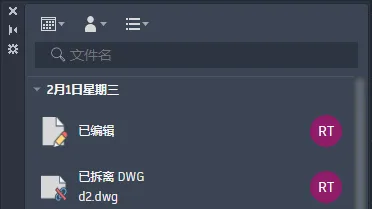
Activity Insights
The new Activity Insights feature lets you track and review actions performed by you or others within your drawings, providing better awareness of edits and changes.
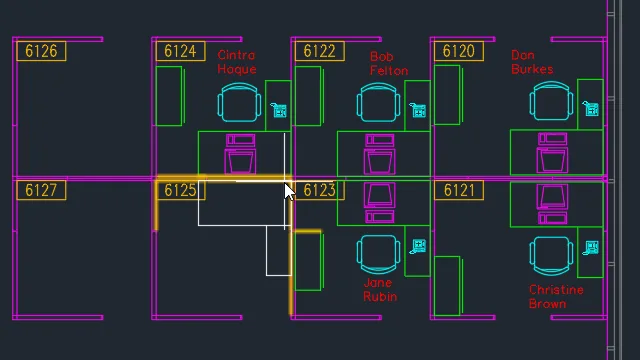
Smart Block: Placement
The new Smart Block feature suggests block placements based on where you previously inserted blocks, simplifying your workflow.
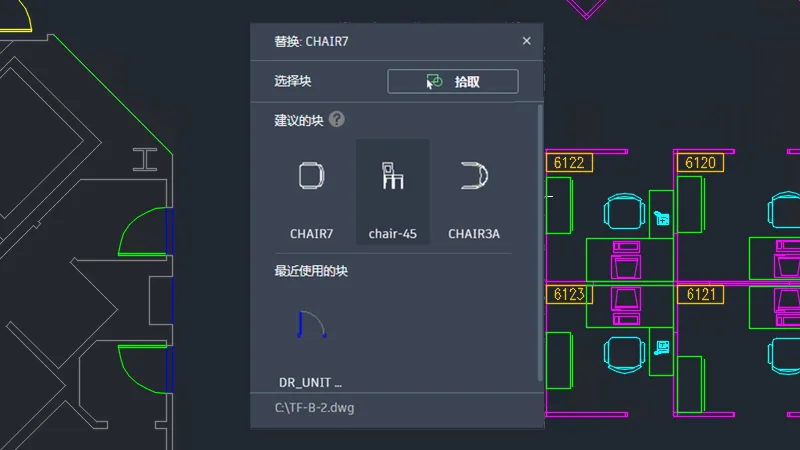
Smart Block: Replacement
You can now replace specific block references by choosing from a palette that suggests similar blocks, enhancing editing flexibility.
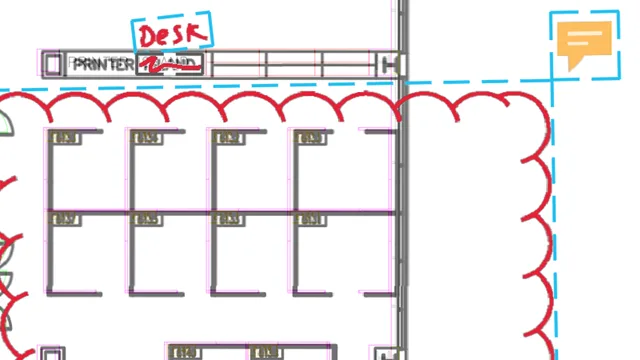
Tag Assist Improvements
Enhancements to Tag Assist make it easier and faster to input tags in your drawings, improving annotation efficiency.
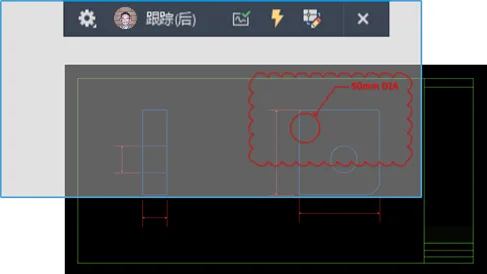
Tracking Updates
The tracking system has been improved with a new COPYFROMTRACE command and updated settings accessible via the toolbar.
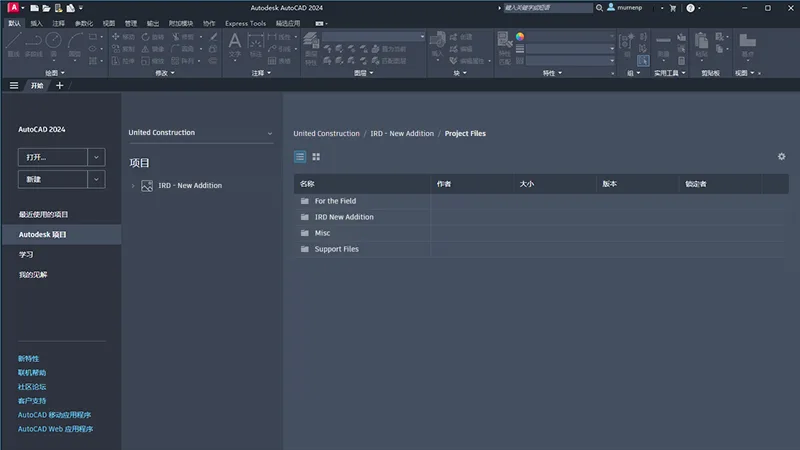
Autodesk Docs Enhancements
Performance and navigation for drawings stored in Autodesk Docs have been improved on the Home tab, offering a smoother user experience.
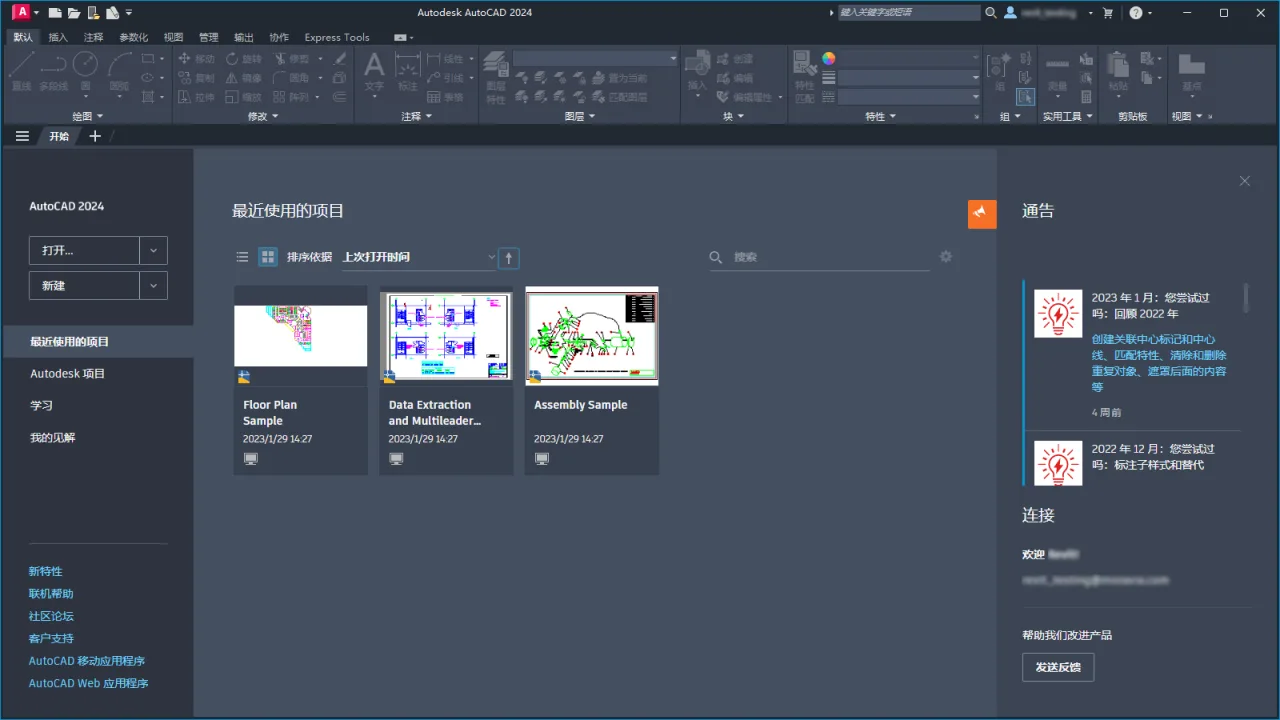
Updated ‘Start’ Tab
The Home tab now includes new sorting and searching options for recently used drawings, helping you access projects more quickly.
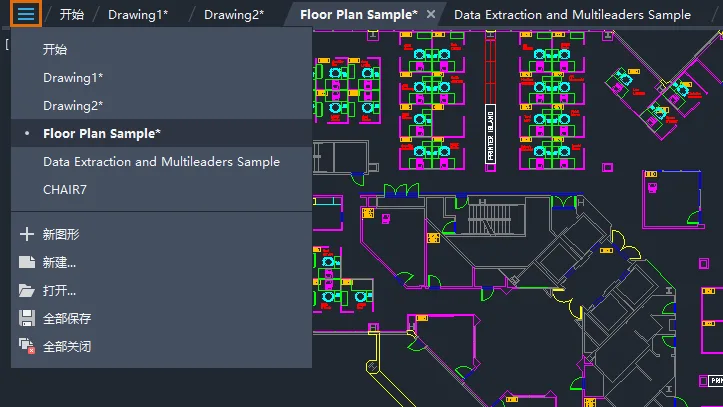
File Tab Menu
The new File tab menu lets you switch between drawings, create or open files, save all open drawings, close all files, and more.
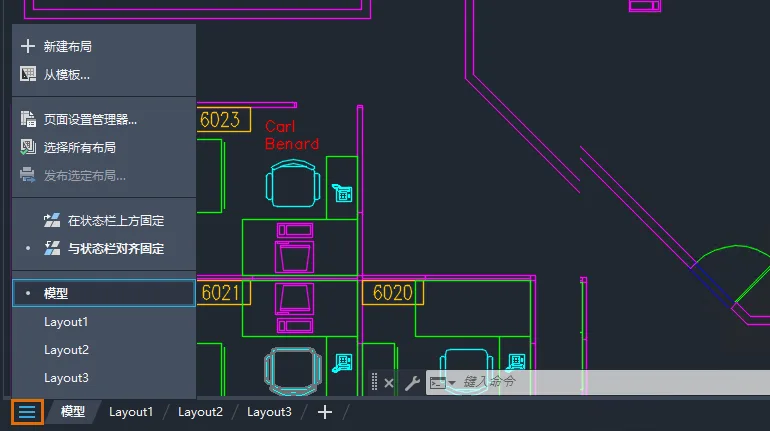
Layout Tab Menu
The new Layout tab menu allows you to switch between layouts, create layouts from templates, publish layouts, and more.
Additional Feature Enhancements
PDFSHX System Variable
Setting PDFSHX to 2 stores text objects using SHX fonts as hidden text when exporting drawings to PDF. This makes the text searchable and selectable within the PDF.
Drawing Set Manager (Web) Improvements
The web Sheet Set Manager now includes:
- Automatic management of sheet set locks
- Selection of multiple drawings for publication
- Options to publish multiple drawing PDFs or individual PDFs per drawing
- Control over PDF naming and file locations
- Ability to overwrite existing files during publication and electronic transmission
- File name and location control during electronic transmission
- Control of the position of new drawings
- An ‘Open Sheet Set’ button added to the palette
3D Graphics
Improvements to visual styles like “Coloring (Quick)” and “Edge Coloring” include:
- Support for Map 3D and Civil 3D
- Support for large coordinate systems
- Enhanced selection tools: column selection, lasso, polygon
- Paper space support
- Point cloud support
- Improved line width rendering
- Better handling of external references and locked layers
- Overall enhancements in stability, visual realism, and performance
2D Graphics
Enhancements to 2D graphics include:
- Improved performance when handling drawings with raster images or area coverage
- Enhanced tracking background, marker input, marker assist, and ViewCube display
- Faster layout switching
Note: Enabling hardware acceleration can significantly boost AutoCAD’s performance and responsiveness.
Installation Updates in AutoCAD 2024
AutoCAD 2024
AutoCAD LT Security Options
New security settings have been introduced for online deployment of AutoCAD LT. These options enable administrators to restrict the execution of certain executable files within AutoCAD LT.
Removed Option
The option “Allow access to Autodesk Account from within Autodesk products” has been deprecated and removed from the ‘Expand Customization’ configuration.
Autodesk Access
The updated desktop update experience replaces the Autodesk Desktop Applications (ADA), saving time when updating product software. Autodesk Access offers enhanced control for users and administrators over product updates.
Note: Autodesk Access is not available for Mac OS.
Inventor Interoperability Components Installed on Demand
Model documents in AutoCAD require Inventor interoperability components (formerly Inventor Server). Previously, these components installed by default. Starting with AutoCAD 2024, the system prompts to install these components only when needed — for example, when using model document commands for the first time, importing an Inventor file, or opening a drawing created by the AutoCAD Mechanical toolset.
This change improves performance for most users by excluding these components from the default installation.
For more details, see “About Model Documents and Commands for Handling Model Document Graphic Views”.
Note: Inventor interoperability components are installed by default with the AutoCAD Mechanical toolset.
One AutoCAD 2024 Installation Guide
The following FAQs complement the standard Autodesk installation and licensing documentation. Most installation steps follow common procedures across Autodesk products.
- How to download, configure, and install software for personal use.
- Administrator installation guidance, including license management and network deployment settings.
- Managing products, profiles, users, and payments through your Autodesk Account.
AutoCAD, AutoCAD LT, and Specialized Toolsets
- Differences between custom standalone installation and deployment
- Available installation tools
- Accessing local offline help
- Installing and uninstalling language packs
- Including custom configuration files (.org) with support for file search paths and templates during deployment
- Available options in custom installation
- How to uninstall the product
AutoCAD and AutoCAD LT
- How to disable ‘transplant custom settings’ during deployment
AutoCAD for Mac and AutoCAD LT for Mac
- Silent installation procedures
- Network deployment support
- Accessing local offline help
- Restoring all default settings
One AutoCAD Specific Toolset
The following FAQs supplement the regular Autodesk installation and licensing documentation for dedicated toolsets.
AutoCAD Architecture and AutoCAD MEP
- Removing content packs after installation
- Creating desktop shortcuts for content packs
- Setting up shared AEC content for online deployment
AutoCAD Mechanical
- Setting up shared toolset libraries for online deployment
- Removing the standard toolset library after installation
AutoCAD Electrical
- Overview of installation structure
- Network deployment for AutoCAD Electrical
- Configuring SQL Server for catalog content
- Managing manufacturer content and symbol libraries
AutoCAD Plant 3D
-
- Installation and configuration guidelines
- Installing Autodesk Vault for Plant Projects
AutoCAD Map 3D
- Installing Infrastructure Administrator














Must log in before commenting!
Sign Up