BIM World
A Professional BIM Learning Platform


BIM Q&A | How to Handle Missing Material Fields When Adding to Revit Detail Tables

BIM Q&A | What to Do If the Material Field Is Missing When Adding Fields to a Revit Detail Table
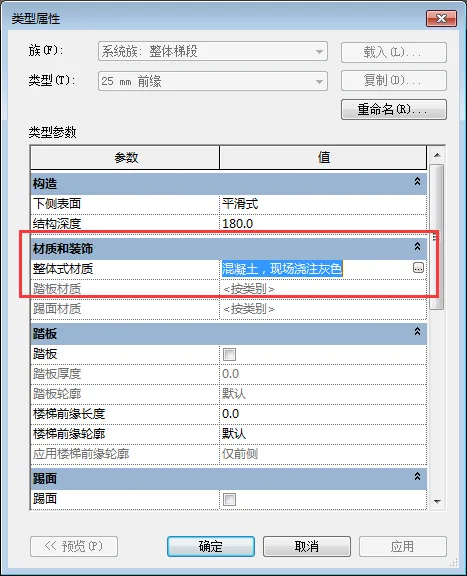
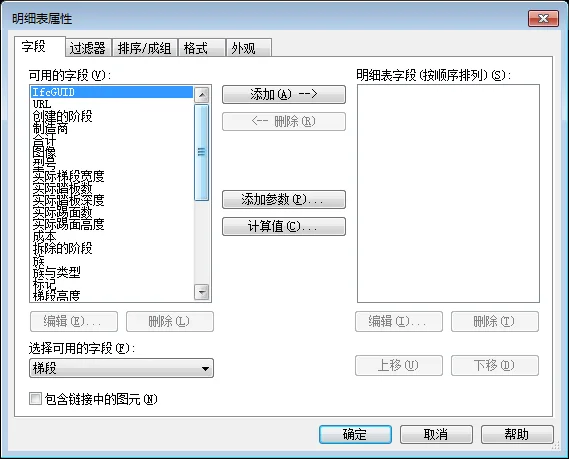
BIM Q&A | What to Do If the Material Field Is Missing When Adding Fields to a Revit Detail TableBIM Q&A | What to Do If the Material Field Is Missing When Adding Fields to a Revit Detail Table


First, create the required detailed schedule.

Tips for Using Detail Table Filters in Revit

To filter the detail table attributes, click on the filter option and set the desired filtering criteria. You can apply up to eight filters, but keep in mind that each filter requires the corresponding fields to be added.

Note that the following detail table fields do not support filters:

1. Category

2. Type

3. Category and Type combined

4. Area Type

5. Material Parameters

Another approach to filtering by name is to add specific label fields for different types and mark them as “hidden fields” in the schedule format.

Finally, you will obtain the detailed schedule with the appearance and format you need.

xuebim
Follow the latest BIM developments in the architecture industry, explore innovative building technologies, and discover cutting-edge industry insights.
← Scan with WeChat
Like(0) 打赏
BIM WORLD » BIM Q&A | How to Handle Missing Material Fields When Adding to Revit Detail Tables

Comment Get first!

Must log in before commenting!


BIM World, A Professional BIM Learning Platform

Stay updated on the latest architecture trends and share new building technologies.

Contact UsAbout Us

觉得文章有用就打赏一下小编吧

非常感谢你的打赏,我们将继续提供更多优质内容,让我们一起创建更加美好的网络世界!

支付宝扫一扫

微信扫一扫

Account Login

By signing in, you agree toUser Agreement

Sign Up













