
BIM Software
Tip: How to Export STL Format Files in Revit
Revit does not support direct export to STL files. To achieve this, you need to first save your model as a DWG file, then open it in AutoCAD to create the STL file.
- Switch to a 3D view in Revit.
- Go to the File menu and select Export > CAD Formats.
- A dialog box will appear. Scroll through the dropdown menu (this option is only available in 3D views) and select ACIS Solids.
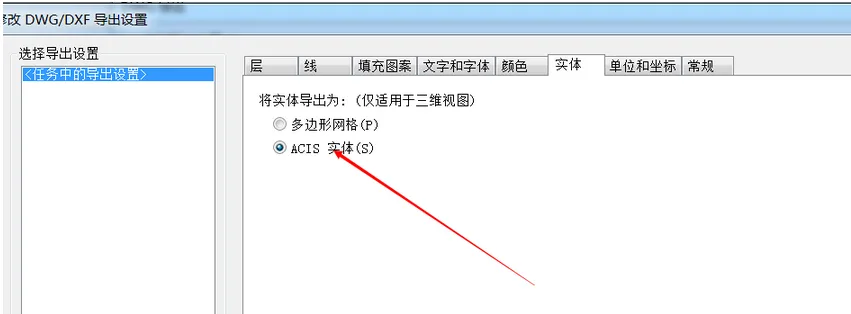
Next, choose “DWG of AutoCAD XXXX” as the export format and save the file.
Open the saved DWG file in AutoCAD:
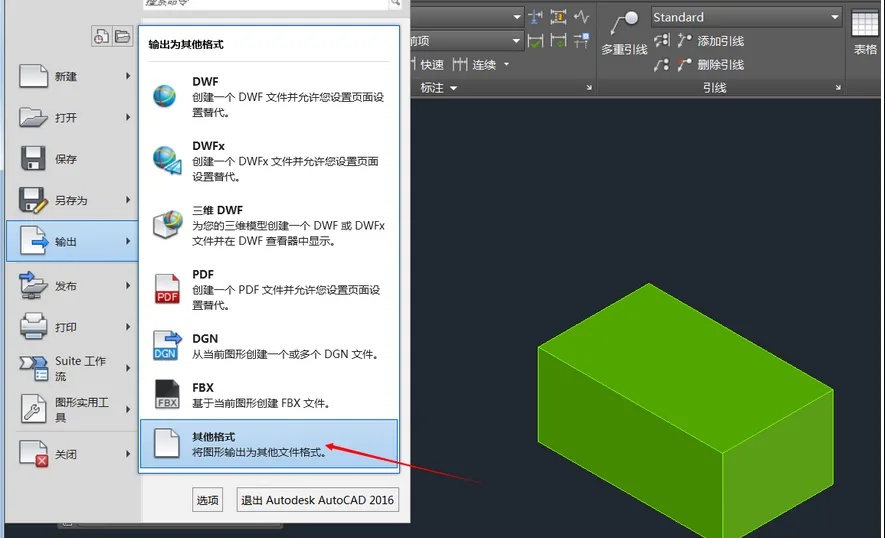
In AutoCAD, you need to export a solid STL file. Make sure your model is a solid before exporting:
- Use the command menu and select your object(s).
- After selecting the objects, press Enter.
- When prompted with “Create a binary STL file? __AI_T_SC_0_:”, type Y and hit Enter.
Alternatively, you can export your Revit file as an FBX and import it into 3ds Max. 3ds Max provides tools to check for any issues with the solid model before exporting to STL.

xuebim
Follow the latest BIM developments in the architecture industry, explore innovative building technologies, and discover cutting-edge industry insights.
← Scan with WeChat















We need to have both pictures and text. Do we still need to install other plugins
The screenshot has been uploaded.
Talking in a vague and ambiguous manner
I didn’t understand. Can you be more detailed