
The Revit materials in Autodesk products represent real-world substances such as concrete, wood, and glass. By applying these materials to different parts of your design, you can give objects a realistic appearance and behavior.
In certain design environments where visual presentation is a priority, materials include detailed appearance properties such as reflectivity and surface texture. In other situations, the material’s physical characteristics, like yield strength and thermal conductivity, are more significant because they are essential for engineering analysis.
Attention
Revit LT does not support the physical or thermal properties of materials. The “Physical” and “Thermal” tabs are not available in the “Material Editor” panel, so some features described in this section do not apply to Revit LT.
The image below demonstrates the appearance properties of the “Bronze” and “Soft Tin” materials as shown in the “Material Browser”.
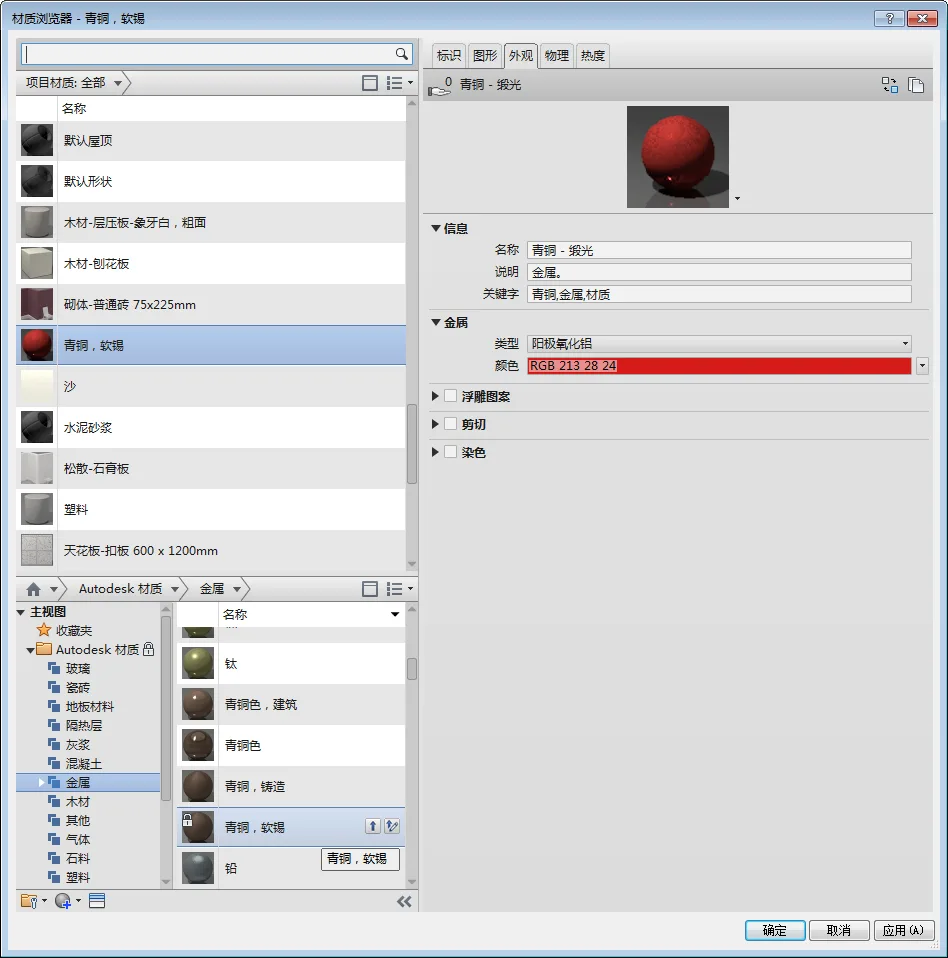
Material Browser
The appearance properties are organized as a “resource” within the material and are managed on the “Appearance” tab. Other resources related to materials can be managed on their respective tabs. When editing an existing material in a project, you can modify each resource individually. For example, if you want the bronze material to appear red, you can replace its appearance resource with “anodized aluminum,” which has different appearance properties.
The Material Browser dialog box allows you to find and manage materials. Common tasks include:
- Adding materials to the current project.
- Placing materials into a collection (also known as a material library) for easy access.
- Editing materials in the current project.
- Adding resources to a material.
















Must log in before commenting!
Sign Up