
Revit drawings are organized as separate pages within the construction document set. In Revit, you need to create a distinct drawing view for each sheet in your construction documents. Each drawing view can contain multiple graphics or schedules.
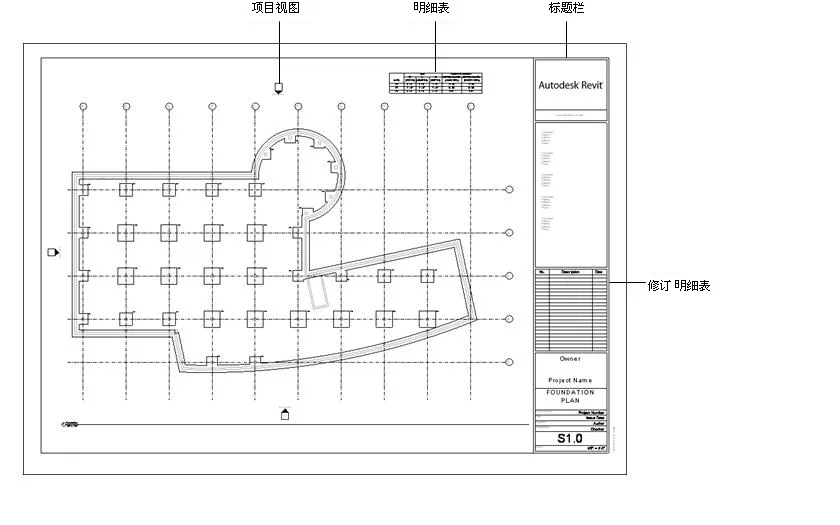
Some parts of the drawing
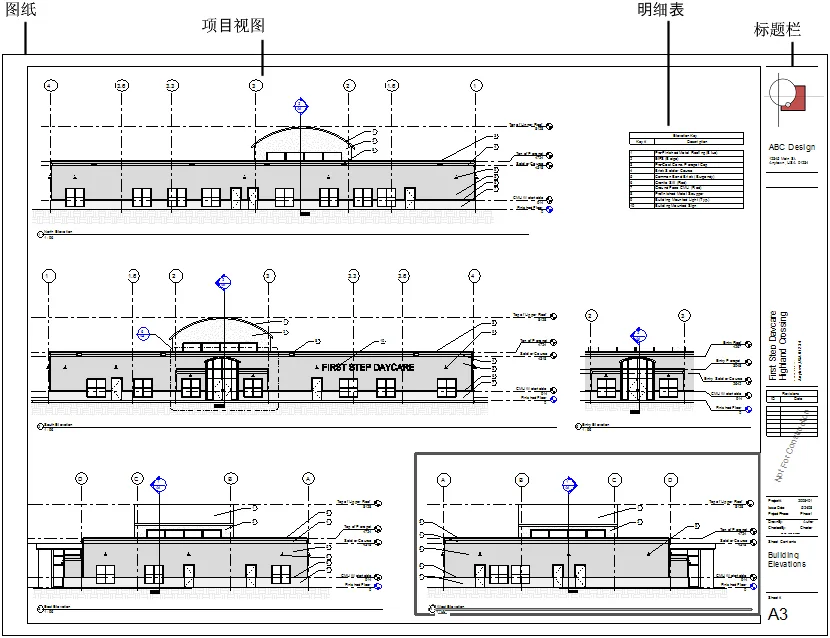
Other sections of the drawing
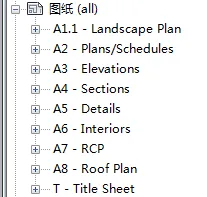
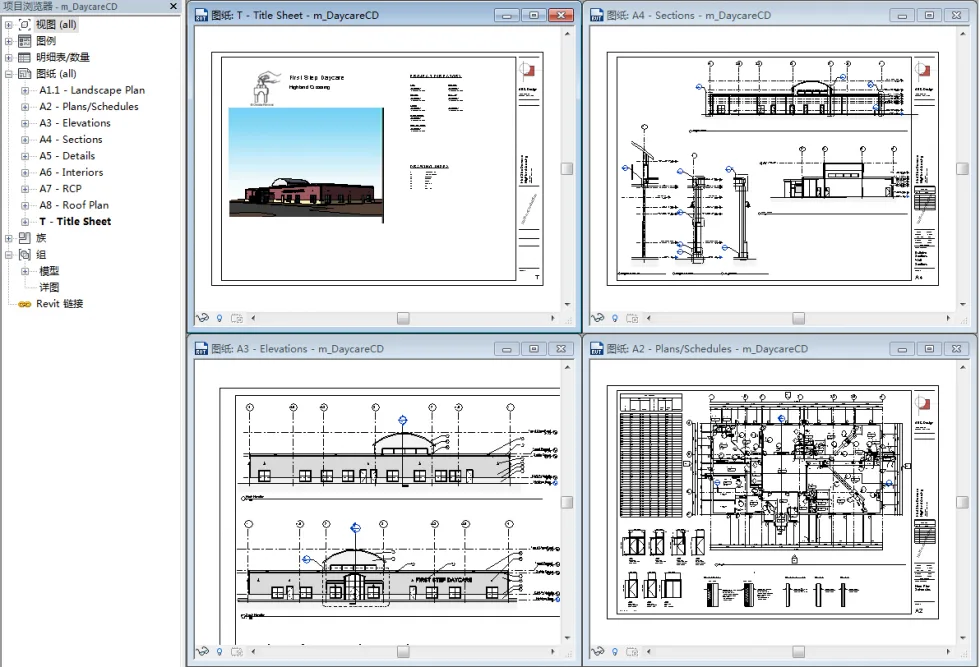
After you add drawings to a Revit project, they will be displayed under “Drawings (all)” in the Project Browser. This allows you to easily manage and locate your drawings.
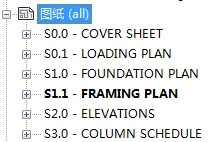
The drawings will appear in the Project Browser
More examples of how the drawings are shown in the Project Browser
When you move a drawing or schedule onto a sheet, a viewport is created. A viewport is a graphical representation of the view or schedule that you have placed on the drawing.
Some architects use cartoon collections to plan their project documentation requirements. A cartoon collection is a rough outline of the drawings you want to include in your construction document set, along with the graphics, schedules, or other information to be shown on each drawing.
By preparing a cartoon collection in advance, you can ensure that your final set of construction drawings contains all the necessary information. This approach also helps ensure that the construction documents comply with your organization’s standards.
With Revit, you can create a digital cartoon collection. Start by adding the required views (graphics and schedules) to your project, and sketch the basic design of the building model. Include the necessary drawings in the project and assign them appropriate names and numbers. Next, place these views onto the corresponding drawings. If needed, you can set the view scale, title, and other properties immediately, so the generated drawings will use the correct settings.
Although these initial views and drawings may not show the complete design, they do provide the overall structure of the project. As you continue developing the building model in the project view, the schedules will update automatically, and the drawings will display the necessary information. This technique simplifies the management of project documents.
When creating a digital cartoon collection that meets your organization’s standards or matches a typical project setup, you can use project templates in Revit.
Revit Project Template Drawings
When setting up a project template, you can include drawings within the template itself. Begin with a blank project file, then create the standard views and elevations that every project should include. Leave these views empty, but assign them consistent, standard names. To develop a standard set of construction documents, use the required title block as you create the drawings. Add views to the drawings using the preferred viewport template and view title type. After setting up the template, save the empty project as a project template.
When you create a new project using this template, all the necessary views and drawings are already created and listed in the Project Browser. As you begin to develop the building model in the project view, the drawings will update automatically. This method streamlines the document management process and helps maintain organizational standards.
















Must log in before commenting!
Sign Up