

Tianzheng Electric T20 v4.0 is a 3D BIM electrical design software developed by Tianzheng Software. It offers a wide range of design features, including 3D bridge structures, collision detection, high-voltage circuit breaker current calculations, and 3D lightning protection. The software supports design improvements and is compatible with AutoCAD versions 2010 through 2016. The latest version, T20 v4.0, adds compatibility with AutoCAD 2017 and introduces several practical enhancements. Users interested in this software can download it now!

New Features in Tianzheng Electric T20 v4.0
- Supports 64-bit AutoCAD 2017 platform.
- Optimized and updated commands based on the “Industrial and Civil Power Supply and Distribution Design Manual” (Fourth Edition), including “Annual Lightning Strike Count,” “Reactive Power Compensation,” “Voltage Loss,” “Load Calculation,” and “Relay Protection.”
- Supports the “Lighting Design Manual” (Third Edition), updating data related to “Illumination Calculation,” “Multi-line Illumination,” and “Point-by-Point Illumination.”
- Introduced the ‘Line Generated Bridge’ function to convert L/PL/ARC elements in diagrams into physical Tianzheng Electric bridges.
- Added maximum sag consideration for lightning protection lines, enabling automatic generation of protection zones in both 2D and 3D, along with calculation sheets and lightning protection meters.
- New ‘Plug-in Flash Tower’ command to insert 3D lightning rod towers into diagrams.
- Enhanced [Component Labeling] with customizable options for component models, manufacturers, and other data, plus support for batch importing data from Excel.
- Improved [Arbitrary Arrangement]: added device category page flipping shortcut keys in the command line; optimized scaling of image blocks with commands E or D at different scales; added insertion method settings for devices connected to wires.
- After drawing diagonal three-way components, modified horizontal end bridge specifications to improve the display of connected three-way components.
- Optimized bridge components to allow automatic generation of reducing components.
- Rectangular layout disabled when there is only one row and zero margin.
- Enhanced [Device Replacement] command to maintain original proportions after replacement.
- Double-clicking inserted fire equipment allows modification of fire attribute words; attribute words cannot be hidden when set to value 1.
- Fixed layout issues when block and wire line widths are both set to zero.
- Addressed problems with cable trench entity changes during copy or move operations and improved display quality when two cable trenches with different chamfer radii intersect.
- Fixed crash issues during [Illuminance Calculation] and [Multi-row Illuminance] when transferring tables to Word.
- Resolved block line width resetting to default zero when locking non-electrical layers and modifying default block line width during device layout commands.
- Fixed layer lock/unlock delay and unexpected option interface pop-up when using platform 20.
- Addressed [Bridge Annotation] and [Bridge Setting] issues where classification keywords were not saved after modifying system classification and reopening drawings.
- Corrected flipped block direction errors during [Equipment Replacement] operations.
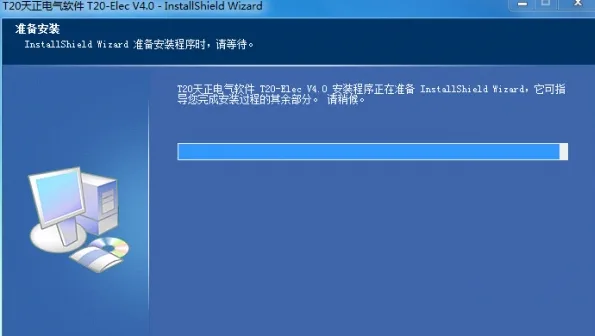
Installation Tutorial for Tianzheng Electric T20 v4.0
- Download the software from this website, unzip the package, then double-click the installation file. Agree to the license terms by clicking “Yes” when prompted.
- Set the installation directory to the default path:
C:TangentTElecT20V4. Modify it by clicking “Browse” if needed. - Choose the default Start menu folder.
- Follow the on-screen instructions step-by-step to complete the installation.
Frequently Asked Questions
Q1. Why is the Tianzheng Electric option board missing from the software interface?
This option board is available only in non-classic mode for AutoCAD 2009 and later versions. It usually appears after switching AutoCAD workspaces. If it does not appear, use the menuload command to load the TANGENT file located in the sys folder within the Tianzheng Electric installation directory.
Q2. The software launches without a left menu bar or Tianzheng toolbar below. How can I fix this?
If the left menu bar is missing, press Ctrl + + on the keyboard or enter the command tmnload. (Note: This excludes cases where official version users cannot find the encryption lock or trial users have exceeded the trial period.)
If the toolbar below is missing, go to Initial Settings > Electrical Settings, make sure the Tianzheng Quick toolbar control is enabled, then click “OK”.
Q3. Why do graphics preview correctly when arranged arbitrarily but appear very small or large when inserted into the drawing?
This is caused by incorrect graphic unit settings. The AutoCAD Units command changes the insertion scale units to either “no unit” or “millimeters.”
Q4. Why don’t some graphic elements display in pure AutoCAD?
Due to communication limitations with user drawings, pure AutoCAD cannot parse Tianzheng custom entities. Use the Graphic Export command to convert the current drawing into T3 format for display. Also, higher Tianzheng versions have upgraded entity parameters; when opening such files with lower versions, you must convert them to corresponding formats like T20V3, T20V2, T9, etc.
Q5. How do I restore grounding and flashing wires to their original styles?
By default, grounding and flashing wires use a new style with letter line types per specifications. Users can switch to the “normal line type + block” style via Initial Settings > Electrical Settings > Plane Wire Settings.
Q6. Can wire models and specifications be customized?
Yes. Users can configure wire information by selecting the corresponding wire type button under Initial Settings > Electrical Settings > Planar Wire Settings.
Q7. Why can’t attribute words be displayed when setting up custom equipment?
Two attribute words are not allowed on the same device. To fix this, explode the block, use the filter selection command to select and delete all old attributes, then reinsert the attribute words to rebuild and arrange the device.
Q8. On a 64-bit system, why does T20V2 or Tianzheng 2014 version show an error on startup, and why do bridge drawings fail to bend with bridge calculation commands crashing?
This is due to local computer security settings preventing registry entries and database connections. To resolve this, close the software and run the .reg and .exe files found in the sys18x64 and sys19x64 folders within the Tianzheng Electric installation path.
Run files from sys18x64 for AutoCAD 2010 to 2012, and from sys19x64 for AutoCAD 2013 to 2014.
Note: This issue does not occur in T20V3 and later versions.












Must log in before commenting!
Sign Up