
Quick Space Settings in Revit MEP
When calculating heating and cooling loads in MEP, setting up spaces correctly is essential. But is there a tool that allows you to manage these settings all at once?
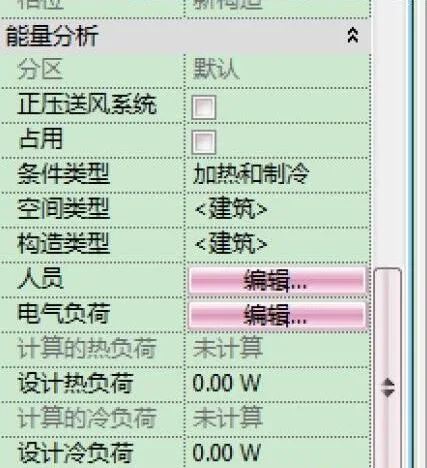
After labeling the spaces, the space settings are displayed as shown in the image below. You can directly modify the relevant parameters within the instance properties of each space:
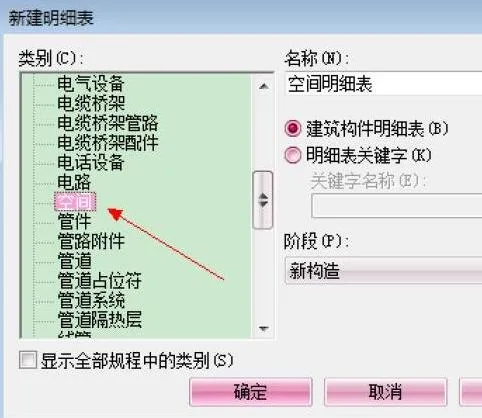
The second, more efficient way to configure space settings is by using the schedule table. Open the schedule view and select the space category, as demonstrated in the image below:
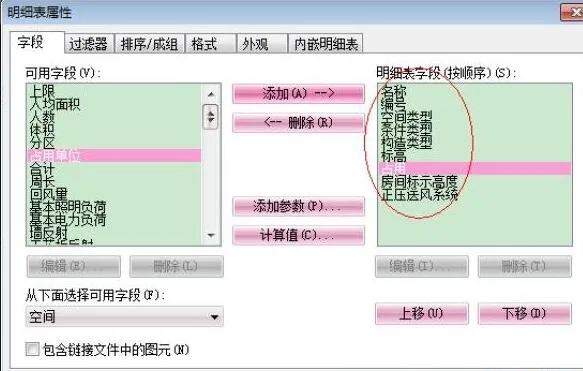
Next, add the necessary detail fields to the space schedule, as shown on the right side of the image below. These fields correspond to the space setting parameters mentioned earlier:
Once you click the button, a detailed list will appear, similar to a management panel where you can easily modify any parameter. Changes made here will automatically update the spatial parameters for the corresponding spaces:
Related Tips
How to Customize Your Own Shortcut Keys in Revit
Revit 2014: Complete Shortcut Key Summary Table
















The content of this article is very practical, but why can’t I see the pictures? Thank you
The image has been updated and can now be viewed