
NavisWorks is a powerful 3D/4D design review software that enhances quality and productivity throughout the entire lifecycle of engineering projects. With NavisWorks Manage, design teams can integrate project drawings and architectural outputs into a unified building information model. This comprehensive model allows all stakeholders to view the project as a whole and perform thorough reviews of the combined data.
By leveraging NavisWorks, teams can optimize various project stages—from design decision-making to construction execution, performance prediction, planning, facility management, and operations. The software supports coordination of regulations, conflict detection and resolution, and effective project planning before any construction or renovation begins.
NavisWorks significantly boosts work efficiency and minimizes issues during engineering design, making it a trusted platform for smooth project development. It supports all major CAD file formats, including dwg, 3ds, nwd, dwf, and more. The interface is flexible, upgradable, and programmable to meet diverse user requirements.
Below is a demonstration of the installation process using the 2014 version, which closely mirrors the 2015 version:
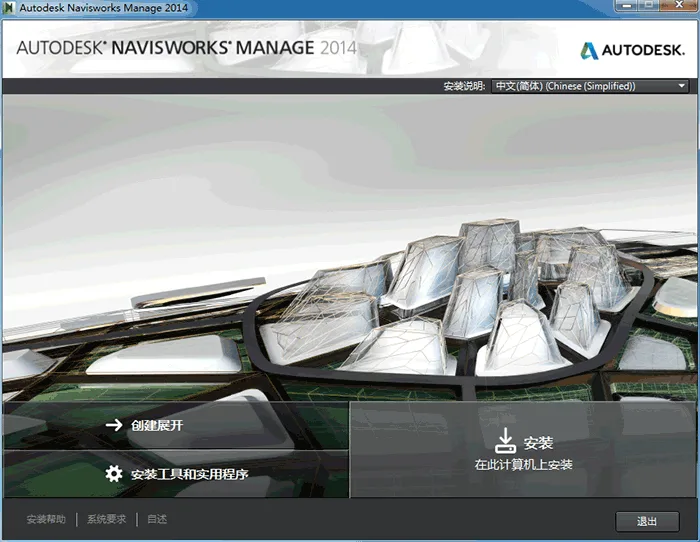
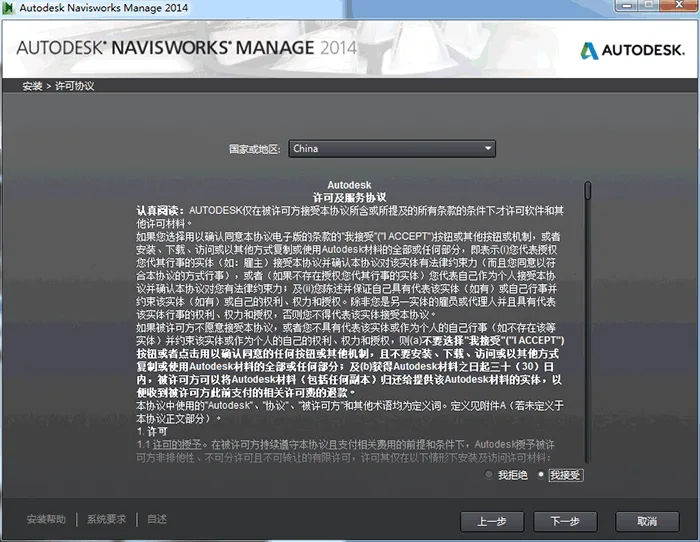
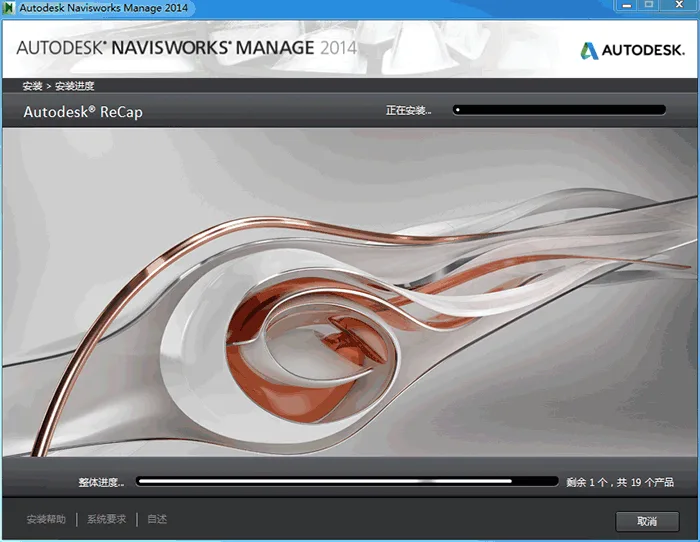
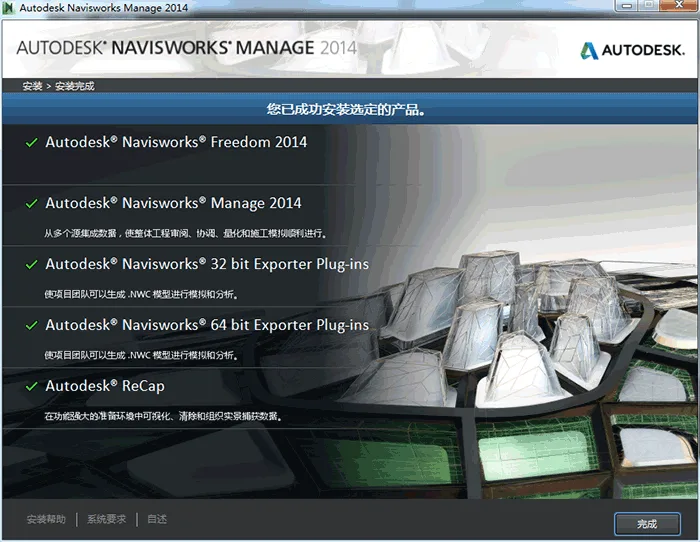
NavisWorks Installation Guide
Installation Sequence
To ensure the add-on module integrates properly with REVIT software, install REVIT first, followed by NavisWorks.
1. System Requirements for Standalone Installation
Before proceeding, make sure your computer meets the minimum system requirements. Inadequate system specifications may lead to issues with Autodesk NavisWorks or your operating system.
The installer will automatically detect whether your Windows OS is 32-bit or 64-bit.
2. Administrator Rights
Installing Autodesk NavisWorks requires administrator privileges. Please verify that you have the necessary permissions before starting the installation.
3. Installation Procedure
Right-click the .exe file and select Run as administrator to initiate the installation process.
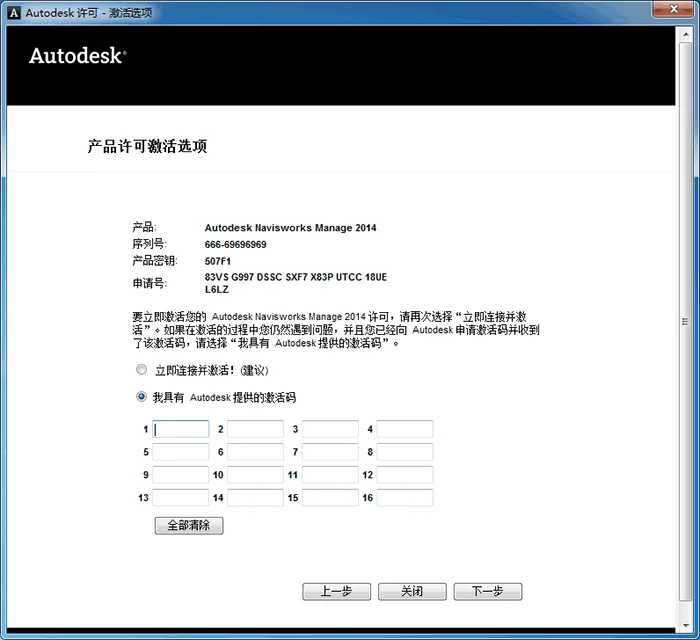
4. Serial Number and Product Key
During installation, you will be prompted to enter the serial number and product key on the “User and Product Information” page.
The serial number consists of a three-digit prefix followed by an eight-digit number. The product key is a five-digit code.
Have these pieces of information ready to avoid any interruptions during activation.
5. Preventing Data Loss During Installation
Applications like Microsoft Outlook® may interfere with the installation if active virus scanning is running.
It is recommended to close all running programs to reduce the risk of data loss or installation failure.
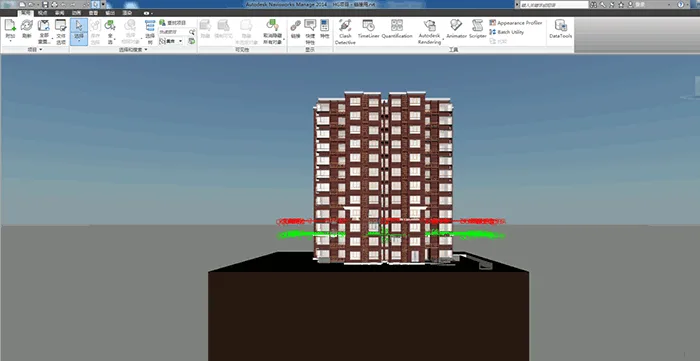
6. Launching Autodesk NavisWorks Manage 201x
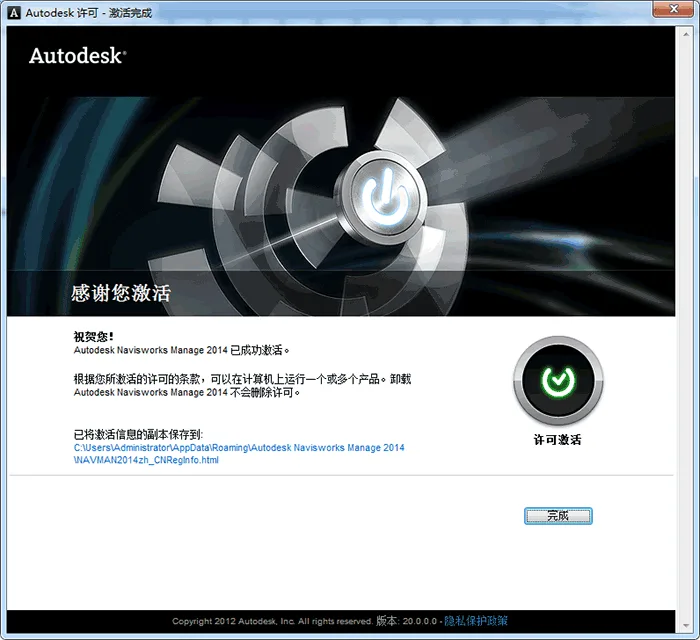
After installation completes, launch Autodesk NavisWorks Manage 201x to register your product and begin using the software. Follow the on-screen instructions to complete the registration process.















The key is incorrect!
Revit 2015 installation is complete, but the Simplified Chinese operation icon is not displayed on the desktop
If you cannot find the shortcut, please go to the “Programs” in the bottom left corner of the desktop to find the corresponding program, and create a shortcut to the desktop.