

AutoCAD 2012 comes equipped with enhanced 3D modeling tools that significantly boost surface and conceptual design capabilities. This version integrates drawing and visualization functions, accelerating task completion to meet diverse user needs and preferences. It also simplifies drawing tasks for users without programming experience, thereby improving overall work efficiency.
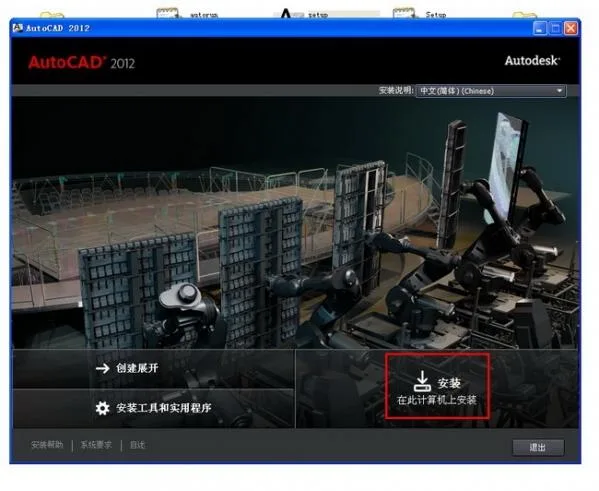
Key Features of AutoCAD 2012:
(1) Comprehensive graphic drawing functionality.
(2) Powerful graphic editing capabilities.
(3) Multiple options for secondary development and user customization.
(4) Supports conversion between various graphic formats with strong data exchange capabilities.
(5) Compatible with multiple hardware devices.
(6) Supports multiple operating platforms.
(7) Universally accessible and user-friendly, suitable for a wide range of users.
Additionally, starting from AutoCAD 2000, the system has introduced many advanced features, such as the AutoCAD Design Center (ADC), Multi Document Design Environment (MDE), Internet driver, new object snap functions, enhanced annotation tools, and local file opening and loading capabilities, making the AutoCAD system more comprehensive.
AutoCAD 2012 Chinese Installation and Registration Instructions
1. Begin installing Autodesk AutoCAD 2012.
2. Enter one of the following installation serial numbers: 666-66996969, 667-98989898, or 400-454554453. Use the key: 001D14.
3. Complete the installation and restart AutoCAD.
4. Before clicking the activation button, choose one of the following options:
- a) Disable your internet connection or unplug your network cable.
- b) Click “Activate.” If the serial number is reported as incorrect, click “Previous,” wait a moment, then click “Activate” again.
5. Proceed with either option a or b and continue to the next step.
6. On the activation screen, select “I have an Autodesk activation code.”
7. Launch the registration tool corresponding to your system: use the 32-bit registration tool for 32-bit systems, and the 64-bit registration tool for 64-bit systems.
8. Copy the application number from the activation interface and paste it into the “Request” field of the registration tool.
9. Click “Generate” to create the activation code, then click the “Mem Patch” button. This step is crucial; otherwise, activation will fail with an incorrect registration code error.
10. Finally, copy the generated activation code back into the “Enter Activation Code” field on the activation screen and click “Next.” Your Autodesk product will now be fully registered.
Note: When running the registration tool, right-click and select “Run as administrator,” and ensure User Account Control (UAC) is disabled.














Must log in before commenting!
Sign Up