
When naming floor plans in Chinese within Revit, you might notice that the floor plans in the Project Browser are not displayed in the correct order.
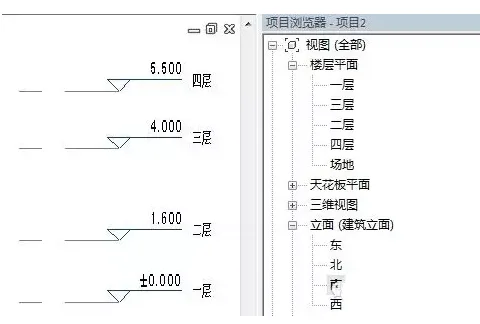
This issue can be resolved by following these steps:
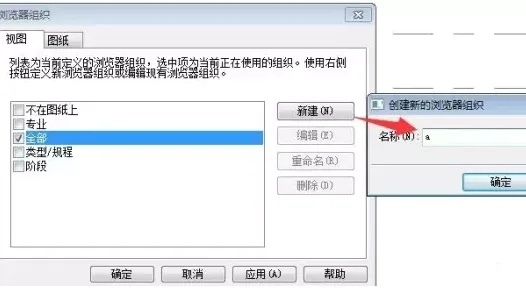
- Right-click on the Project Browser, select Browser Organization, then click New and name the new organization “a”.
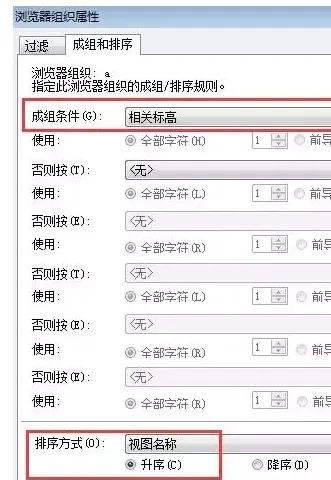
- After confirming, the Browser Organization Properties dialog will appear. Set the grouping criteria to Related Elevation and the sorting method to View Name, then arrange them in ascending order.
- Once done, confirm and return to the Browser Organization dialog. Check the box next to “a” and click OK.
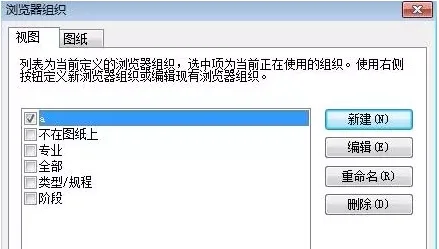
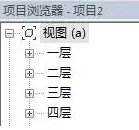
- Finally, view the Project Browser to see the floor plans displayed in the correct order.

xuebim
Follow the latest BIM developments in the architecture industry, explore innovative building technologies, and discover cutting-edge industry insights.
← Scan with WeChat












#BIM Reading Notes#