
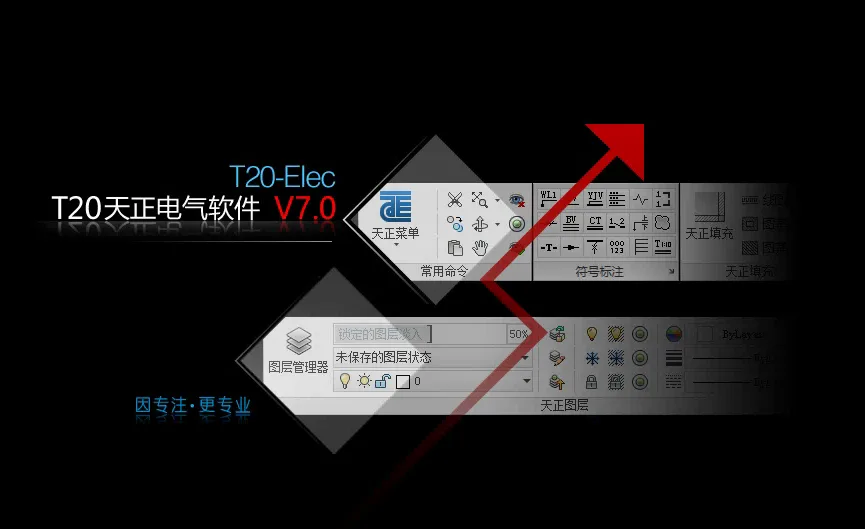
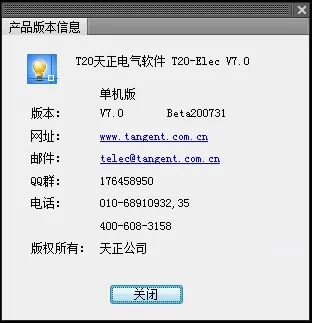
T20 Tianzheng Electrical Software V7.0
Operating System and Supported Platforms:
Operating System: Windows 7 (32/64 bit), Windows 10 (64 bit)
CAD Platform: Compatible with 32-bit AutoCAD 2010 to 2016 and 64-bit AutoCAD 2010 to 2021 versions.
Main Software Improvements:
- Added support for 64-bit AutoCAD 2021 platform.
- Improved multi-line annotation by adding an option to center annotations on wires.
- Drawing Bridge: Introduced a dedicated centerline layer, with specific centerline layers for each bridge type.
- Optimized cable laying and labeling for equipment. When multiple equipment share the same name, the software can now locate the next equipment number.
- Export Annotation: Added control to determine whether exported annotations for Tianzheng electrical elements are placed according to the system category layer.
- Added outer diameter and cross-sectional area data for power cables following standard 19DX101-1.
- Tianzheng Options: Added default color settings for symbol text, supporting default colors for exported annotations, method annotations, and other symbol texts.
- Reference Layout: Supports selecting CAD block references when choosing benchmark blocks.
- Layout Button: Supports layout of water supply and drainage fire hydrants in T3 state, allowing precise placement on sides not adjacent to walls.
- Initial Setting: Wire break spacing during planar routing adjusts automatically in proportion to the drawing scale shown in the lower left corner.
- Door Side Layout: Optimized positioning for double-opening doors.
- Automatic Grounding: Supports external reference walls; when generating grounding wires along wall contours, negative numbers can be input for outward offsets.
- Added support for selecting closed polylines (PLINE) as statistical areas for fire safety statistics.
- Batch Labeling: Added a simplified labeling format to label only circuit numbers.
- After editing multiple wires simultaneously, all annotated content updates in real-time.
Frequently Asked Questions
Q1: Why doesn’t the Tianzheng Electric option panel appear above the software layout?
The option panel is only available in non-classical forms of AutoCAD 2009 and later versions. After switching the AutoCAD workspace, it should display. If it still doesn’t appear, use the menuload command to load the TANGENT file located in the sys folder under the Tianzheng Electric installation path.
Q2: Why is there no menu bar on the left or Tianzheng toolbar at the bottom after launching the software?
If the left menu bar is missing, press Ctrl + 9 or enter the tmnload command. Note that official version users cannot find the encryption lock, and trial version users may have exceeded the trial period.
If the bottom toolbar is missing, go to Initial Settings > Electrical Settings, ensure the Tianzheng convenient toolbar control is enabled, then click “OK” to apply.
Q3: Why does the preview look normal when inserting, but the object becomes too small or large when pulled out of the drawing?
This issue relates to graphic unit settings. The Units command affects scaling units. Make sure the units are set correctly (not “no unit” or millimeters) when exporting or pulling objects.
Q4: Why can’t some graphics be displayed in vanilla AutoCAD?
Plain AutoCAD cannot interpret entities created by Tianzheng natively. Use the Graphic Export command to convert drawings into T3 pattern drawings for proper display. The advanced Tianzheng version uses enhanced entity parameters, so opening these with lower versions requires switching to compatible patterns like T20V3, T20V2, or T9.
Q5: How to set up cost templates for grounding wires and lightning conductors?
Grounding and lightning wires can use new templates with letter types according to standards. Set them as plain line type + block templates under Initial Settings > Electrical Settings > 3D Wire Settings.
Q6: Can users customize wire models and specifications?
Yes, users can modify wire information by holding the Control key and selecting wire types under Initial Settings > Electrical Settings > 3D Wire Settings.
Q7: Why don’t attribute texts display when inserting custom products?
The same product cannot display two attribute texts simultaneously. To fix this, explode the block, use the filter selection command to select all attributes in the old block, delete them, then recreate the attribute texts and reinsert the product.
Editor’s Review
This software automatically calculates the layout and quantity of detection components according to relevant electrical design standards, ensuring there are no monitoring blind spots. Besides floor plans, it can also automate system diagrams, such as distribution box schematics, low-voltage single-line diagrams, and lighting system layouts.
The above content introduces the T20 Tianzheng Electric Personal Edition download, shared by a software enthusiast editor. For more practical software insights, stay tuned to software enthusiasts!











Must log in before commenting!
Sign Up