
Content source: Jizhi Numerical Science

While modeling in Revit, you may encounter a prompt indicating that certain elements are not visible. Even after trying standard troubleshooting steps, the issue might persist. Below, we explore common causes and solutions for invisible elements within Revit projects.
Key Point 1: Visibility Graphic Settings
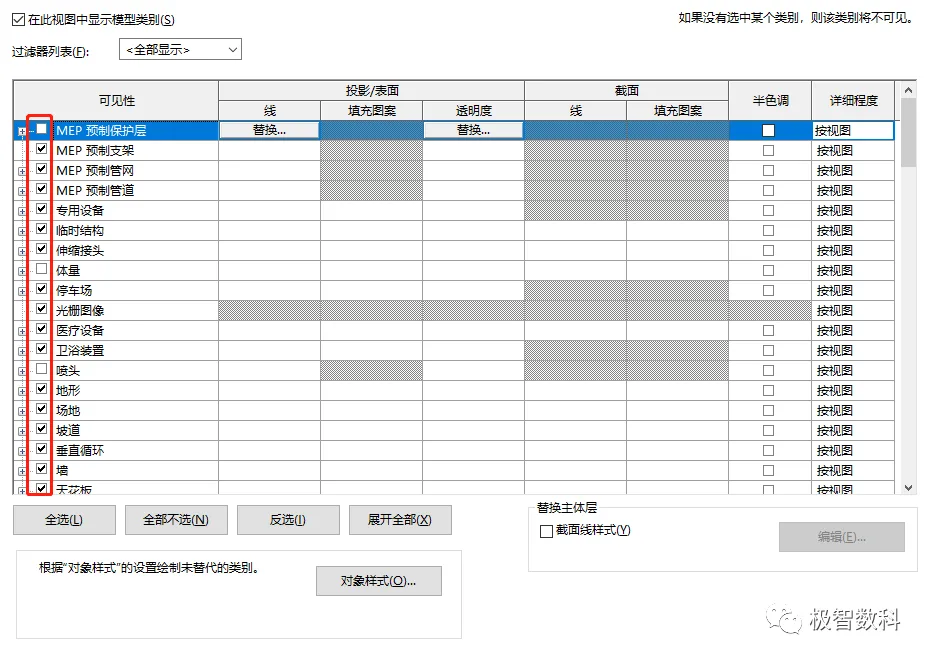
Visibility graphic settings control the visibility, transparency, and other display aspects of elements. Sometimes, due to misoperations or template file configurations, the visibility of certain element categories may be turned off, causing those elements to not appear in the current view.
To check this, press the shortcut VV to open the Visibility/Graphic Overrides dialog and verify whether the relevant categories are enabled.
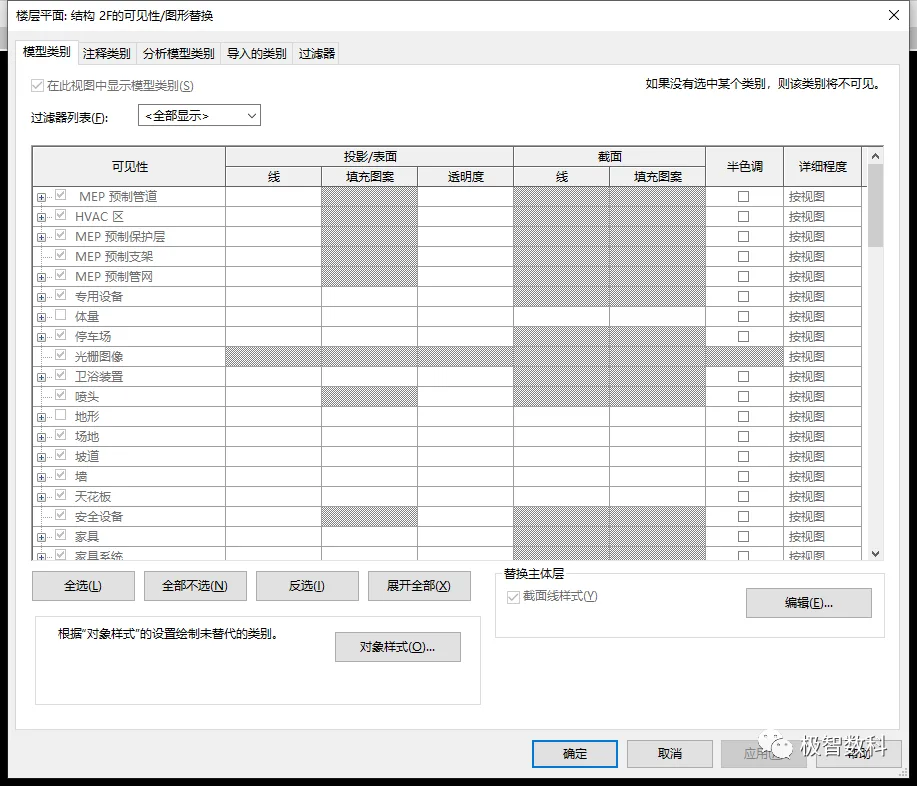
If the view template settings are causing the issue, all categories may appear grayed out and uneditable.
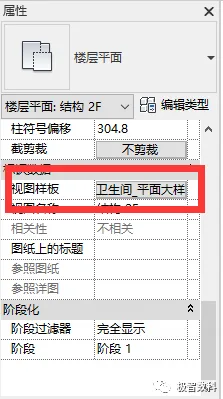
In such cases, locate the View Template option in the Properties panel and set it to None. This will allow you to modify the visibility settings for the model categories.
Key Point 2: Filter Settings
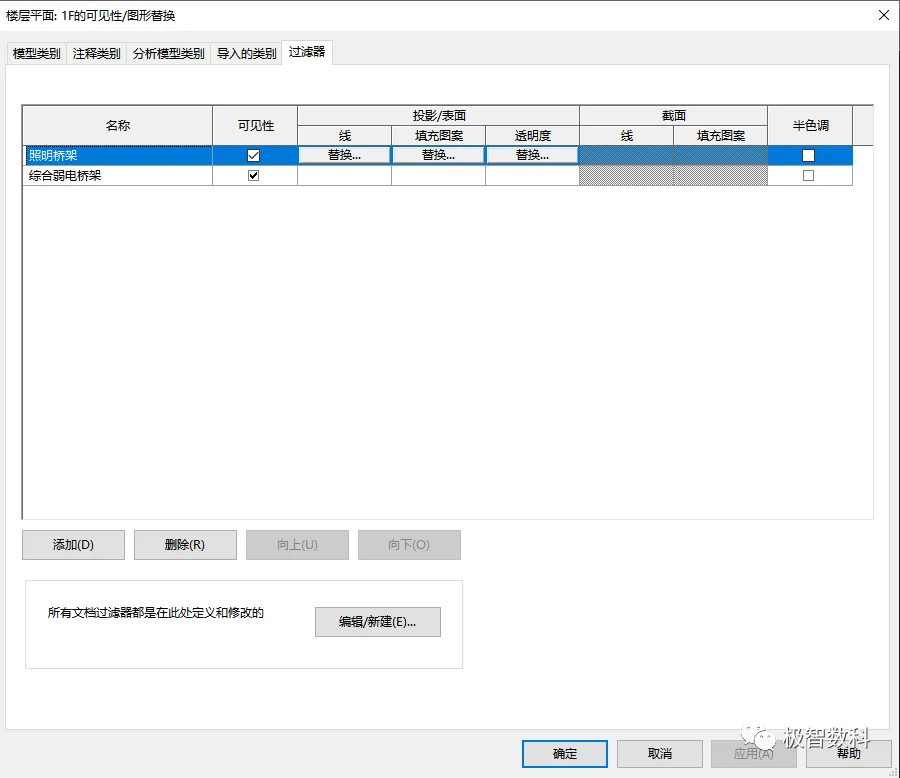
Filters in Revit allow you to control the visibility of specific elements and apply color schemes, patterns, lines, and transparency to them. If filters are causing elements to be invisible, simply review the filters and make sure the checkbox for the relevant element categories is selected.
Key Point 3: Discipline Settings
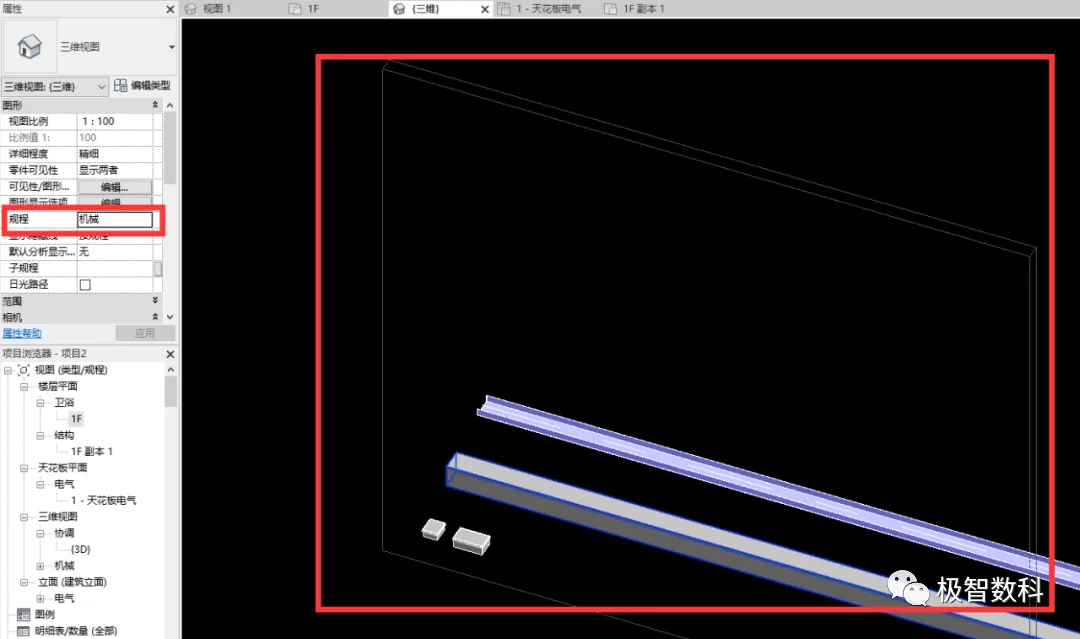
Revit includes various disciplines such as Mechanical, Electrical, Architectural, and Coordination. If the discipline setting in the Properties panel does not match the elements you have created, those elements may appear faded or half-toned. To resolve this, ensure that the discipline matches the properties of the elements or select “Coordination” to display all relevant graphics.
Key Point 4: Detail Level Settings
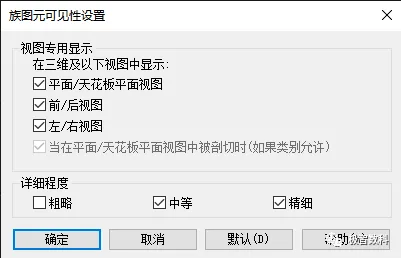
Each Revit view has a Detail Level setting that controls the amount of detail displayed. Certain elements may only appear at specific detail levels, or may be hidden entirely depending on this setting.
We will continue to share additional solutions in the next installment.
















Must log in before commenting!
Sign Up