
When people think of Fuzor, they often associate it with creating construction simulation animations, which is indeed one of its strengths. However, users frequently mention that while Fuzor is easy to get started with, advancing to more complex features can be challenging. To help you master this software, here are some advanced tips and techniques.
01. Linking File Integration Model
Issue: The .che format is a proprietary Fuzor model file, while the .chl format is used for linked files. Large projects involving multiple disciplines can result in very large files. Synchronizing these through linking in Revit often leads to slow performance or software crashes.
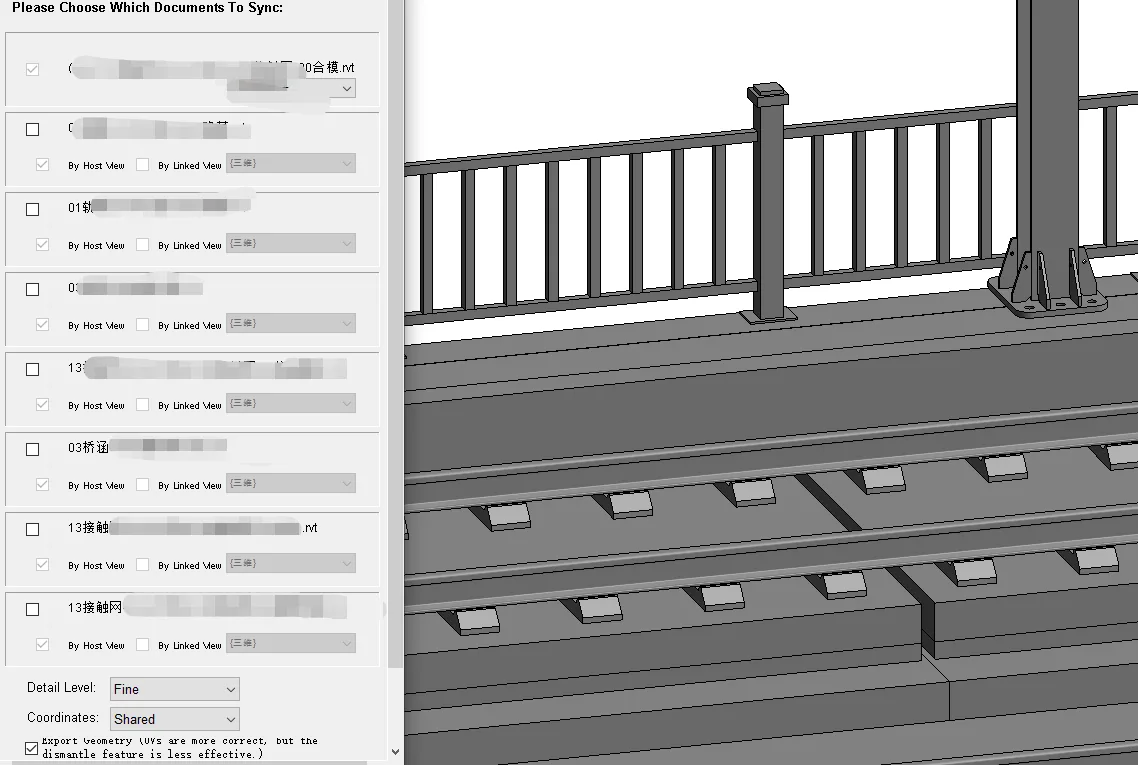
When syncing Revit links, the model size can become unmanageable and prone to freezing.
The recommended approach is to export each discipline’s model separately as a .che file, then use Fuzor’s built-in linking function to integrate these models quickly. This method allows you to update individual discipline models in Revit without affecting the overall linked file stability in Fuzor.
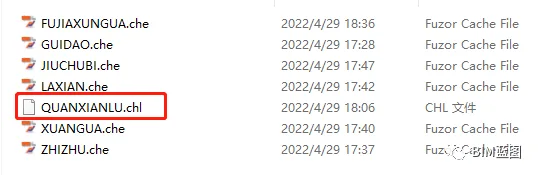
[Export single discipline che files, then integrate and open chl files directly in Fuzor]
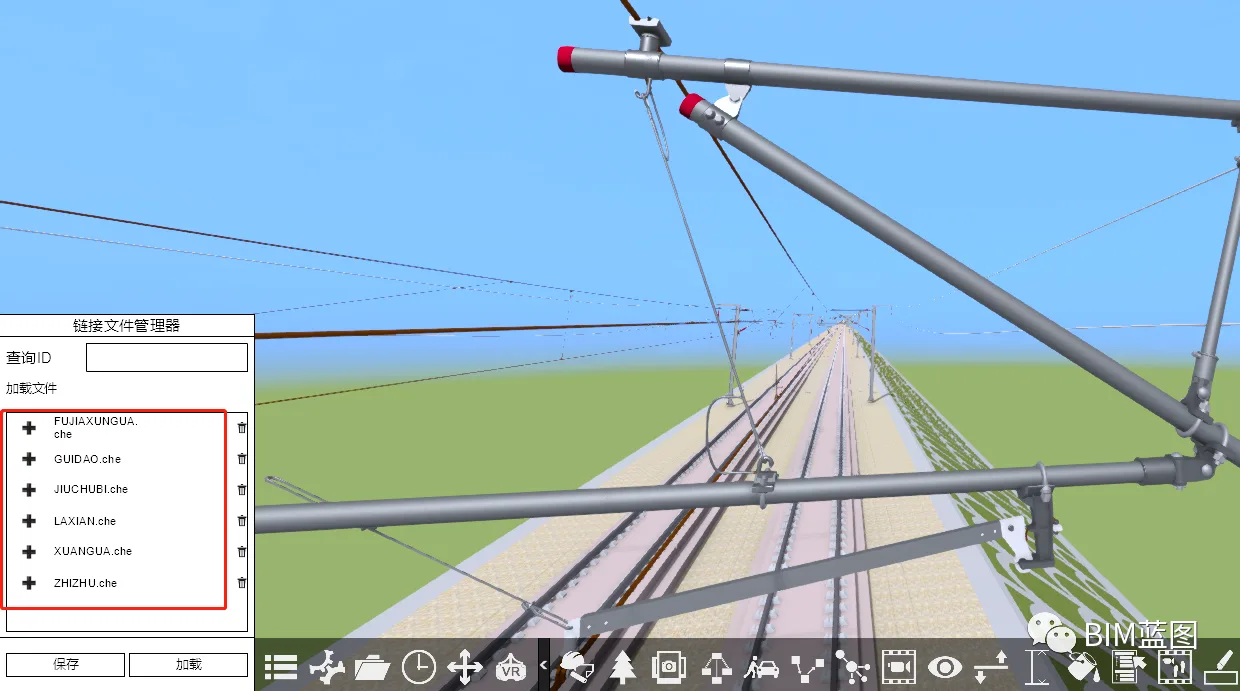
[Viewing through linked files is convenient and fast, making it easier to work with single discipline models]
02. Creating Multi-Component Interlaced Animations
Question: How do you sequence animations for multiple components in Fuzor?
To create interlaced animations, go to the 4D construction animation simulation interface. Select the components you want to animate together, group them, and then edit their animations to achieve the desired sequence.
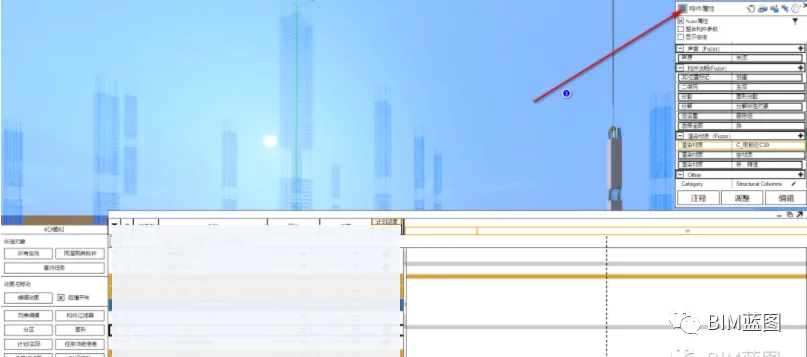
[First, select the components]
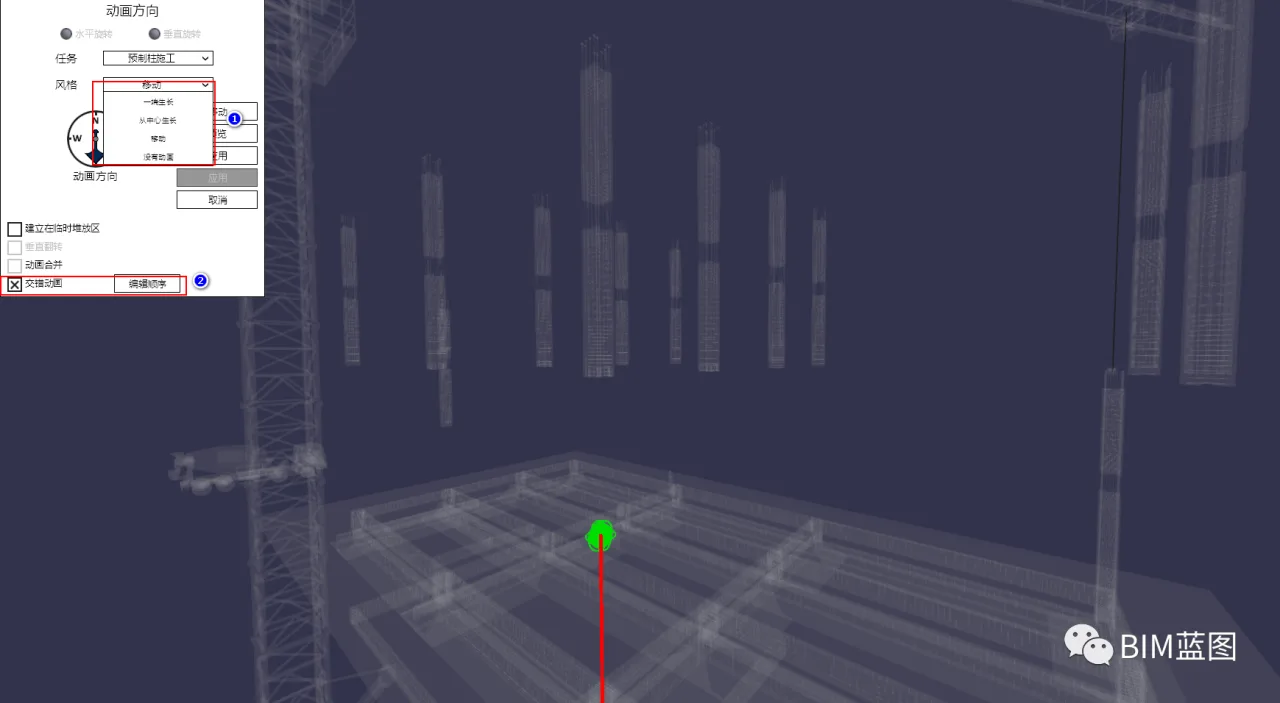
Next, adjust the animation order for each component.
Within the editing interface, you can define the appearance order by clicking components individually. Alternatively, set staggered animation distribution values to automate the sequence.
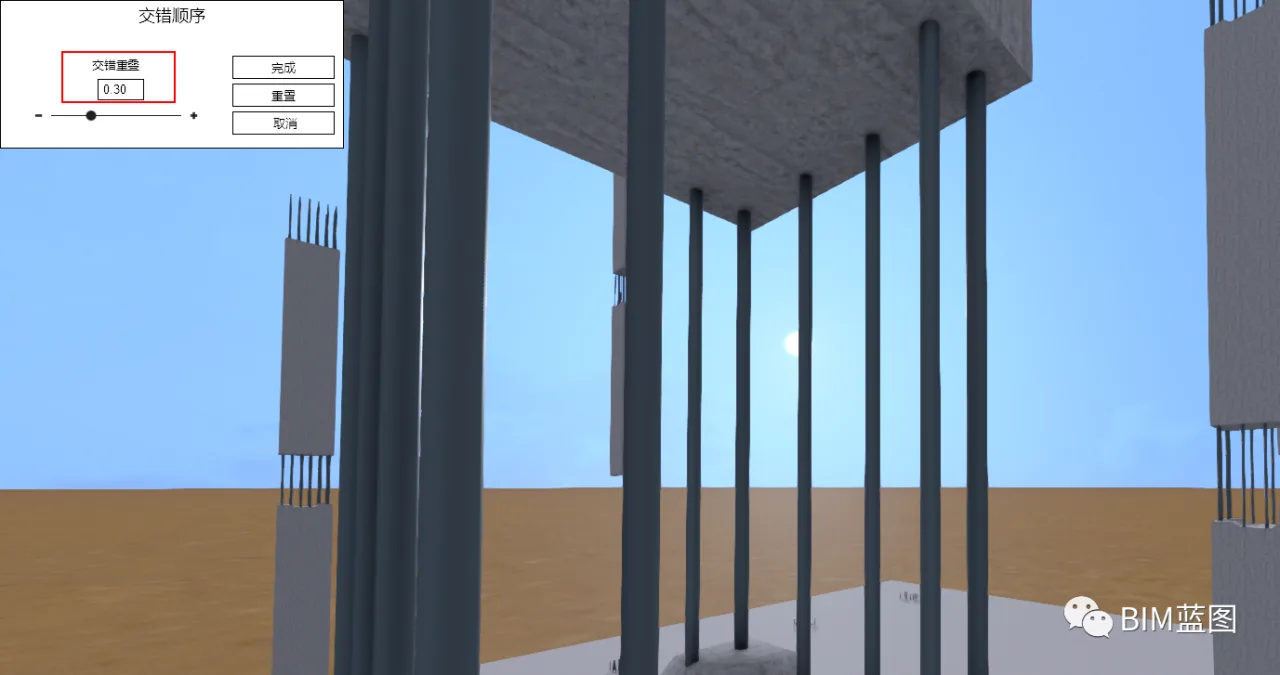
[Configure staggered animation distribution values]
03. Quickly Adding Selection Sets to 4D Tasks
Question: After filtering and saving a selection set of components, how can you quickly add them to the 4D taskbar?
Simply select the saved selection set and click the button in the top-right corner to add it to the 4D taskbar instantly.
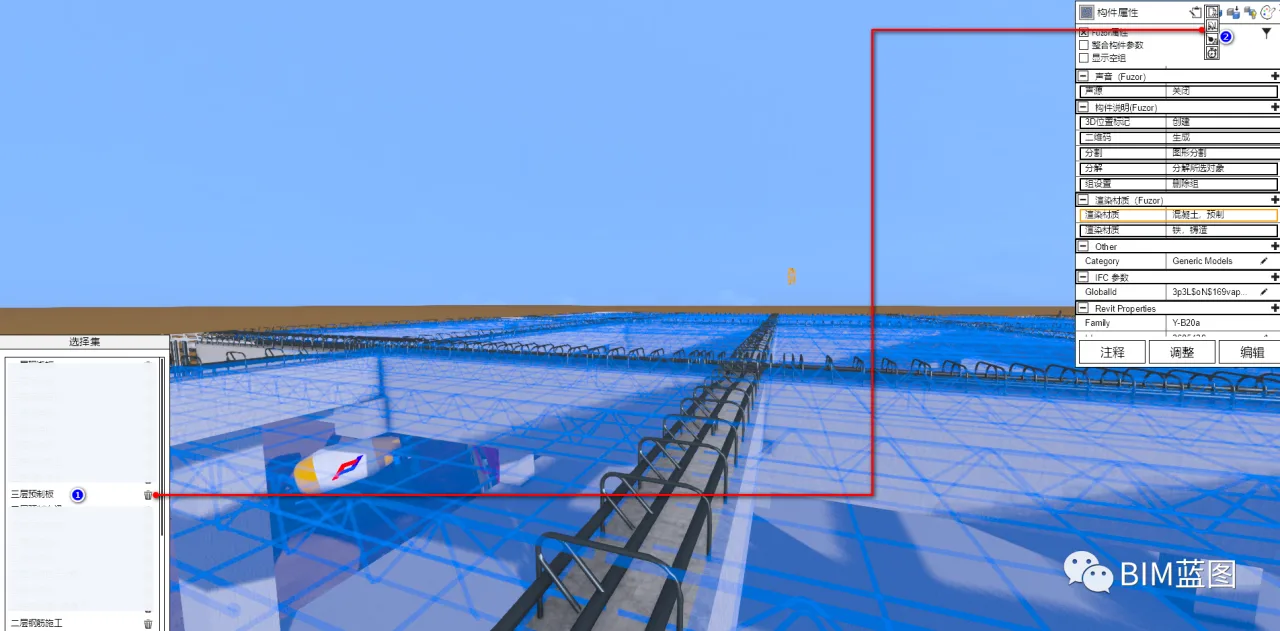
04. Using a Self-Contained Tower Crane for Lifting Animations
Question: How do you animate an external tower crane to perform climbing and lifting operations?
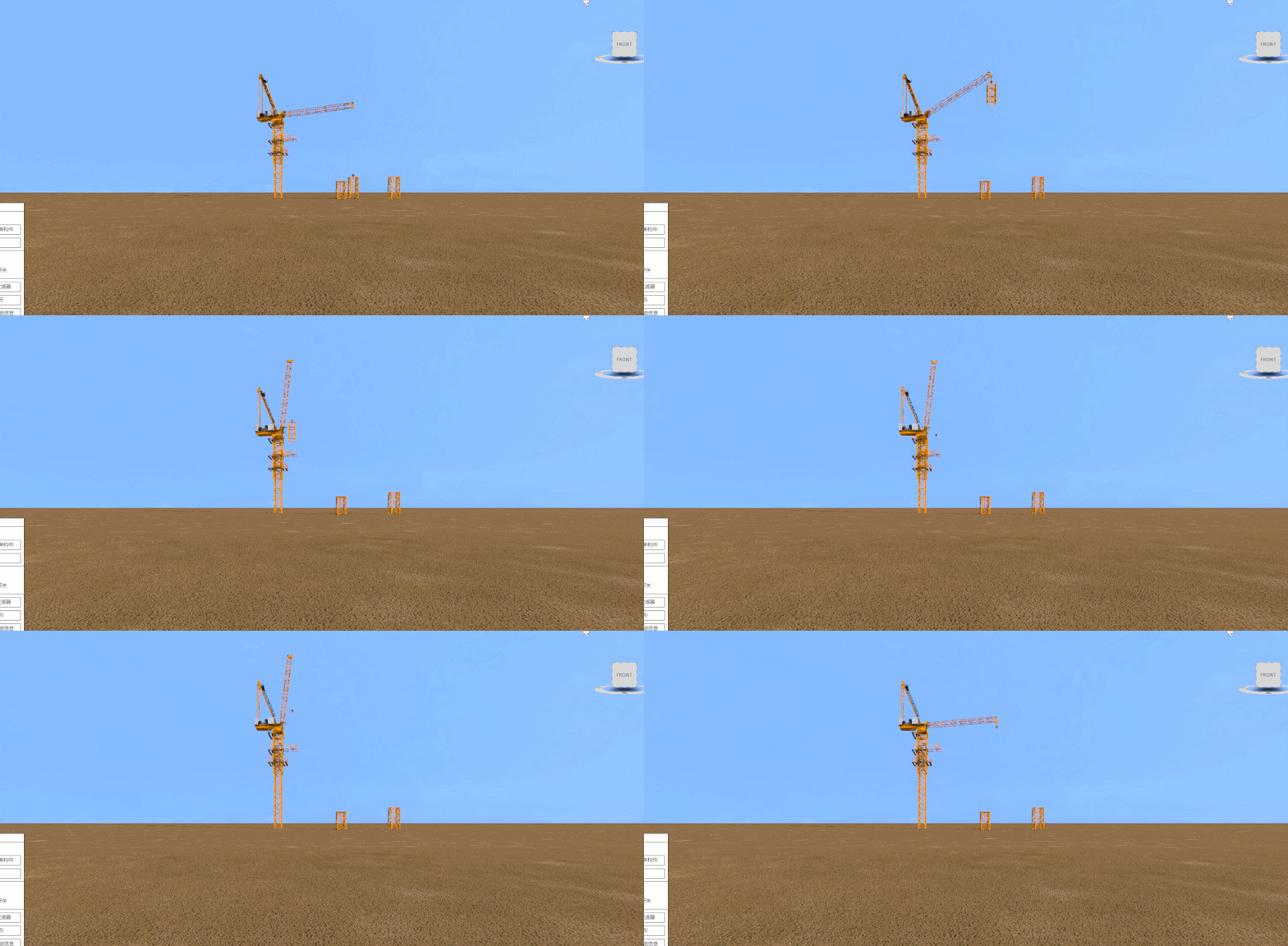
For external models, use the sequence animation function to simulate the crane’s climbing process, then add this animation to the 4D construction simulation taskbar.
The built-in tower crane animation covers lifting standard sections, placing them into the frame, and raising them up.
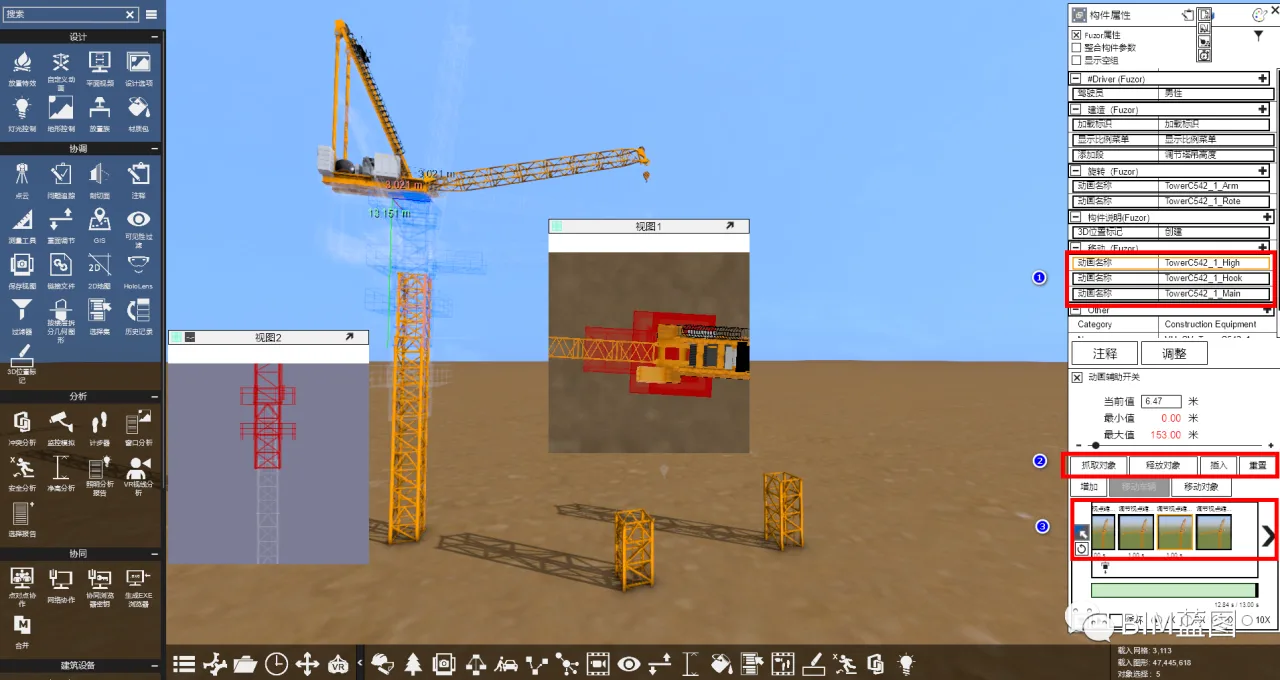
This process requires continuous keyframe and animation editing to achieve smooth results.
05. Adding Background Sound Effects
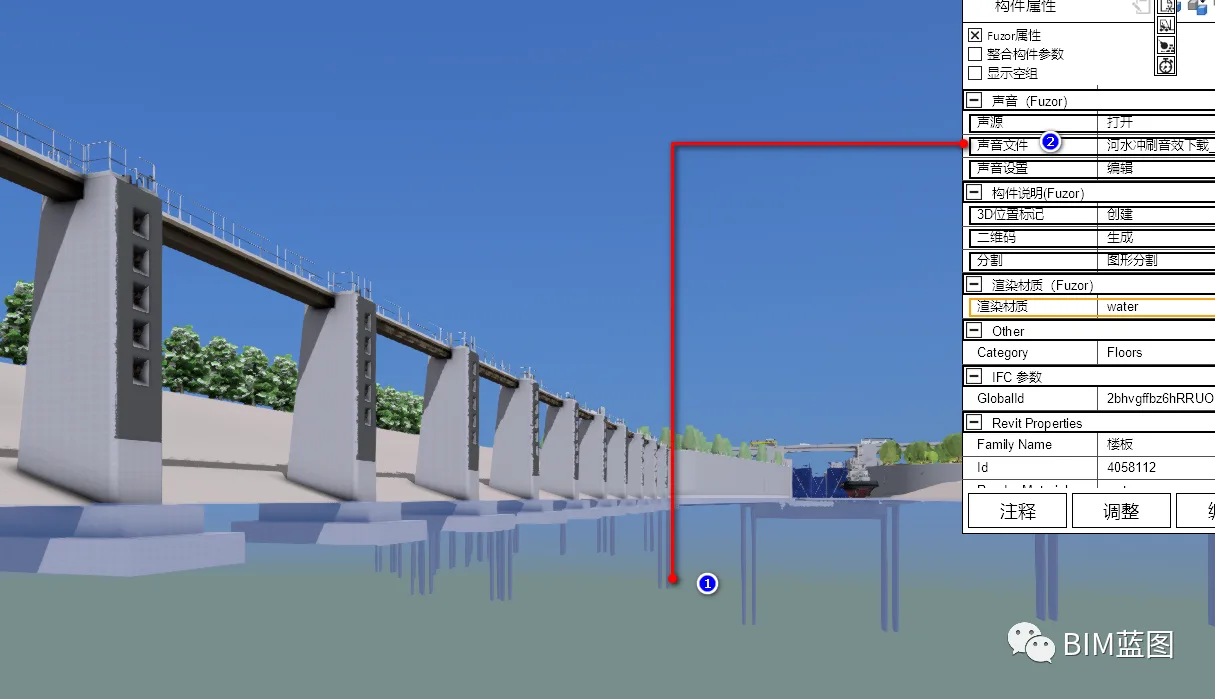
Question: How can you add environmental sound effects like rain, footsteps, or flowing water during animation production?
Simply click on the component you want to add sound to, then load an MP3 or WAV audio file directly into Fuzor.
You can also add sound effects later through external post-production software if preferred.
















Must log in before commenting!
Sign Up