
Article source: Binfu BIM Consulting
In the Project Settings Management tab, you can access Project and System Parameters along with various Settings. To do this, click on the Management tab, then go to the Settings panel. Here, you can configure the project information as illustrated in the image below (Figure 2-3).
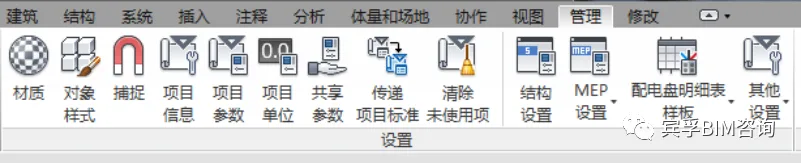
Figure 2-3: Management tab
Next, click on Project Information to open the Project Properties dialog box. Here you can enter key project details such as the project release date, project name, and project number, as demonstrated in Figure 2-4 below. Once completed, click the OK button to save your changes.
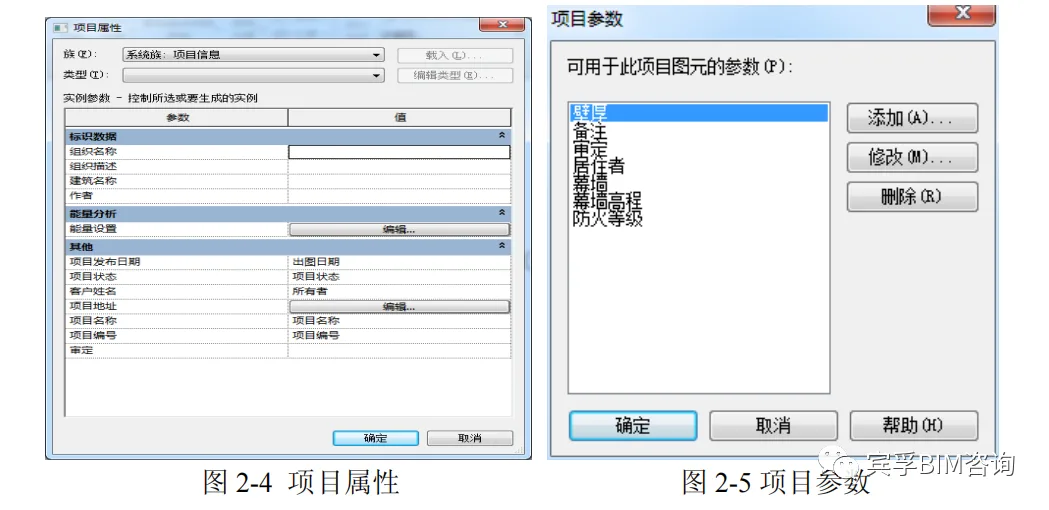
By selecting Project Parameters, you specify which categories of elements are added to the project and define the parameters used in schedules, as shown in Figure 2-5. Note that project parameters are unique to each project and cannot be shared with other projects or families. To share parameters across projects, use the Shared Parameters Tool.
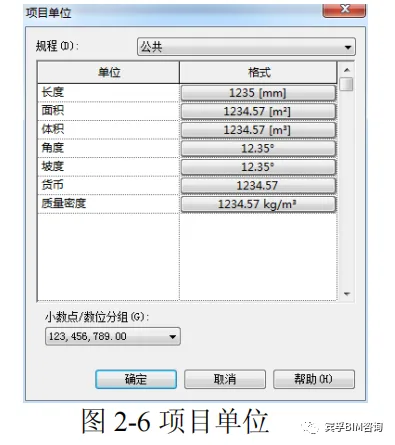
To adjust measurement units, click the Project Unit command to open the Project Unit settings dialog box (see Figure 2-6). Here, you can set units for length, area, and volume. For example, click the Format button under the Length category to set units to millimeters (mm); under Area to set square meters (m²); and under Volume to set cubic meters (m³). Additionally, you can modify units for angles, slopes, and more.
















Must log in before commenting!
Sign Up