
What does Revit volume mean? Many beginners often wonder about this when they first start using Revit. During the modeling process, it’s common to be unsure when to use mass modeling versus family modeling. Today, we’ll clarify this topic.
The Difference Between Revit Volumes and Families
First, similar to families, volumes can be created directly within a project. The key difference is that the “Built-in Volume” tool is found under the Volume and Site tabs.
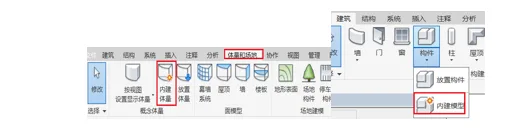
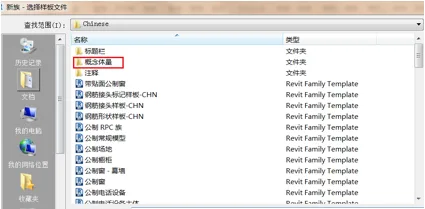
Next, let’s look at creating an independent mass file. Independent masses are essentially families because masses are created based on the family concept—similar to how 2D families are created. When creating a mass, you can choose from metric masses available under the conceptual masses category.
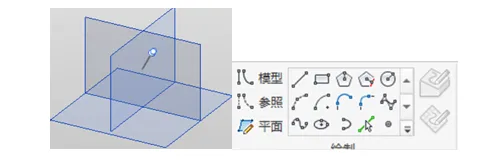
Once inside the volume editing interface, you’ll notice how volumes differ from families. Most volume modeling happens in a 3D view, which allows for greater freedom in design. Additionally, the drawing tools vary significantly; for example, reference planes and reference lines are grouped together in the same drawing function area.
It’s clear that the application of functional families and volumes differ when drawing shapes. However, you can compare the two and apply family drawing techniques within volumes.
For instance, consider the concept of stretching. In volumes, there’s no separate stretching tool. Instead, you draw a closed contour, select it, and then click “Create Shape” on the ribbon to instantly generate a solid.
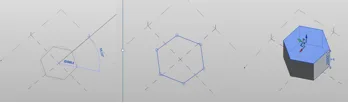
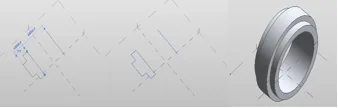
The same principle applies to rotation. Within a family, you draw a rotation contour and axis, then generate a rotating solid. In volumes, you select the pre-drawn contour and rotation axis, then simply create the shape with one click.
There are also some differences to note, such as with layout creation. After drawing a path, you must add “points” along it before drawing the layout’s outline on the reference plane of those points. This extra step distinguishes volumes from families.
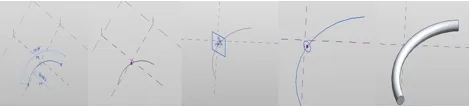
Therefore, when creating a layout shape in volume mode, you’ll need to add two points to separately create the contour if you want to generate a fused layout.

In summary, once you understand the core concepts and underlying logic of Revit volumes, you’ll avoid mistakes and model confidently.
















Must log in before commenting!
Sign Up