
Are you or your friends experiencing lag when using Revit? Occasional slowdowns might be tolerable, but frequent lag can be frustrating—especially for those with less patience. Fortunately, there are effective ways to enhance Revit’s performance and reduce lag.
Method 1: Enable Direct3D Hardware Acceleration
To boost graphics performance, follow these steps:
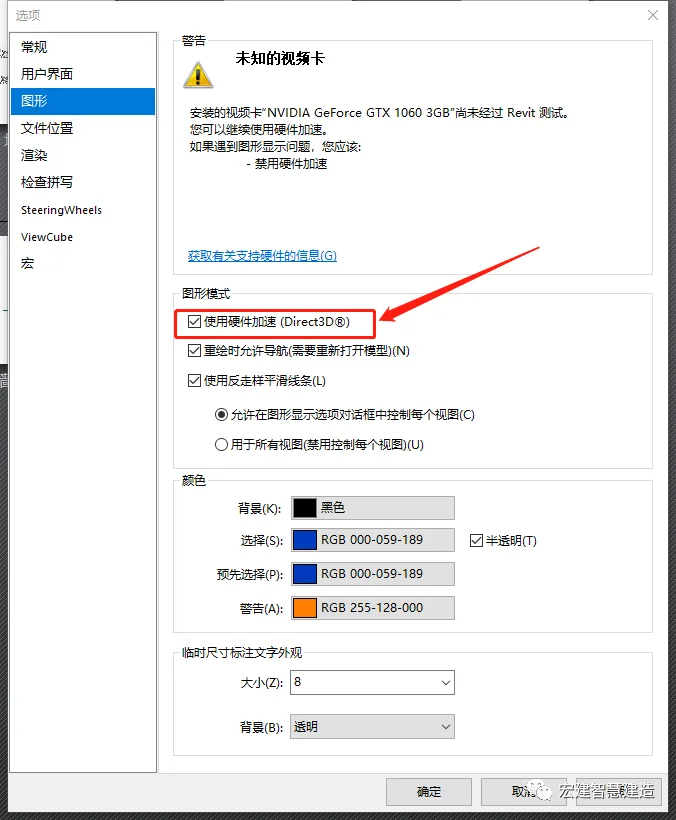
- Open the Revit application menu, click on Options, and then select the Graphics tab.
- Check the box for Use Hardware Acceleration (Direct3D), then close and restart Revit to apply the changes.
Method 2: Adjust the Visual Style
When working in Revit, try using the Shading display mode for better performance. Different visual styles affect speed in this order (fastest to slowest): Shading, Consistent Color, Hidden Lines, and Realistic.
Method 3: Clear “Group and Associate” Before Using Arrays
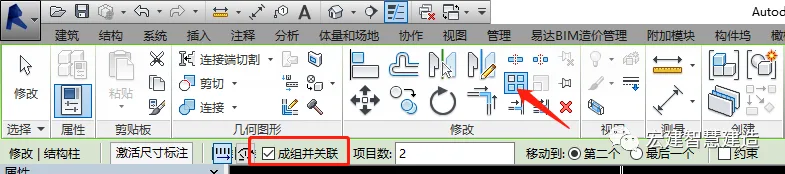
Using arrays helps replicate objects with consistent size and spacing, associating them together. However, after array creation, performance can improve by disassembling the array and removing parameterized associations among replicated objects.
Alternatively, unchecking the Group and Associate option before creating an array achieves the same benefit.
Method 4: Limit Linked Revit Files and Imported DWG Files
- Avoid importing or linking unnecessary data. Clean up DWG files in AutoCAD by removing unused layers and elements before importing.
- Set DWG visibility to Display only in current view when linking or importing. Without this, the DWG will appear in 3D views, slowing performance.
- Unload unused links when not modeling with them to free up memory and speed up project opening times.
- Only enable the Room Boundary option on linked files if you absolutely need to define spaces or volumes.
Method 5: Limit Use of Detailed, Nested, and Parameterized Families
- Parameterized families require more computing power than static families. Assess your project needs carefully and adjust family parameters accordingly.
- Families consume fewer resources than groups. Whenever possible, use families instead of groups, since numerous group instances can cause significant lag.
- In plan views, prefer using symbolic lines and mask regions instead of complex geometric shapes to improve speed.
Method 6: Optimize Your Modeling Workflow
- When creating detailed views, use filled areas rather than lines to fill the model.
- Avoid hollow geometric shapes whenever possible.
- Regularly purge unused objects to keep the project clean; however, always back up your project before doing so, as purged objects cannot be restored.
- Limit the number of families loaded in the project template. Use the simplest template suitable for your project rather than a comprehensive one.
- Minimize the number of hidden elements in views, since hiding many objects increases software resource demands.
- Close unnecessary windows when working in 3D views. Revit regenerates complex views during central file saves, so fewer open views improve performance.
- Set the visual detail level appropriately for each view. Typically, a “medium” level of detail balances performance with visual clarity during modeling.
Source: WeChat Official Account – Hongjian Smart Building

















Must log in before commenting!
Sign Up