
This article is from the WeChat official account: Shi Yiping.
To create a smooth and natural intersection between a sloping wall and a straight wall, using a built-in model to draw the sloping wall is an excellent choice. This process can be completed in just two simple steps.
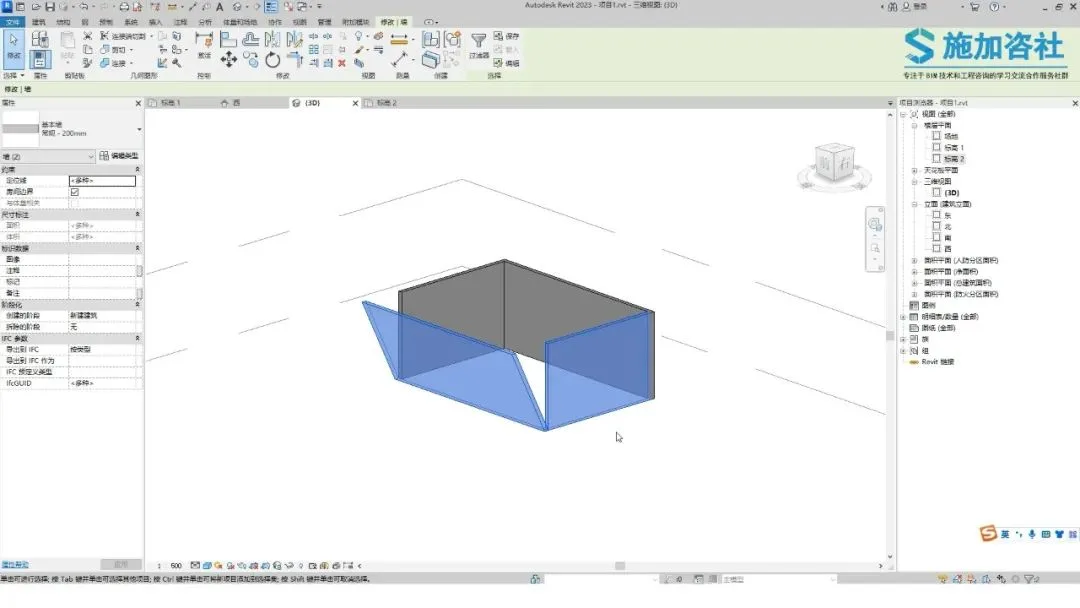
Step 1: Draw the built-in model.
Start by clicking the Component button on the Building tab, then select the built-in model option.
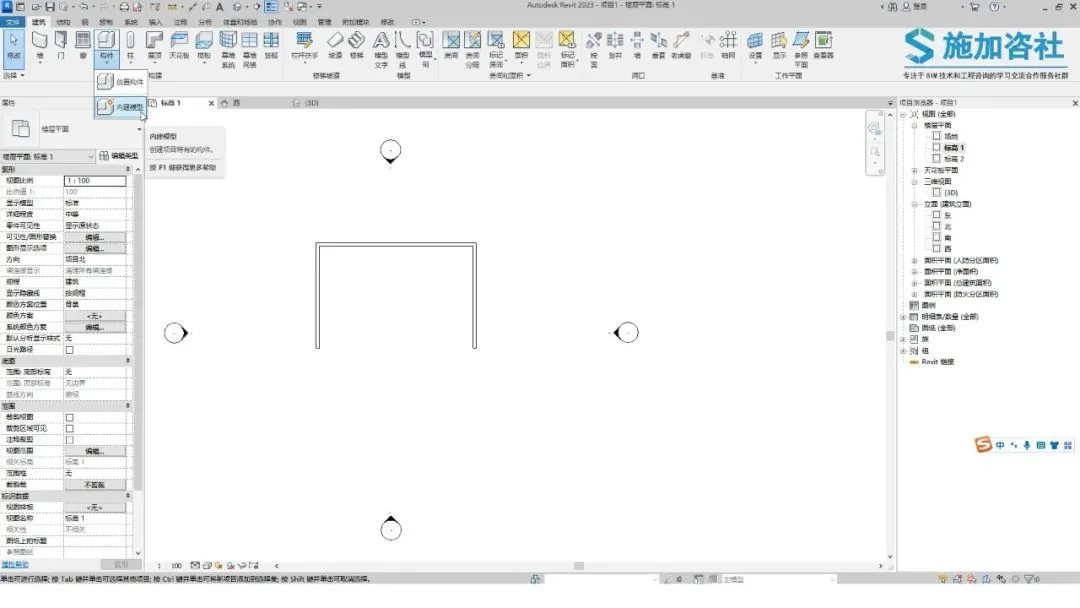
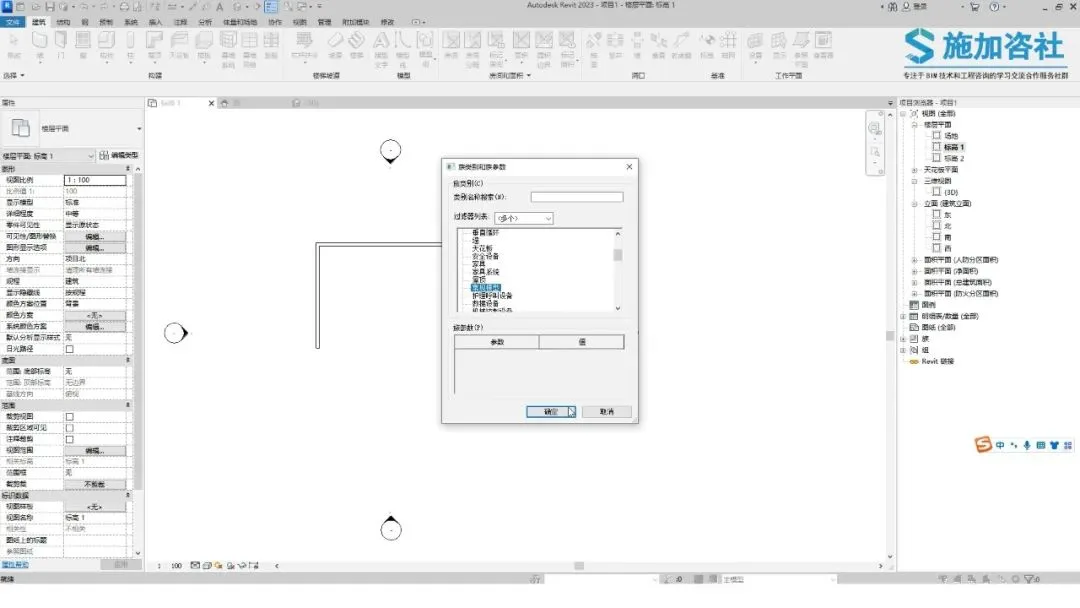
In the dialog box that appears, choose the regular model and click OK.
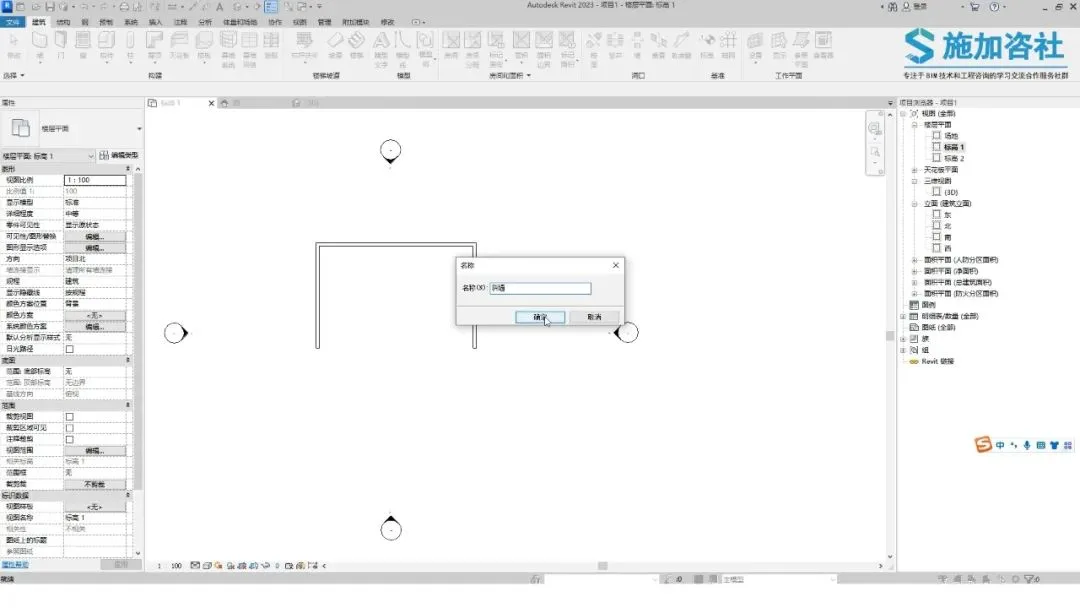
Rename the model to Sloping Wall for clarity.
Switch to the west elevation view and set the work plane for the wall section.
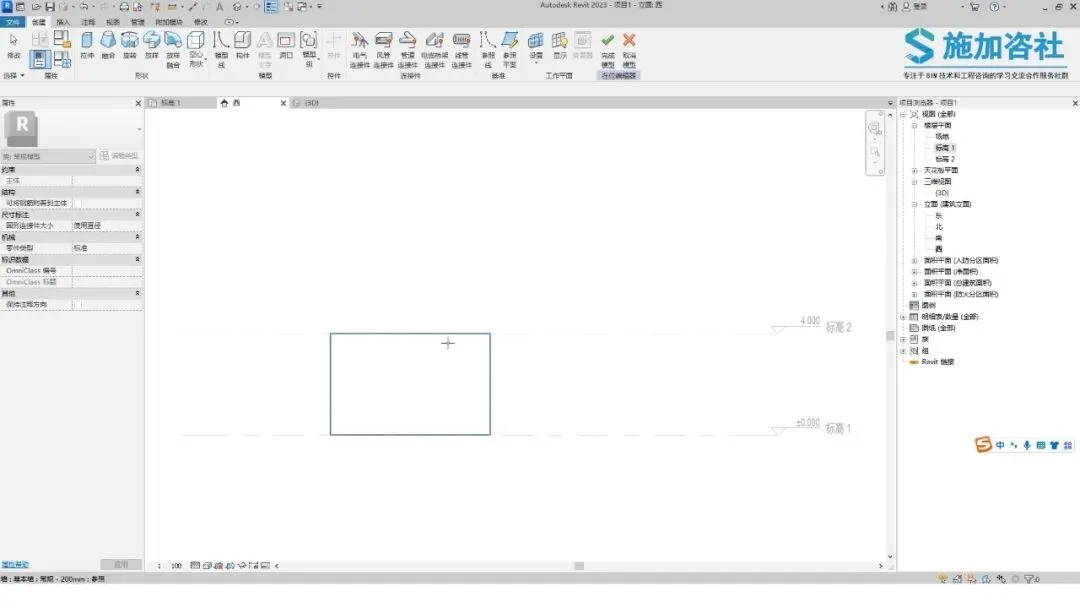
Use the stretching tool to shape the wall, then click the Finish button.
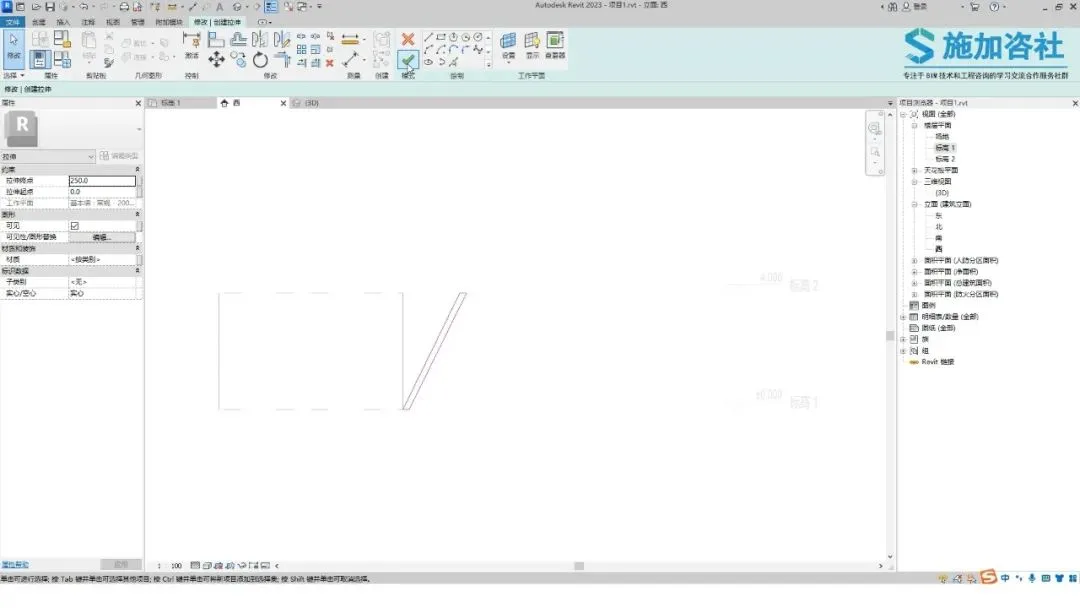
Next, switch to the second floor plan view, adjust the wall’s position as needed, then click Finish again.
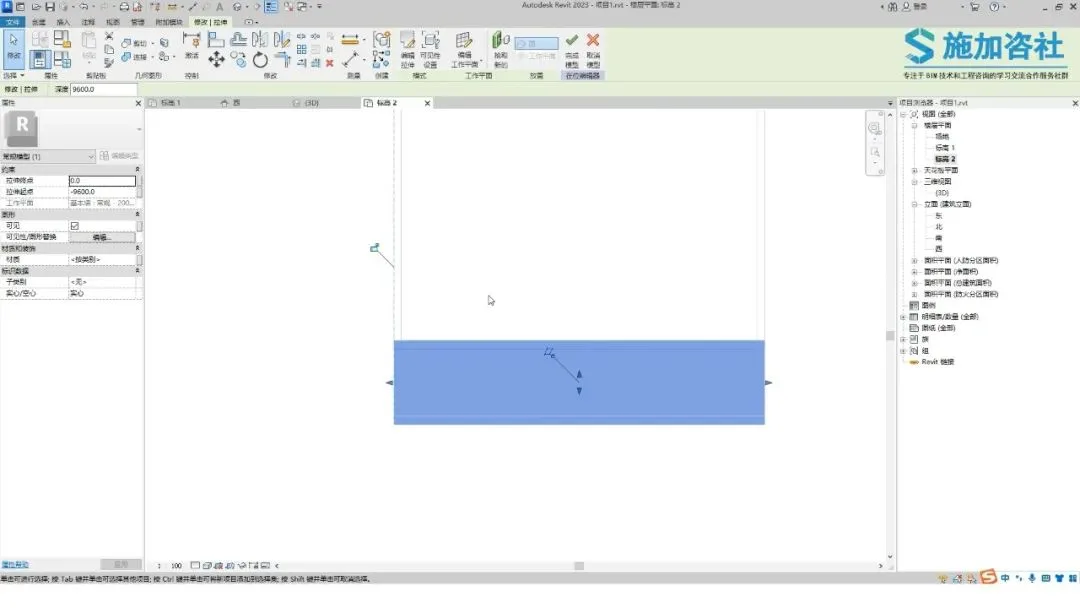
Step 2: Convert the shape into an actual wall.
Go to the Volume and Site tab and click the Wall button.
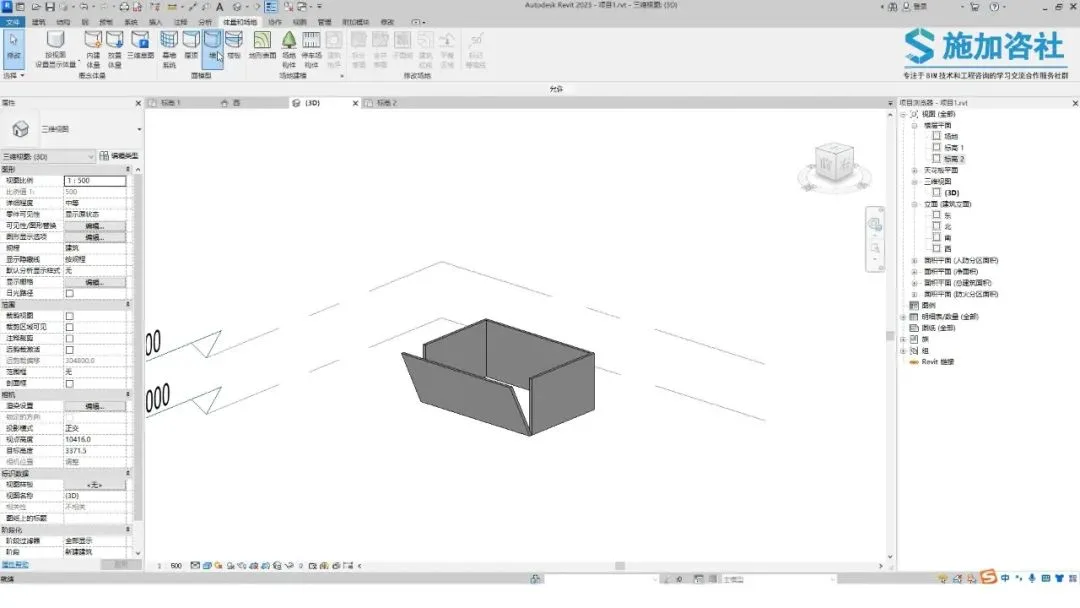
Use the Pick Face tool to select the sloping wall shape.
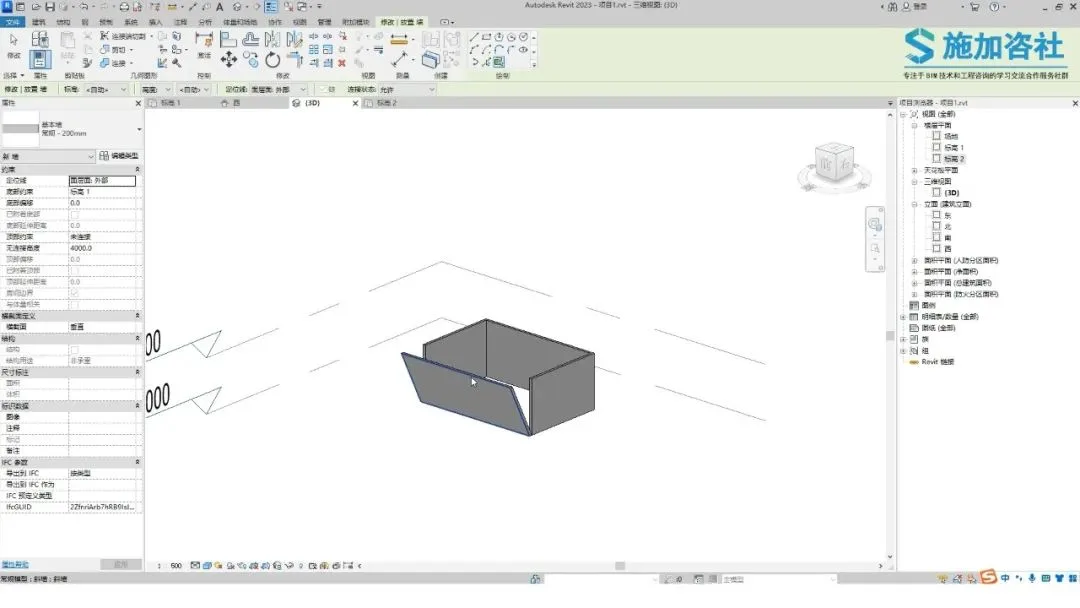
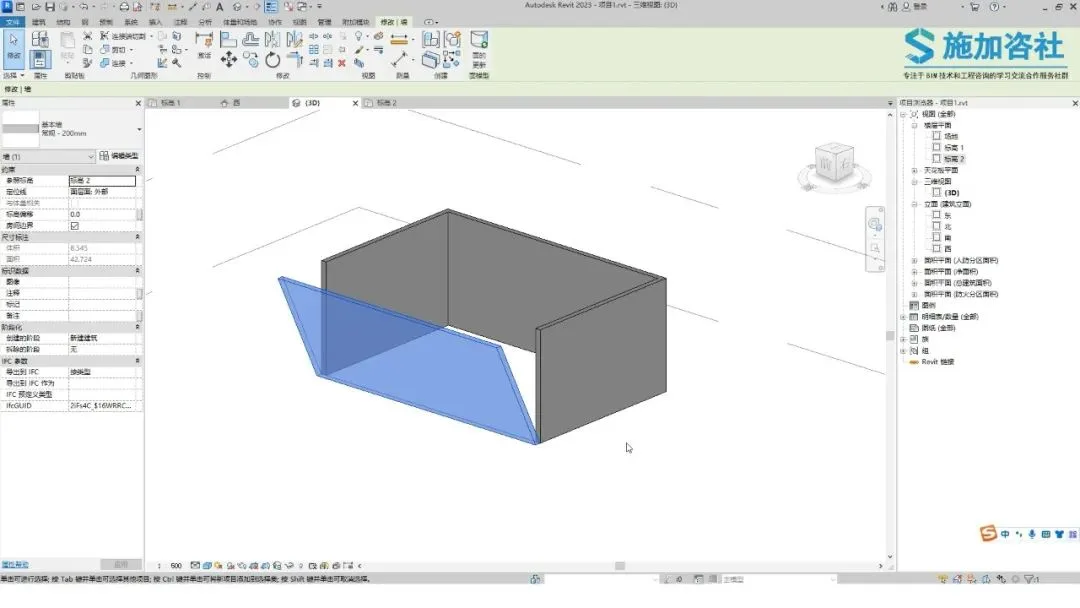
Finally, delete the original wall shape to complete the process.
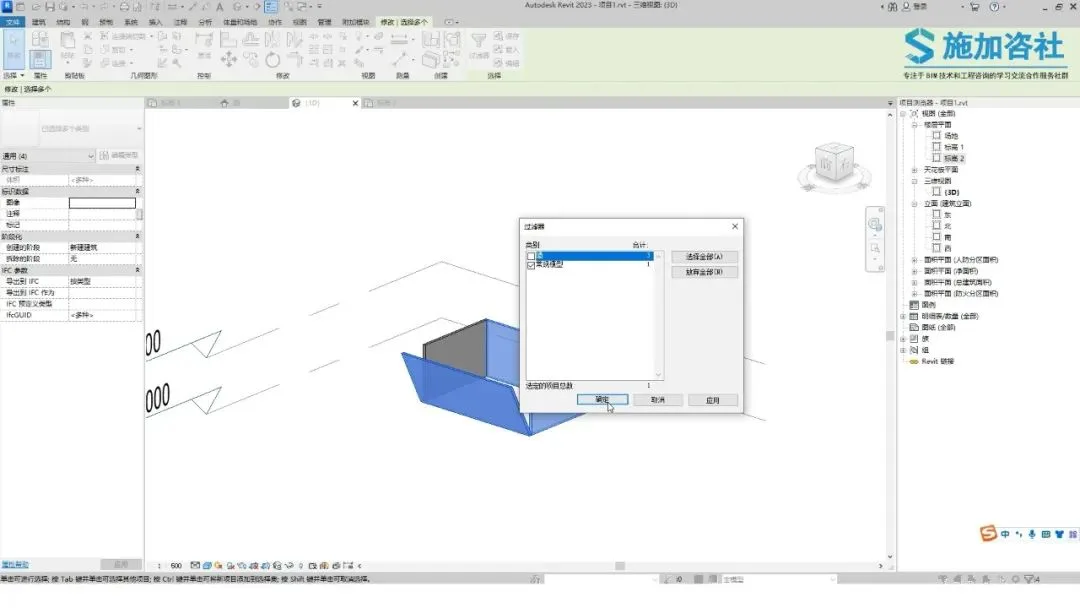
Process complete.
















Must log in before commenting!
Sign Up