
When working with civil engineering models in Revit, setting materials—especially for interior decoration—is essential. Typically, materials are assigned through the ‘Edit Type’ option in the wall properties. However, this method can be cumbersome when you need to change materials frequently. So, how can you quickly update wall materials in Revit?
Step 1: Open your model, navigate to the Modify tab, then select the Geometry panel and click on Coloring. You can also use the shortcut key PT.
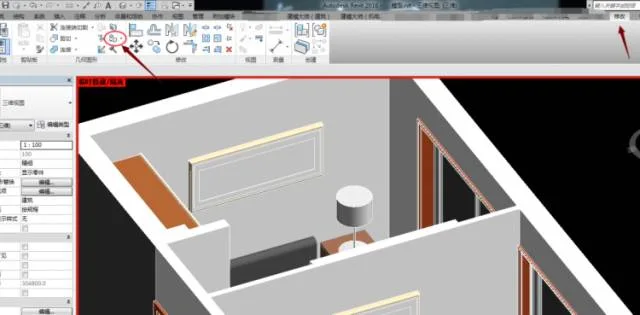
Step 2: After selecting the Color command, a material selection box will appear, as shown below.
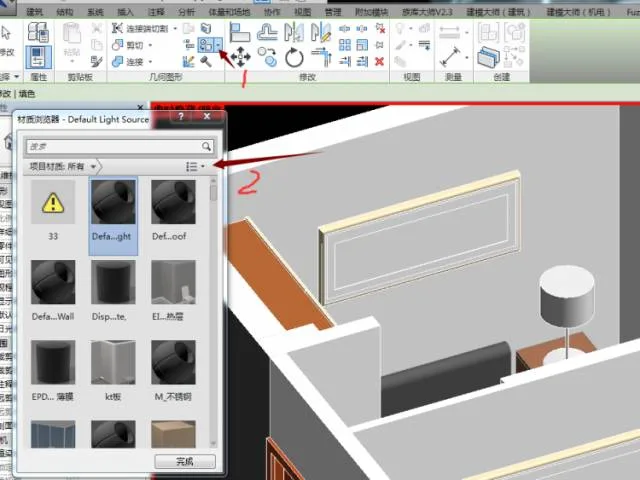
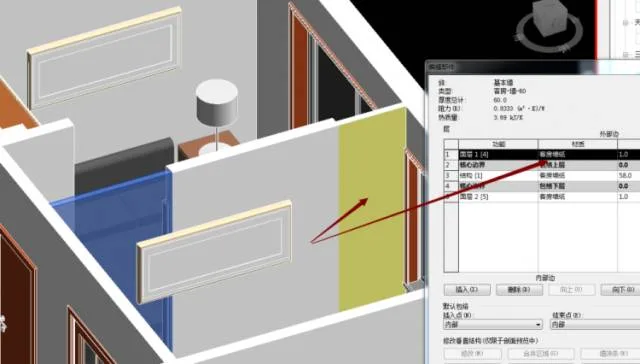
Type paint into the search box. In this example, we will change the interior wall material to yellow paint.
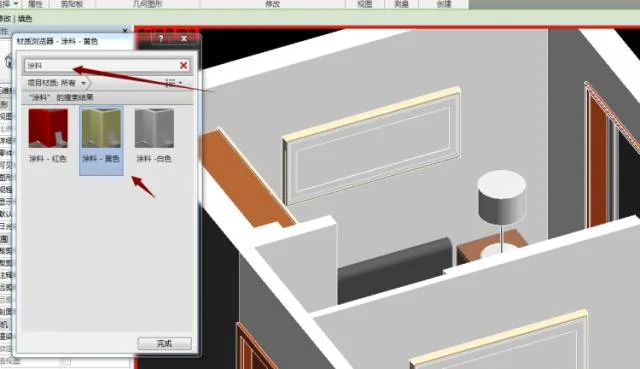
Step 3: Click on the yellow paint material, then select the wall you want to modify. The material will update automatically!
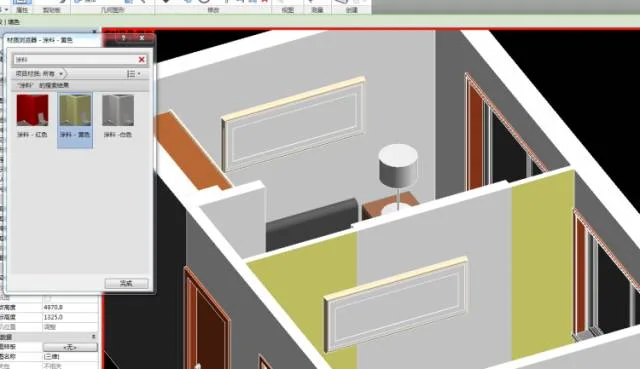
Notes:
1. You can quickly select other materials for replacement using the same method.
2. To revert to the original material, click the ** icon on the right side of the Coloring panel to remove the applied coloring.
3. The materials you replace will not affect parameters in the Wall Properties under Edit Type. Once you finalize the material, be sure to update it accordingly.
















Must log in before commenting!
Sign Up