
Question:
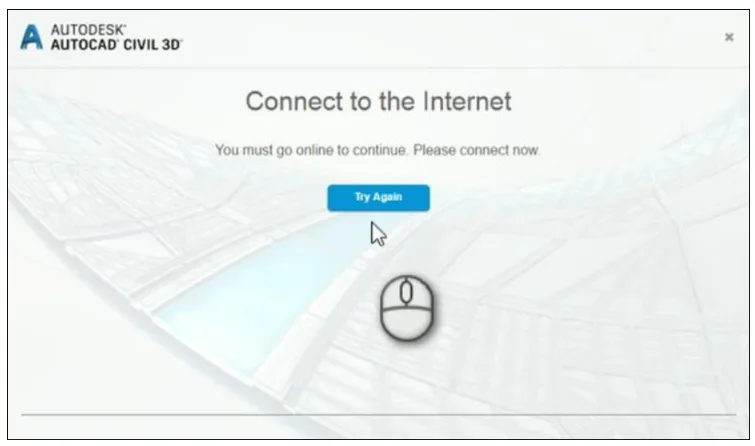
When launching an Autodesk product, you may encounter the following error message:
Connect to the Internet
You must be online to continue using this software. Please connect immediately.
Possible Causes:
This error can occur due to several reasons:
- Antivirus, firewall, or other security software blocking the licensing process required to run Autodesk software.
- The system clock is incorrectly set.
- Issues with loading the Autodesk desktop application.
Solutions:
Please try the following steps, testing the software after each one. Note that depending on your organization’s policies, you might need assistance from your system or network administrator.
1. Check for Conflicting Software
Determine if any installed software is known to interfere with the Autodesk Licensing Service.
2. Verify Network Settings
If you use a firewall or proxy on your local network, ensure that the Autodesk domains are added to the allowlist. Avoid performing HTTPS/SSL inspections on these connections.
3. Install the Latest Updates
Update your Autodesk software via the Autodesk Desktop Application or your Autodesk Account.
Also, install all available updates for your operating system.
4. Enable TLS as Default Security Protocol (Windows 7 Only)
- Install Microsoft Update KB314024.
- Apply the Microsoft TLS Hotfix.
5. Reset the License Service
Refer to the guide: How to reset license activation for Autodesk products – Single player license with single user access.
6. Reinstall the Software
- Completely uninstall the Autodesk software.
- Reinstall the software.
















Must log in before commenting!
Sign Up