
Issue:
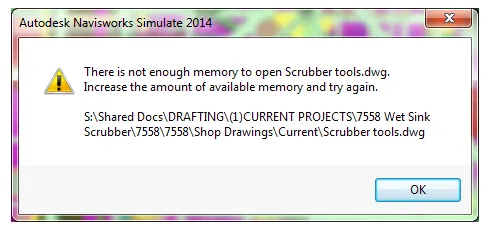
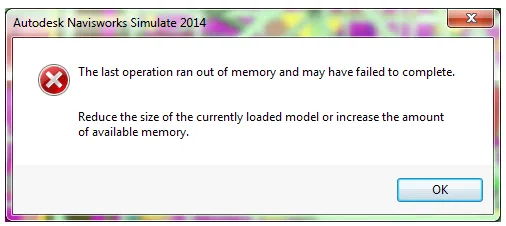
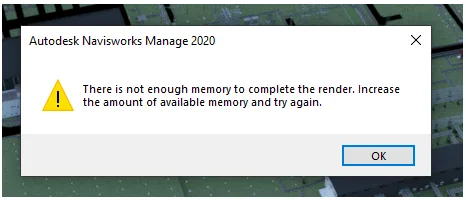
When you try to open, attach, or save a Navisworks file, you might encounter one or more of the following error messages:
- There is not enough memory to open ‘filename.xyz’. Increase the available memory and try again.
- The last operation may not be completed due to insufficient memory.
- There is not enough memory to save File.nwc. Increase the available memory and try again.
- There is not enough memory to complete rendering. Increase the available memory and try again.
Cause:
This error usually means your computer does not have enough available memory to complete the task. Sometimes, user settings within Navisworks can also trigger this problem.
How to fix it:
Follow these steps in order to resolve the issue:
1. Adjust Navisworks Settings:
Open the Options Editor and modify the following settings:
File Reader: Uncheck all the boxes shown below:
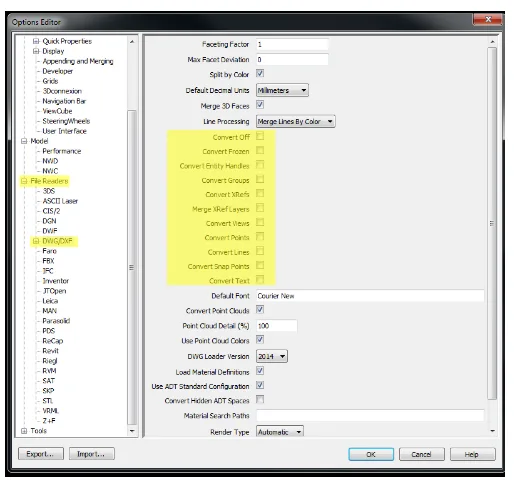
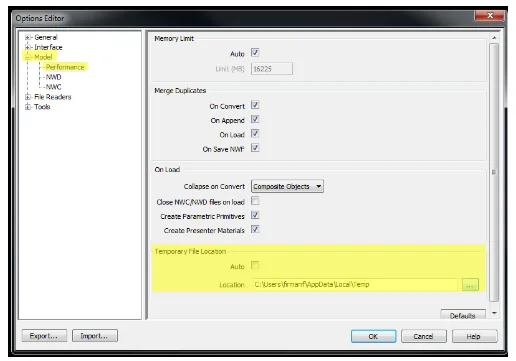
Next, verify that the file path under Model > Performance > Temporary File Location matches the user’s actual temporary folder location:
2. Clear Temporary Files:
If you are using Revit, first synchronize your work, discard changes, and close all Revit sessions.
Next, open the Windows search box, type %temp%, and hit Enter to open the temporary folder. Select all files and folders inside, then delete them (do not delete the temporary folder itself). For any files that cannot be deleted, choose Skip.
After clearing the temp folder, empty your Recycle Bin.
Finally, restart your computer.
Note: This issue can also occur if your project contains a large number of viewpoints. To resolve this:
- Export all viewpoints.
- Delete all viewpoints from the project.
- Re-import the viewpoints back into Navisworks.
















Must log in before commenting!
Sign Up