
Issue:
When opening Navisworks products, generating Customer Error Reports (CERs) causes the program to crash.
Navisworks Error Report:
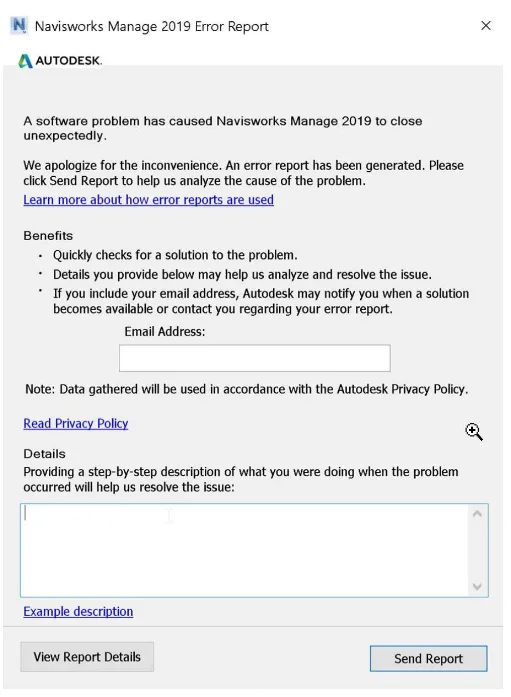
There is a software issue causing NavisworksManage to unexpectedly shut down.
It has been observed that Navisworks opens normally when logging in as a different user or under the administrator profile on the same computer.
The initial launch of Navisworks works as expected with a new Windows configuration file.
However, if you log out and then log back in, starting Navisworks will fail and generate a CER.
Solution:
To resolve this issue, please follow the steps below:
- Close Navisworks.
- Rename the
LastSession.xmlfile toOLDLastSession.xmllocated in the following folder:
C:Users%USERNAME%AppDataRoamingAutodeskNavisworksManage###LastSession.xml - Launch Navisworks again.
If the problem persists, try these additional steps:
- Rename the following folders in the user profile:
C:Users%USERNAME%AppDataRoamingAutodeskNavisworksManage####
C:Users%USERNAME%AppDataRoamingNavisworks#### - Restart NavisworksManage.
If the issue remains unresolved, proceed with the following:
- Identify a workstation where NavisworksManage ###### is functioning normally, then compress the folder:
C:Users%USERNAME%AppDataRoamingAutodeskNavisworksManage#### - Copy the compressed folder to the affected computer and place it into:
C:Users%USERNAME%AppDataRoaming - Rename the existing
AutodeskNavisworksManage####folder in the user profile:
C:Users%USERNAME%AppDataRoaming - Extract the copied compressed folder here. The
AutodeskNavisworksManage####folder should now be located at:
C:Users%USERNAME%AppDataRoaming - Restart NavisworksManage.
Alternatively, consider updating or reinstalling your graphics card drivers, as well as updating Microsoft Windows and the .NET Framework.
















Must log in before commenting!
Sign Up