
-1. Internal Origin
The internal origin serves as the starting point of the internal coordinate system, also called the starting position.
**Key Feature:** The internal origin’s position is fixed and does not move.
**Location:** When a new model is created, the project base point and measurement point are set by default at the internal origin.
**Distance Limit:** The model geometry must be placed within a 16-kilometer (10-mile) radius from the internal origin. Exceeding this range may reduce model reliability.
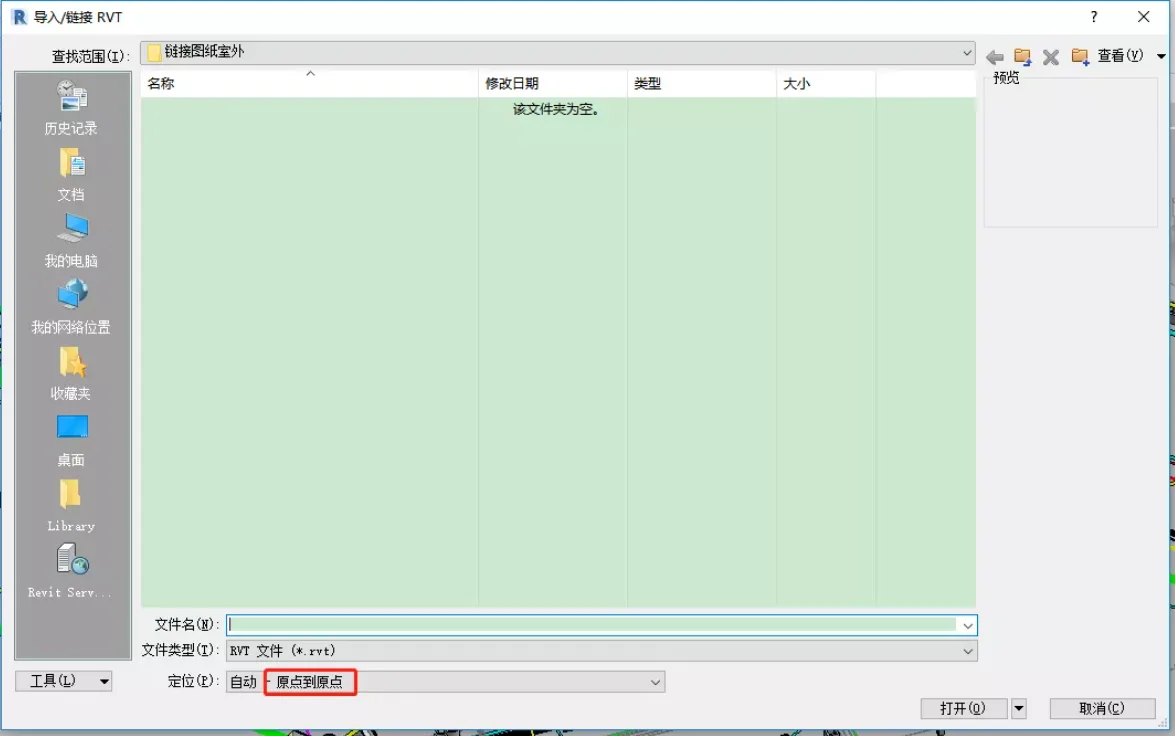
**Usage:** Use the internal origin positioning link and import positioning options to set the origin to the internal origin (see the image below).
-2. Project Base Point
The project base point defines the origin (0,0,0) of the project coordinate system. When initially creating a Revit model, the project base point coincides with the internal origin.
**Initial Setup:** At the start of the project, determine where the project baseline should be placed within the model. In collaborative environments, choose the optimal location so that all team members can work from a unified reference point.
**Key Feature:** The project base point cannot be deleted. By default, it only appears in the site plan view.
**Usage:**
– If team members use different reference points causing displacement during model integration, you can adjust the model’s position by moving the project base point.
– Before moving, check if the project base point is cropped (toggle switch).
– When cropped, moving the project base point shifts the model while keeping the model’s local coordinates unchanged.
– When uncropped, moving it does not shift the model, preserving the model’s true coordinates.
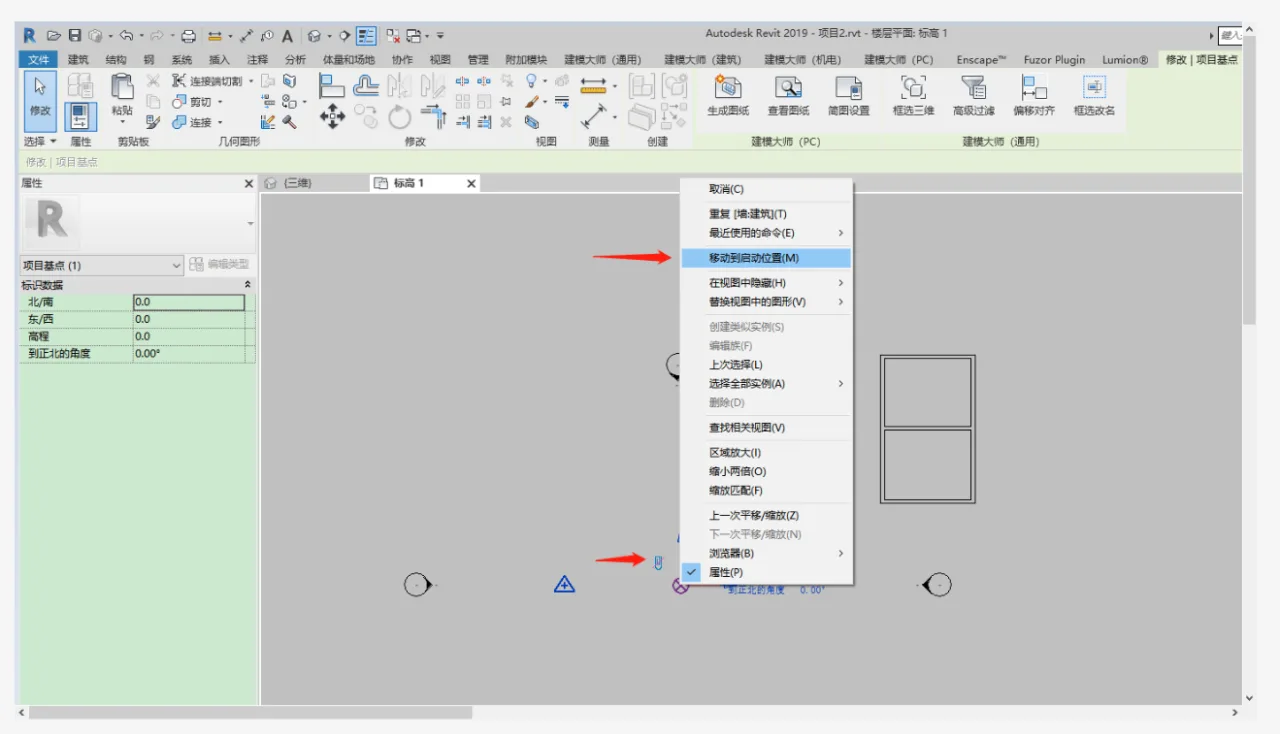
To reset the project base point to the internal origin, uncheck the cropping and use the ‘Move to Start Position’ tool.
-3. Measurement Point
The measurement point represents a known reference point in the real world associated with the Revit model.
**Applications:**
1. Provides a positioning reference relative to the real world, allowing you to set reasonable measurement points.
2. Useful for linking models and other related scenarios.
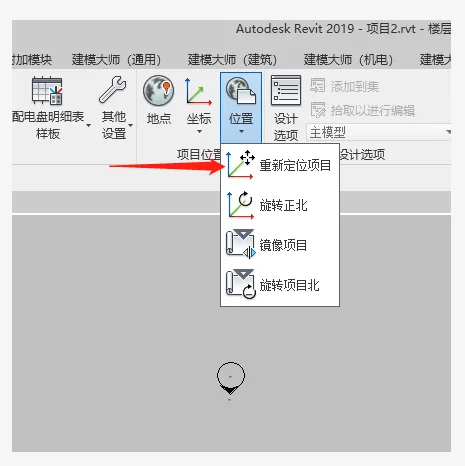
3. Facilitates repositioning the model by moving it relative to the measurement coordinate system.
This repositioning is typically done when the measurement point is correctly defined, but the model’s current placement is inaccurate. Moving the model this way has the same effect as moving a cropped project base point. However, using any reference point within the model enables intuitive movement without relying solely on project base points.
















Must log in before commenting!
Sign Up