
Autodesk Navisworks Manage 2022 is a leading project management software designed for professionals in architecture, engineering, and construction. It enables users to combine multidisciplinary models from various platforms—including Building Information Modeling (BIM), digital prototypes, and manufacturing plant designs—into a single unified project model. This integrated model can be exported in the NWD format for easy sharing and collaboration.
Within the published NWD file, users can navigate the model hierarchy, access detailed object properties, and review embedded data such as viewpoints, animations, redlines, and annotations. By merging design data from BIM, digital prototyping, and manufacturing tools, Navisworks Manage provides powerful features for planning, quantification, cost estimation, animation, and visualization. These capabilities help clearly communicate design intent, simulate construction sequences, and improve project predictability.
The software supports real-time navigation alongside advanced viewing tools, fostering seamless collaboration across project teams. The comprehensive project model can be published and viewed in both NWD and DWF formats, serving as valuable digital assets throughout the construction lifecycle. Additionally, interference management tools help design and construction professionals detect and resolve potential conflicts early, minimizing costly delays and rework.
We now offer the official Chinese version of Autodesk Navisworks Manage 2022. Interested users can download it from our website.
Navisworks Manage 2022 – Installation Guide
-
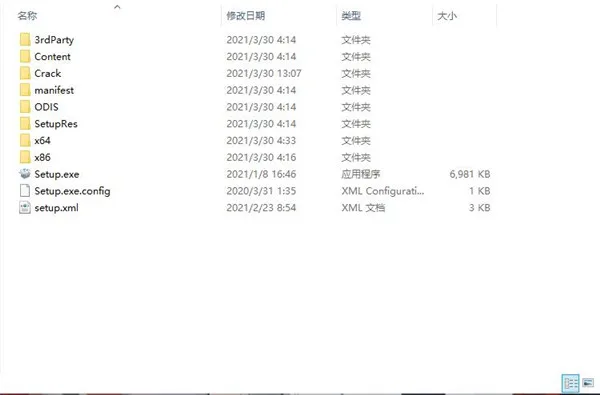
Download and unzip the package from our website as shown below:
-
Double-click
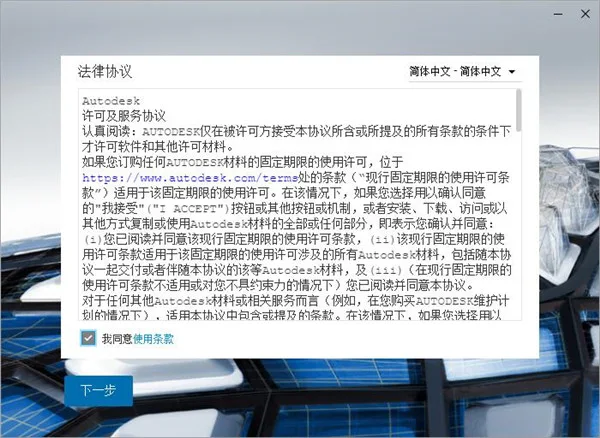
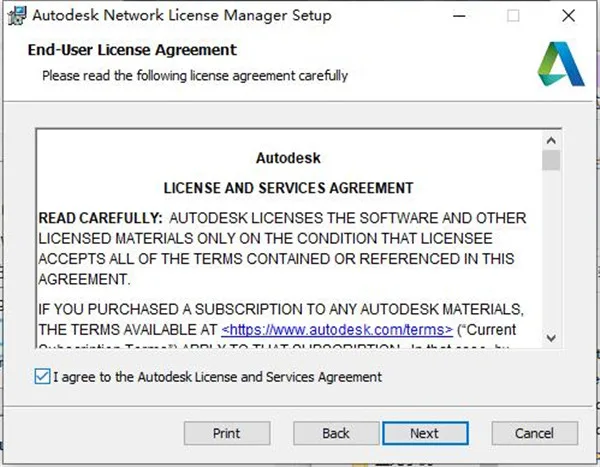
Setup.exeto start the installer. Make sure to accept the license agreement by checking the required box.
-
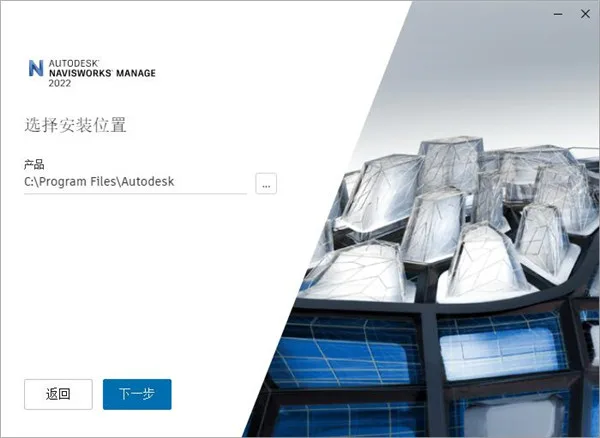
Select your preferred installation directory.
-
After installation completes, exit the setup wizard without launching the software. Then, open the
crackfolder and runnlm11.18.0.0_ipv4_ipv6uwin64.MSIto install the Autodesk Network License Manager (version 11.18.0).
The default installation path isC:AutodeskNetwork License Manager. Before proceeding, ensure any running instances oflmgrdoradskflexare stopped.
-
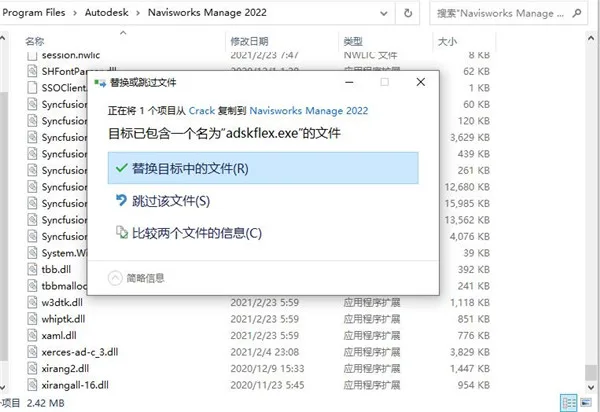
Copy
adskflex.exefrom the crack folder into the Network License Manager installation directory, overwriting the original file.
-
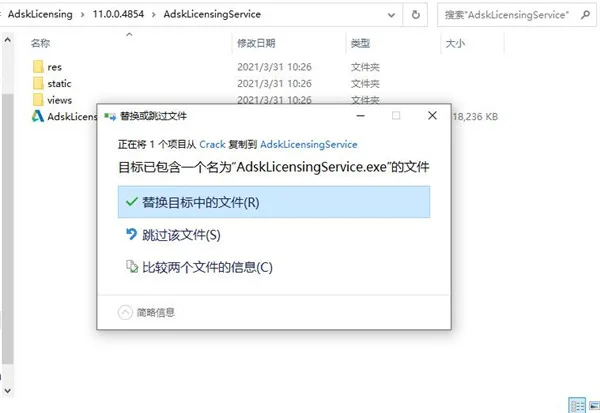
Open
services.mscand stop the desktop licensing service. Then, copyAdskLicensingService.exeintoC:Program Files (x86)Common FilesAutodesk SharedAdskLicensing11.0.0.4854AdskLicensingService, replacing the existing file.
-
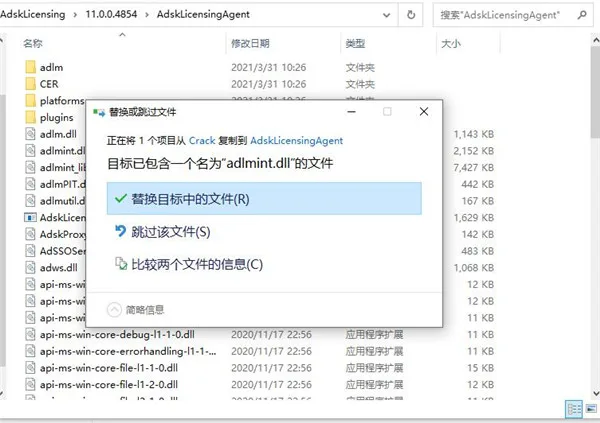
Next, copy
AdskLicensingAgent.exeintoC:Program Files (x86)Common FilesAutodesk SharedAdskLicensing11.0.0.4854AdskLicensingAgent, overwriting the original file.

-
Copy
adlmint.dllinto the sameAdskLicensingAgentfolder, replacing the existing file.
-
Restart the desktop licensing service via
services.msc. Then, openlic.datin Notepad and update theHOSTNAMEandMACaddress fields to match your system. You can find this information using the LMTOOLS Utility under System Settings.
Save the updatedlic.datfile to your preferred location.
Start the Network License Manager by runninglmgrd.exe -z -c lic.datfrom theC:Network License Managerfolder.
Alternatively, configure a service using LMTOOLS as follows:- Launch
lmtools.exefromC:Network License Manager. - Navigate to the ‘Configure Services’ tab and add a new service name.
- Specify the paths for
lmgrd.exeand your license file (lic.dat). - Optionally, specify a log file.
- Check ‘Start Server at Power Up’ and ‘Use Services’, then click ‘Save’.
- Under ‘Service/License File’, select your service and check ‘Ignore License File Path Env Var’ if needed.
- In the ‘Start/Stop/Reread’ tab, click ‘Start Server’ and then ‘Reread License File’.
- Check ‘Server Status’ by clicking ‘Perform Status Enquiry’—you should see ‘adskflex: UP v11.18.0’.
- Use ‘Server Diagnostics’ to verify functionality and review the logs.
- Launch
-
Launch Navisworks Manage 2022. When prompted, select ‘Use a network license’ and choose ‘Single License Server’. Enter
127.0.0.1,localhost, or your server address in the formatport@server.
Key Features of Navisworks Manage 2022
- Section Highlighting: Easily visualize cross-sections with highlighted cutting planes.
- Multi-threaded Clash Detection: Speed up clash detection processes (available in Manage edition).
- Enhanced IFC File Reader: Improved with open-source Revit code for better hierarchy, property set operations, and data enrichment.
- New Beta DGN File Reader: Adds support for more attributes and enhanced iModel functionality.
- BIM 360 Glue Integration: Seamlessly access shared project data and workflows.
- Collaboration with AutoCAD, Revit, and ReCap: Open files directly from these Autodesk applications.
- Clash Detection and Coordination: Efficiently identify and resolve conflicts within the project environment (Manage only).
- BIM 360 Shared Views: Create and share views through Navisworks or BIM 360 Glue platforms.
- Unified Model Integration: Combine design and construction data into a cohesive single model.
- Simulation and Animation: Set up animations and interact dynamically with project models.
- Support for Over 60 File Formats: Compatible with numerous third-party applications.
- Team-wide Project Review: Maintain consistent access permissions across the entire project team.
- Publish NWD and DWF Files: Export models in widely supported, distributable formats.
- Improved Collaboration: Enhance communication of design intent and team coordination.
- Measurement Tools: Use face selection, snapshots, axis locks, and zoom for precise measurements.
- Redline Annotation: Add clear and accurate annotations for better documentation.
- 5D Project Scheduling: Incorporate time and cost simulation into project workflows.
- Realistic Rendering: Create photorealistic 3D animations and images.
- Appearance Analyzer: Color-code model elements based on attributes to enhance clarity.
- Quantitative Data Interaction: Seamlessly integrate and manipulate quantitative project data.
- Cloud Rendering: Render complete project models for cloud storage and sharing.
- Real-time Navigation: Explore integrated project models dynamically and intuitively.
- Visualization Tools: Integrated with Autodesk products for enhanced rendering capabilities.
- Enhanced Point Cloud Integration: Utilize realistic capture and processing features.
- 2D and 3D Quantitative Support: Perform precise measurements within projects.
- PDF Drawing Quantification: Support measurement and quantification from 2D PDF drawings.
Additional Features in Navisworks Manage 2022
- Manufacturing and Production Tools: Create specialized events or geometries tailored for project planning based on location and business needs.
- Planning and Document Management: Store and view NWD and DWF files, offering a robust platform for interdisciplinary coordination, dispute resolution, and project tracking.
- Revit Hierarchy Management: Organize model components by categories, families, types, and instances—ideal for 5D simulations.
- Factory and Workshop Project Management: Coordinate across departments using a comprehensive architectural object library.
Navisworks Manage 2022 – Usage Guide
-
Launching the Software:
After installation, a desktop shortcut will be created. Double-click it to open Navisworks Manage 2022.
Alternatively, launch it via Start > All Programs.To start the software in a different language:
Right-click the desktop shortcut and select “Properties.” Under the “Shortcut” tab, add a space followed by one of the following language parameters afterroamer.exein the Target field:Lang en US– EnglishLang de DE– GermanLang es ES– SpanishLang fr FR– FrenchLang it IT– ItalianLang ja JP– JapaneseLang ko KR– KoreanLang pt BR– Brazilian PortugueseLang ru RU– RussianLang zh CN– Simplified Chinese
Click ‘OK’ to save your changes.
-
Exiting the Software:
Click the application menu button and select ‘Exit’ at the bottom.
If your current project has unsaved changes, you will be prompted:
– Click ‘Yes’ to save.
– Click ‘No’ to exit without saving.
– Click ‘Cancel’ to return to Navisworks. -
Auto-Save and Recovery:
To protect your work from power failures, system crashes, or software errors, Navisworks automatically saves backup versions of your project.
Autosave files have the.nwfextension and are named as<filename>.Autosave<number>.nwf, where<filename>is your project name and<number>increments with each save.
For example, if your project isEnviro-Dome.nwd, the first autosave will beEnviro-Dome.Autosave0.nwf.
You can customize autosave frequency, backup location, and the number of backup files retained. -
Command Line Options:
Navisworks supports various command-line switches to customize startup behavior, including launching in different languages, running memory checks, loading specific files, and generating error reports.
These options can be added to theroamer.execommand line via shortcut properties or the Windows Run dialog.
Multiple switches can be combined in a single command line for tailored launches.















extraction code
Which folder is the key file in? How to log in and use?
May I ask if the installation of the 2022 version of Naivsworks requires’ Stop Desktop Services (using services. msc) ‘in step 6;. Where is this file? How to operate?