
VMware Tools
1. Extract the downloaded Revit2021 compressed file.
Based on the download link and instructions I previously tested, download the software to your computer. Right-click the Revit2021 installation package and select “Extract to the current folder.” Once extraction is complete, a new folder containing the Revit2021 installation files will appear.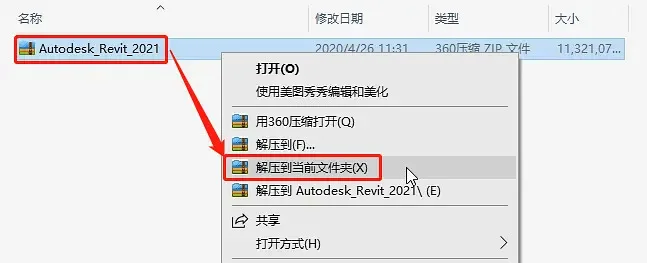
2. Open the newly extracted Revit2021 installation folder by double-clicking it.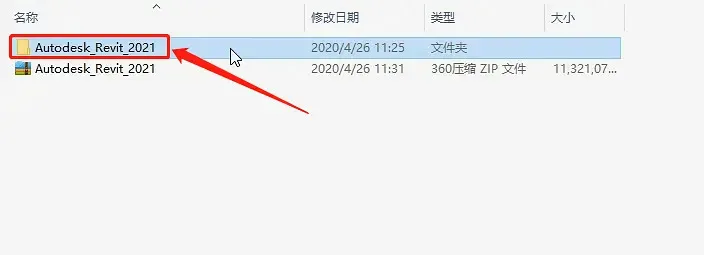
3. Double-click any of the Revit2021 self-extracting files to open them. Click “Change,” select the extraction path (choose the current folder again), and then click “OK.”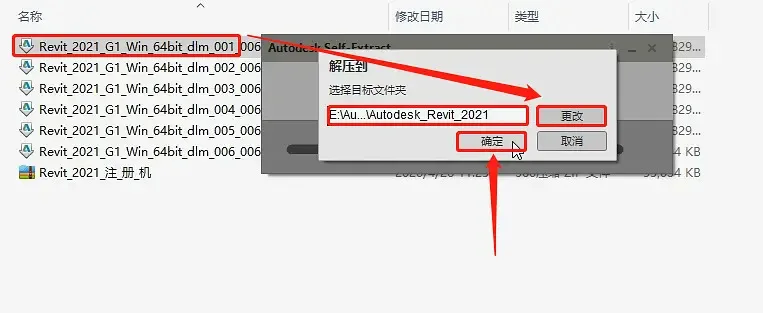
4. Wait for the extraction process to finish, which takes about 5 minutes.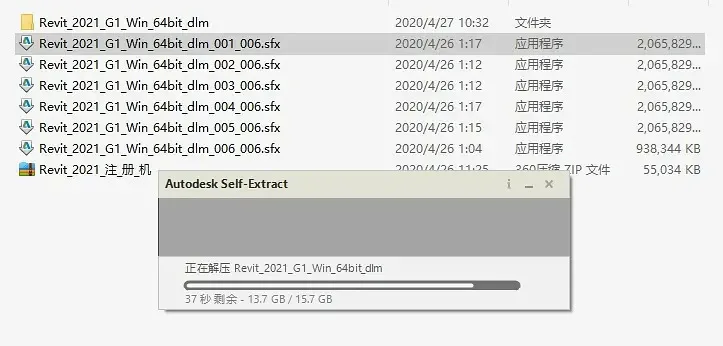
5. Once extraction is complete, the installer will launch automatically. Click “Install.”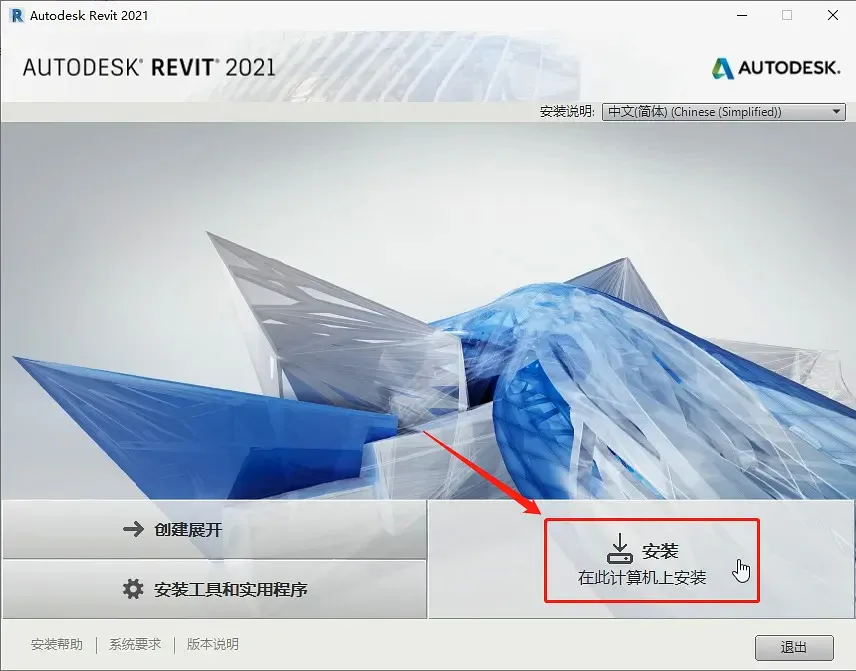
6. Accept the license agreement by clicking “I accept,” then click “Next.”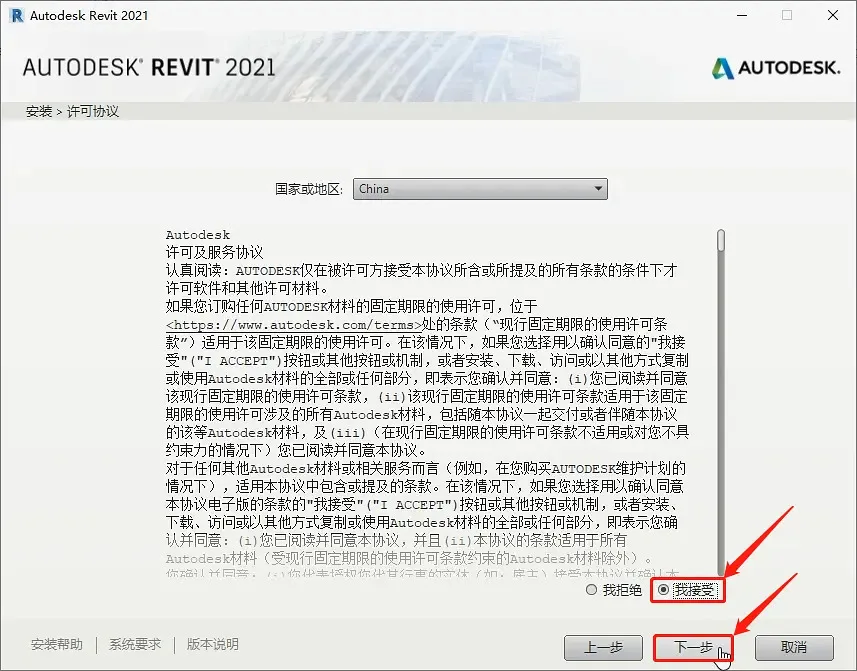
7. Disconnect your computer from the internet by unplugging the network cable.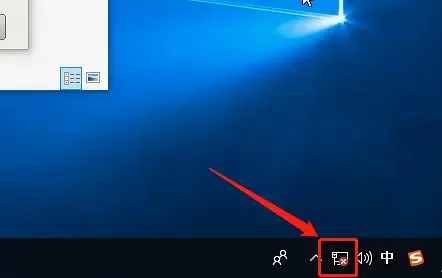
8. Click “Browse,” select the desired installation path for Revit2021 (default is the C drive, but you can choose other drives like D, E, or F), then click “Install.”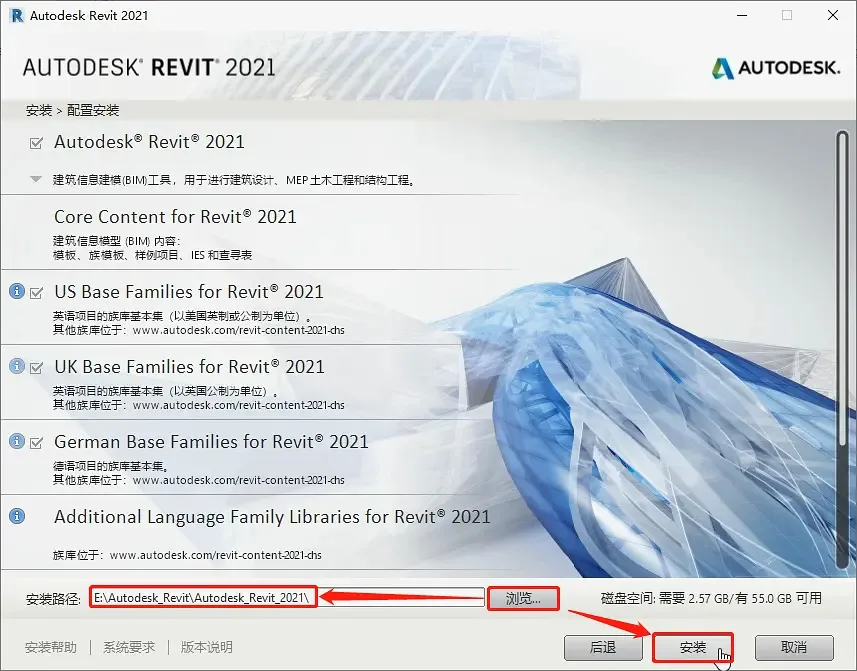
9. Wait for the installation of all Revit2021 components to complete, which can take approximately one hour. If you remain connected to the internet, the installation time may vary.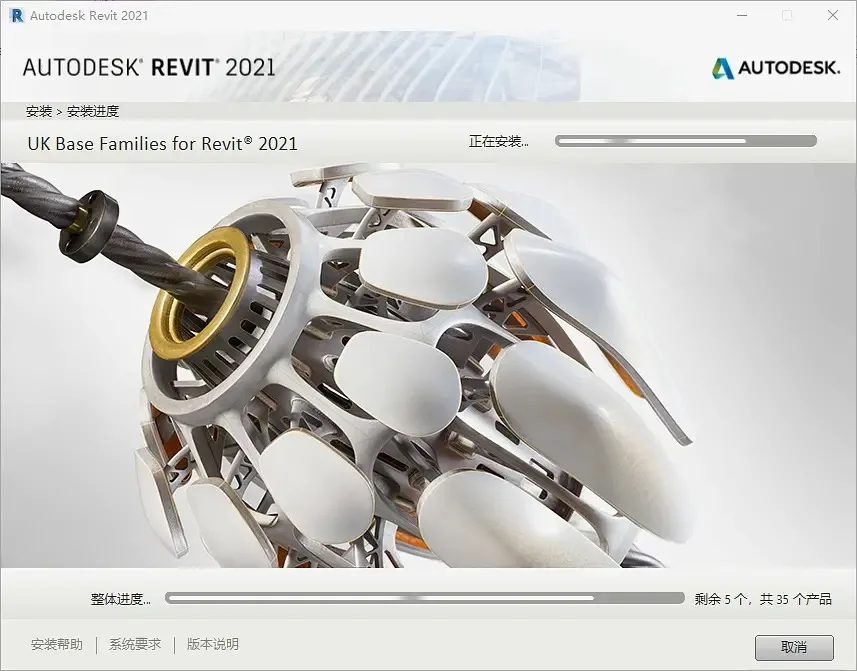
10. When the installation finishes, click “Finish.”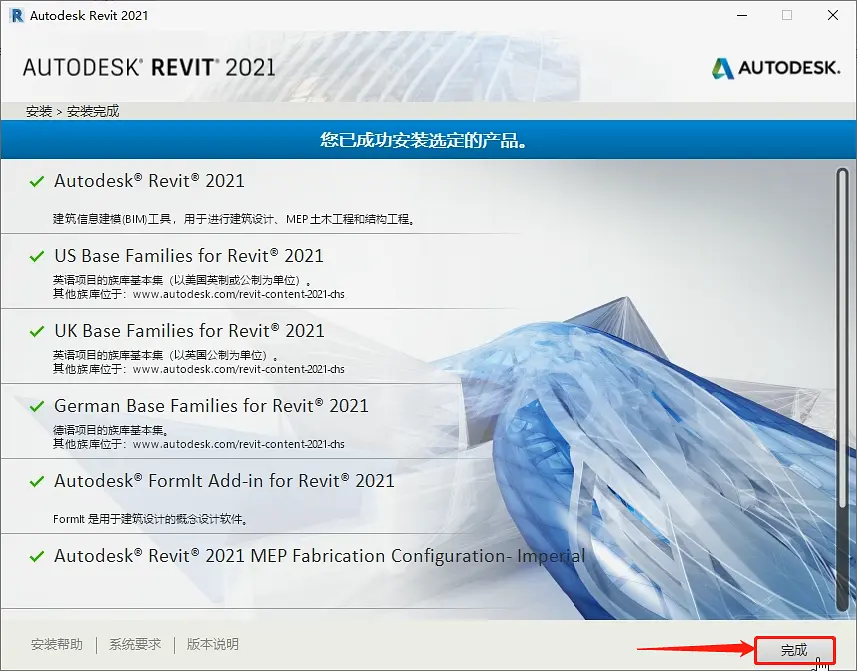
11. If a prompt appears asking to restart, click “No” to restart manually later. Alternatively, you can click “Yes” to restart immediately, depending on your preference.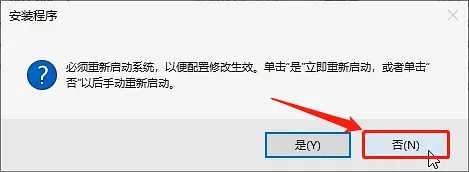
12. Reconnect your internet cable to restore your computer’s internet connection.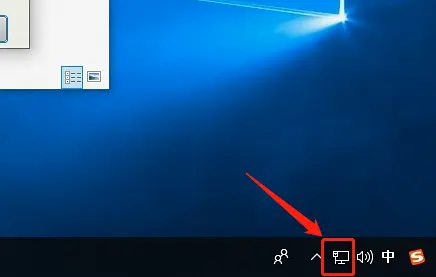
13. Open “My Computer” and navigate to C:Program Files (x86)Common FilesAutodesk SharedAdskLicensing. Double-click “uninstall,” wait for the process to complete, then close the folder.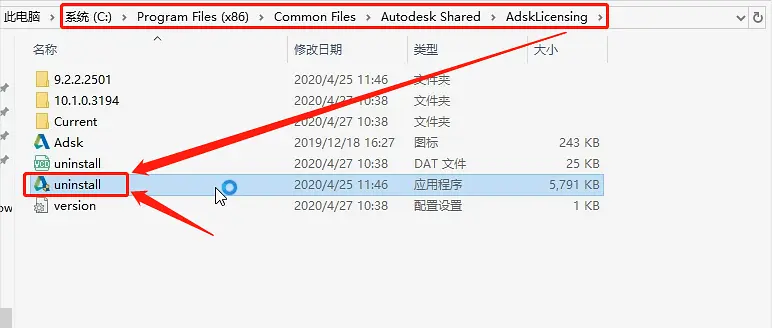
14. Return to the Revit2021 installation folder, locate the Revit2021 registry compressed file, right-click it, and select “Extract to Current Folder.” This will create a new Revit2021 registry folder.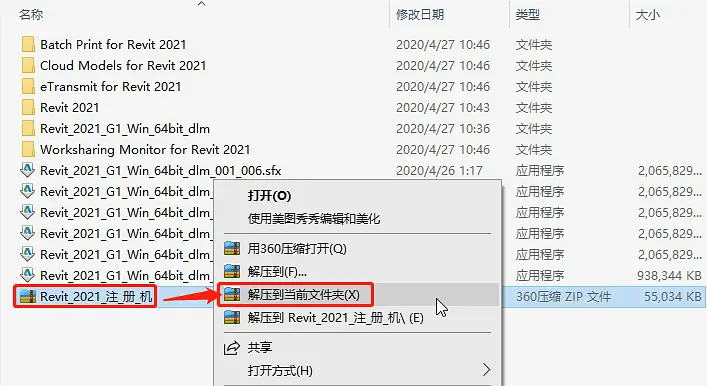
15. Open the newly extracted Revit2021 registry folder by double-clicking it.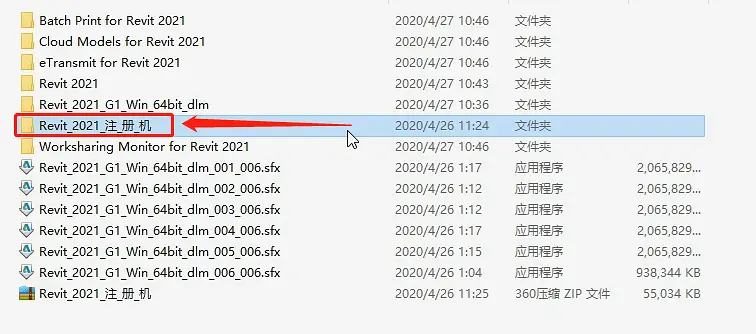
16. Double-click the “adsklicensinginstaller-9.2.2501” program inside the folder and wait about one minute for the automatic installation to finish.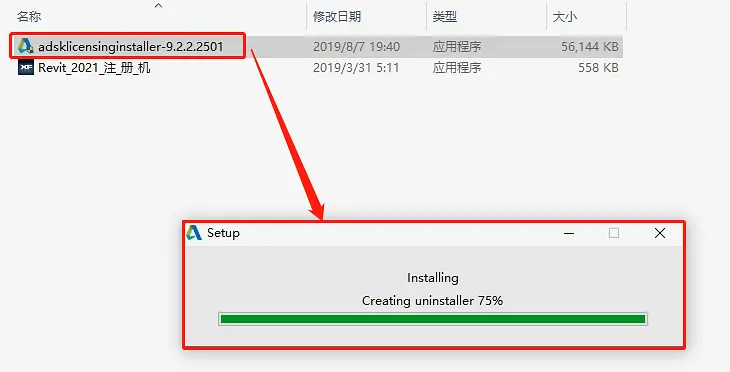
17. Return to your desktop, find the Revit2021 shortcut icon, and double-click to launch the software.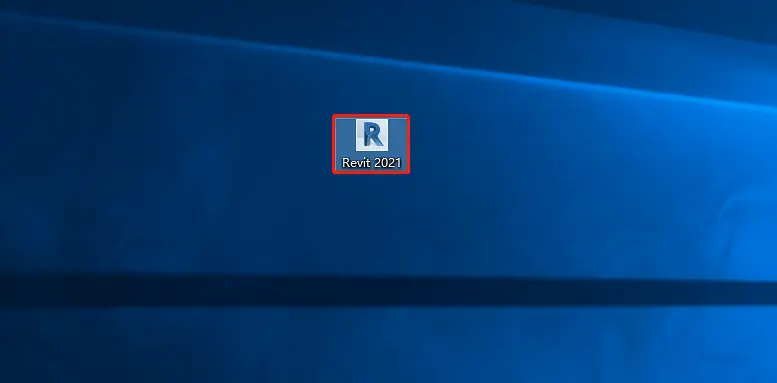
18. Click the option to enter the serial number.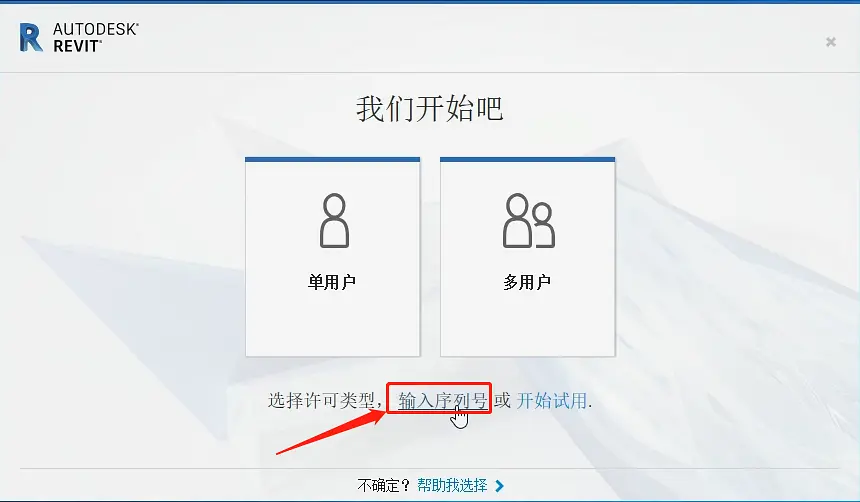
19. Click “Activate.”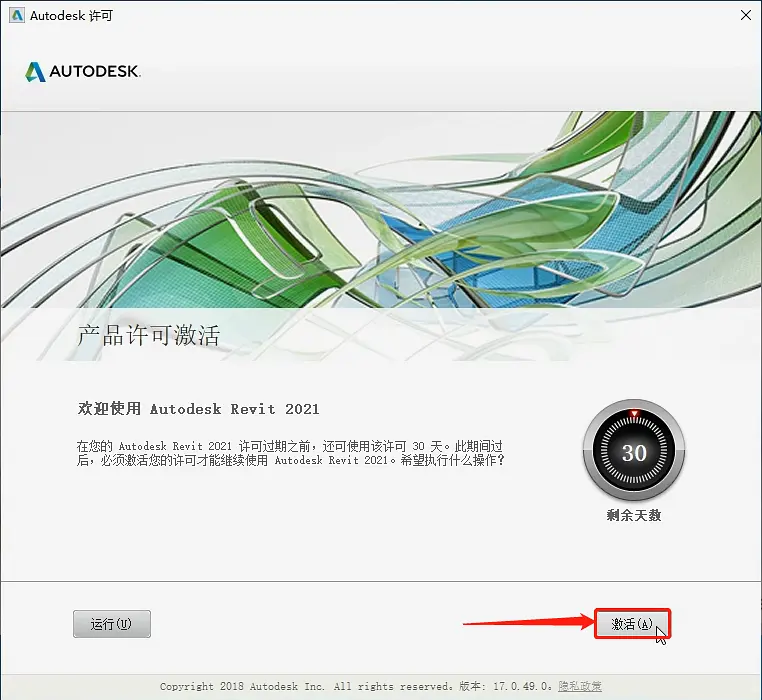
20. Enter the matching Revit2021 serial number and product key, then click “Next.”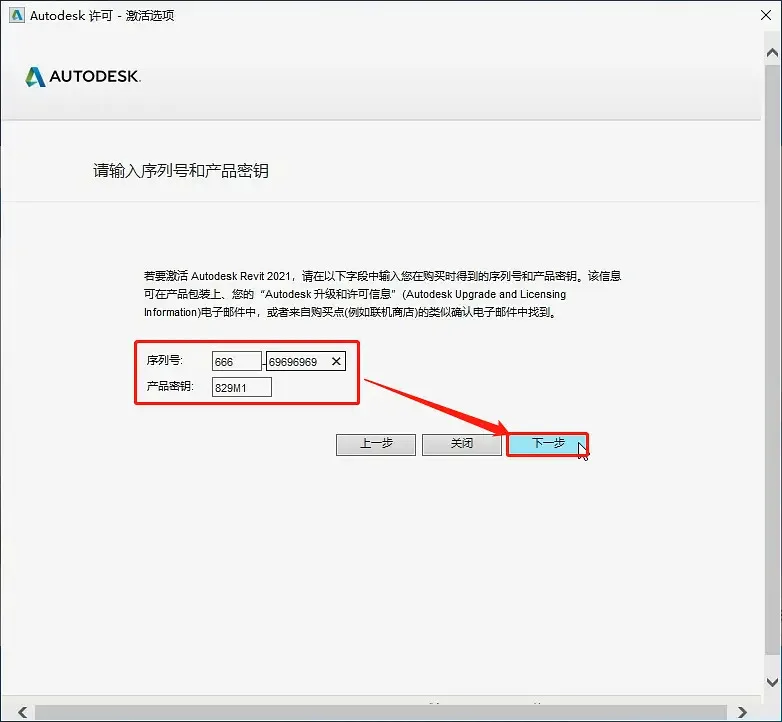
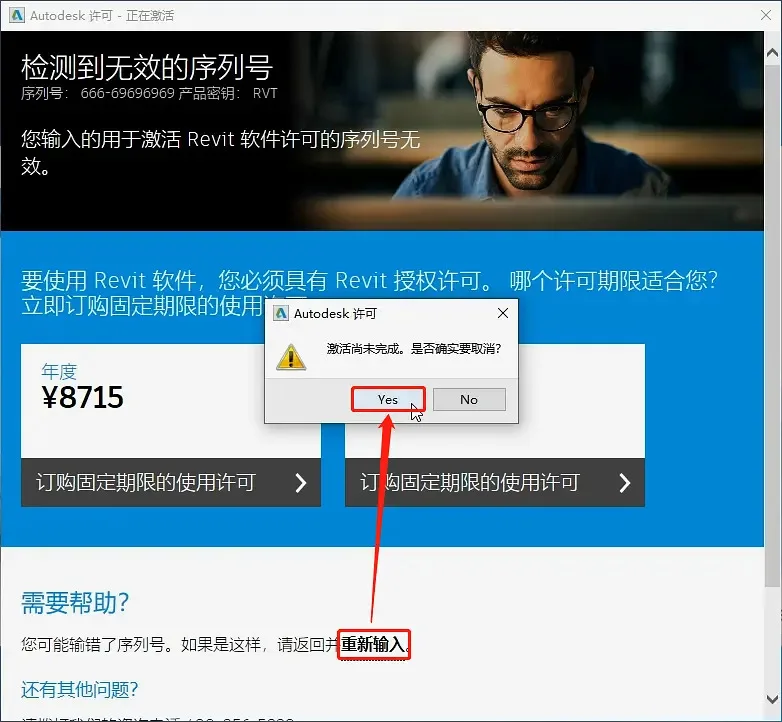
21. Click “Re-enter,” then confirm by clicking “Yes.”
22. Click “Activate” again.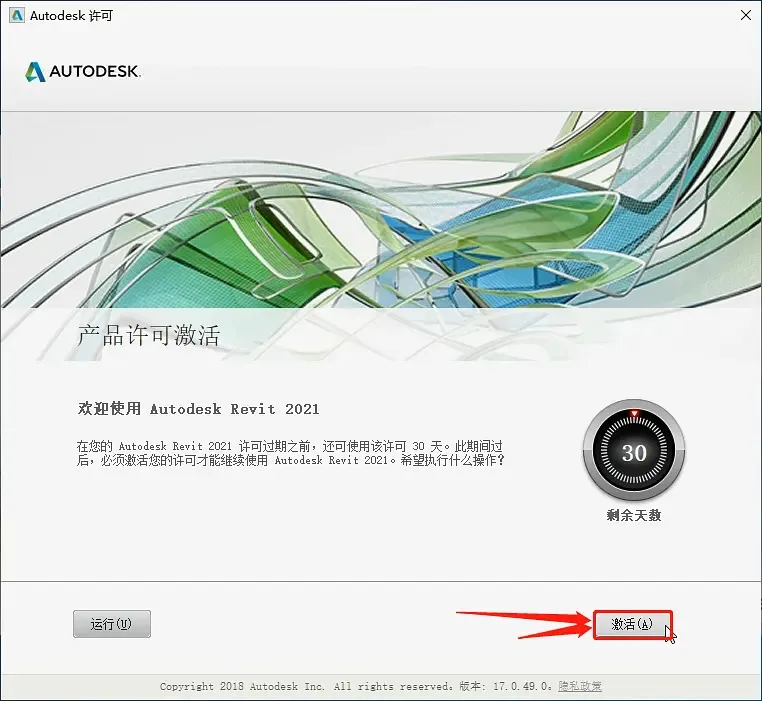
23. Re-enter the matching serial number and key, then click “Next.”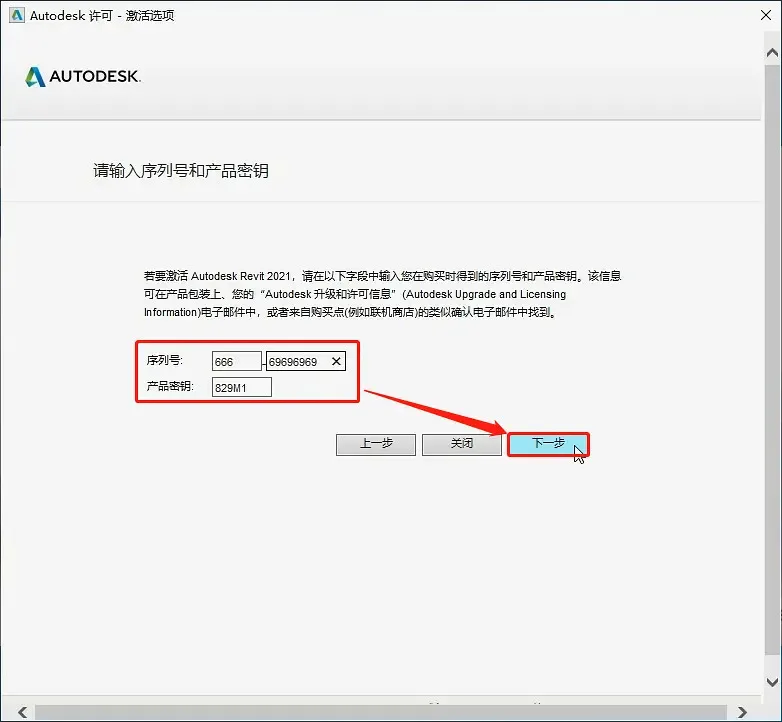
24. Select the second option “I have my activation code from Autodesk” or similar.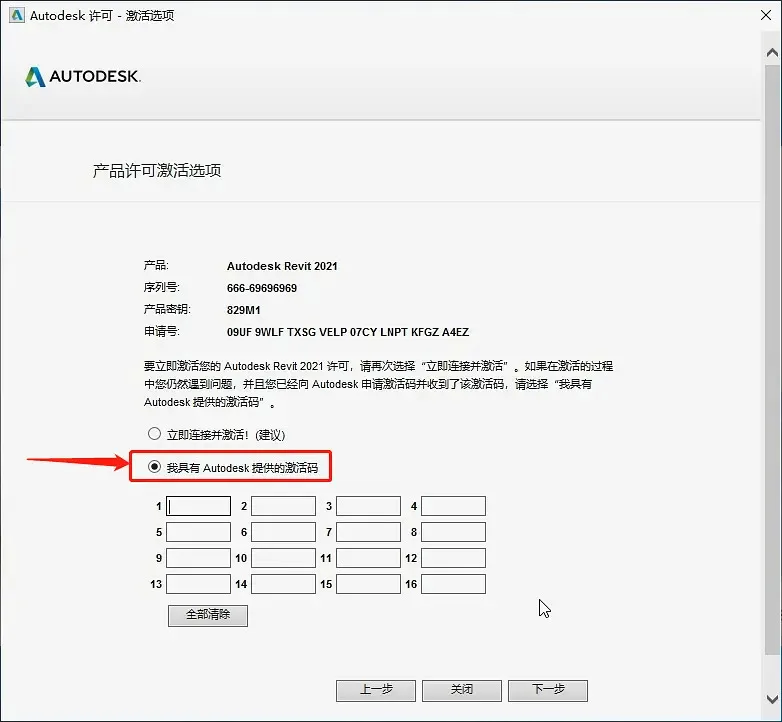
25. Go back to the Revit2021 registration folder, right-click the registration tool, and select “Run as Administrator.”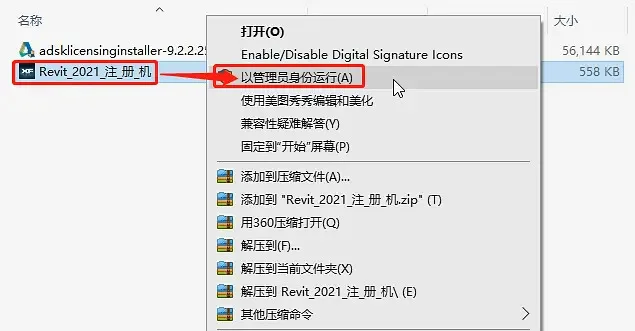
26. Click the “Patch” button and confirm the dialog box that appears.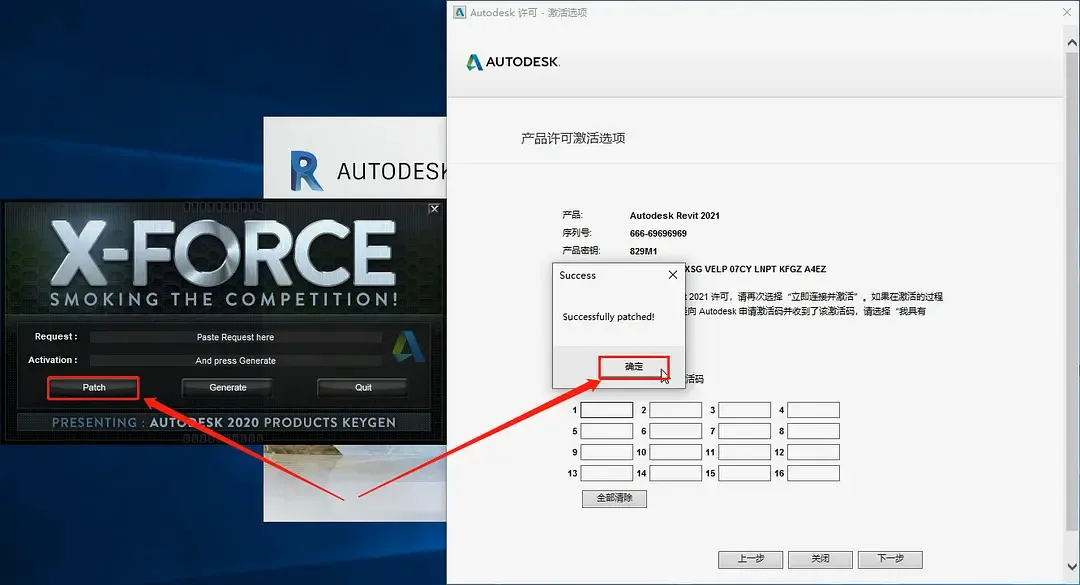
27. Copy the application request code from the activation window, paste it into the first field of the registration tool, then click “Generate.” Select and copy the generated activation code from the second field, paste it back into the activation window’s input box, and click “Next.”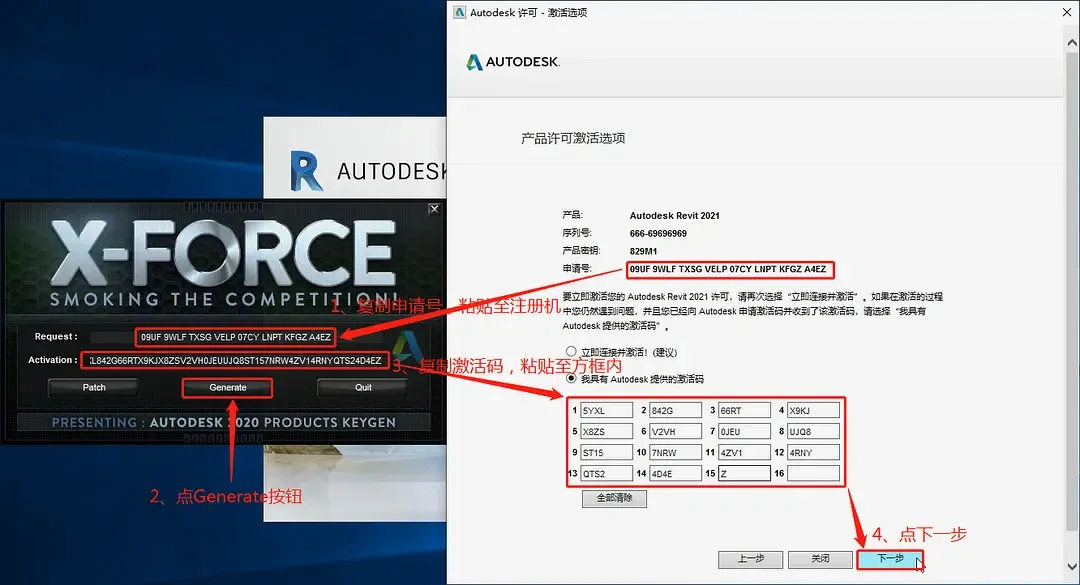
Congratulations! Revit2021 has been successfully activated. Click “Finish.”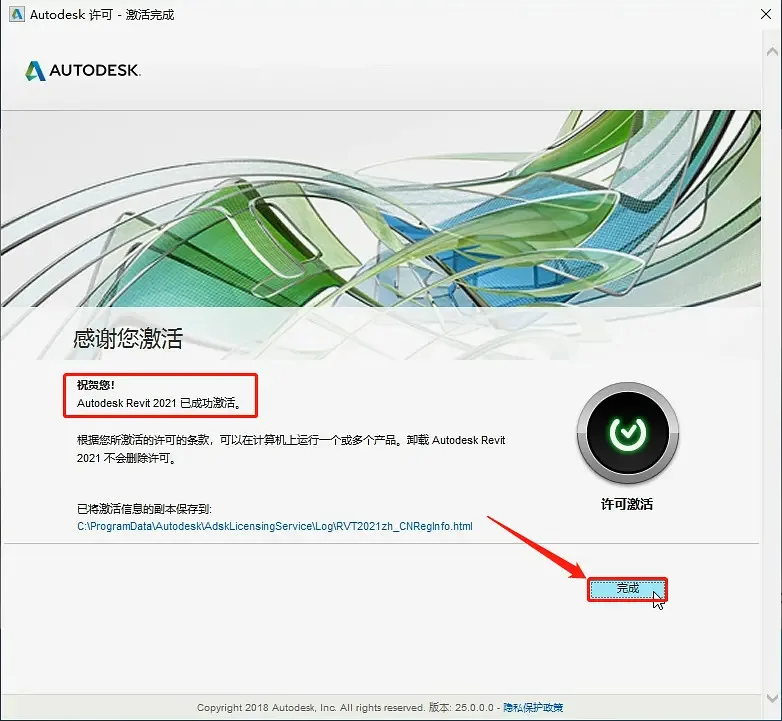
29. You are now inside the Revit2021 software interface. The program has been successfully installed and activated for permanent use. Enjoy your software!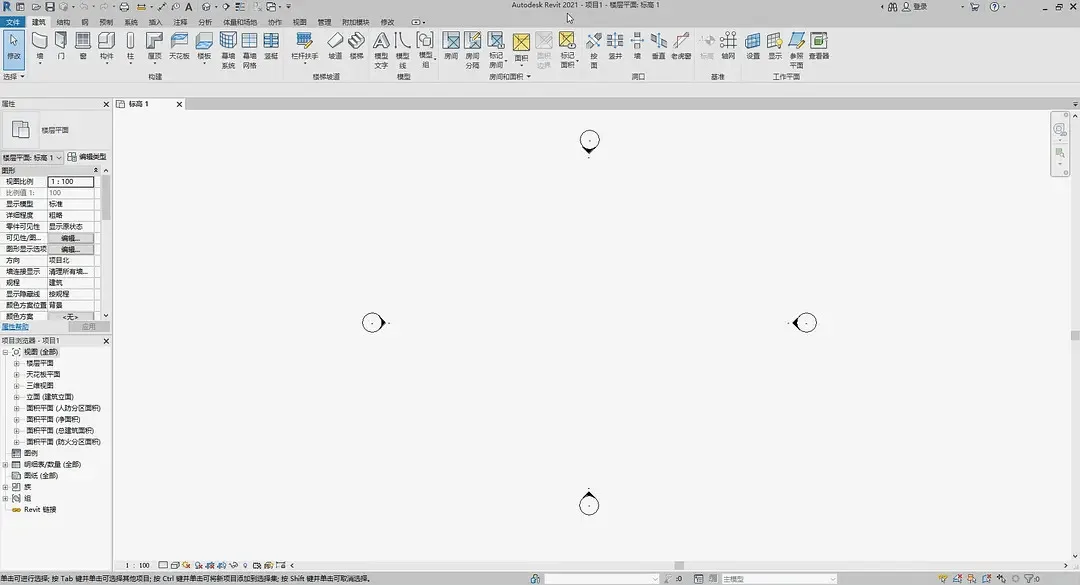














How to download it
Can’t download the installation package