
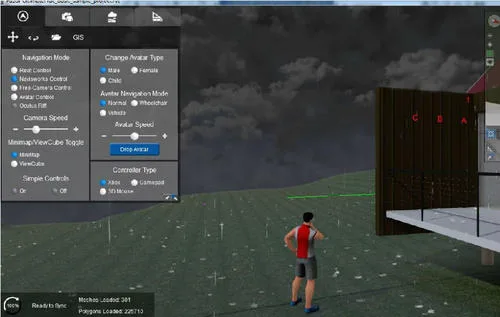
Software Introduction
Fuzor 2019 Chinese is a powerful BIM virtual reality platform that brings construction simulations to life through BIMVR technology. It features comprehensive issue tracking to help users systematically manage pending tasks, optimizing project workflows efficiently.
Key Software Features
- Live Link for Bidirectional Real-Time Sync: Serves as a bridge between Fuzor 2019, Revit, and ArchiCAD, enabling seamless two-way synchronization of changes in real time. This eliminates manual import/export processes and ensures smooth visualization.
- Advanced BIM Virtual Reality Engine: Built on a proprietary 3D game engine optimized for BIM, it supports large models, enhanced display effects, and efficient data handling, delivering real-time rendering and immersive VR experiences.
- Cloud-Based Multiplayer Collaboration: Allows multiple users to collaborate via cloud servers. Project members can track issues and communicate in real time using private cloud servers on local networks or over the Internet.
- 4D Virtual Construction: Offers comprehensive 4D scheduling and management with efficient simulation tools, enabling users to complete various construction simulation projects directly within Fuzor.
- Mobile Device Support: Provides smooth display of BIM models larger than 5GB on mobile devices, with features like browsing, annotation, measurement, parameter viewing, and 4D construction tracking on the go.
- Client Browser: Packages files into executable (EXE) formats, allowing users without Fuzor installed to interactively review models, annotate BIM results, and experience VR environments.
Additional Features
- ARCHICAD and RHINO Compatibility: Enhanced support for ArchiCAD with bidirectional real-time synchronization and unidirectional synchronization with Rhino.
- Multi-Model Integration: Combines models from different software tools into a single project to resolve coordination challenges across diverse AEC platforms.
- Issue Tracking System: Provides comprehensive tracking that automatically syncs issues between mobile and PC devices via private or public cloud storage. Supports annotations, comments, on-site photos, and pressure-sensitive input on iPad Pro for effective project management. Note: Requires installation of a collaborative server.
- Audio Playback for Components and Scenes: Adds environmental sound effects—such as rustling trees or floor surface changes—to enhance immersion in VR experiences.
- Point Cloud Data Support: Enables realistic real-world environment modeling using advanced point cloud technology compliant with the PTS framework, allowing accurate recreation and modification of objects.
- VR Device Compatibility: Improved Oculus Rift experience and added HTC Vive support, along with new VR modes like Sketch Mode and Fine Graphics Mode.
- Shortcut Key Support: Streamlines workflow by enabling navigation and operations through keyboard shortcuts instead of relying solely on mouse input.
- CHL Cache File Linking System: Addresses performance issues with large BIM files by loading multiple cache files into a single main model for smoother operation.
- Enhanced Graphics Performance: Upgraded rendering system accurately simulates natural lighting, atmospheric effects, and material reflections, greatly improving visual detail and realism.
- Improved Vehicle and Pedestrian Path Creation: Simplifies designing dynamic routes for vehicles and pedestrians, adding life and realism to building models.
Opening Revit Models in Chinese for Fuzor 2019
Make sure your Fuzor version matches or exceeds your Revit version. For instance, if you use Revit 2017, your Fuzor should be 2017 or later. Also, install Fuzor after Revit to ensure the necessary Revit plugin is installed for model importing.
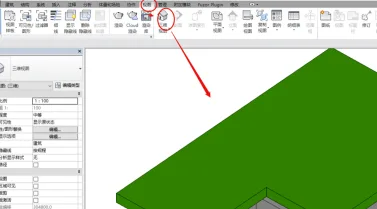
Open the Revit model you want to view, but do not switch to the 3D view as shown below:
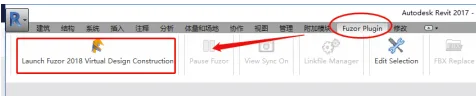
Click the Fuzor plugin in the title bar, then select Launch FUZOR 2019 VDC:
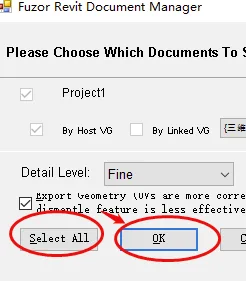
Select all options and click OK, then wait for the model to load in Fuzor:
Once the model is loaded, click Character Control to insert a character into the scene:
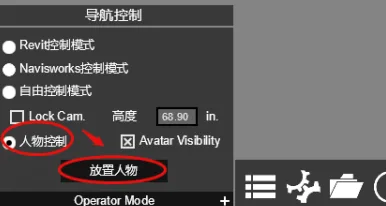
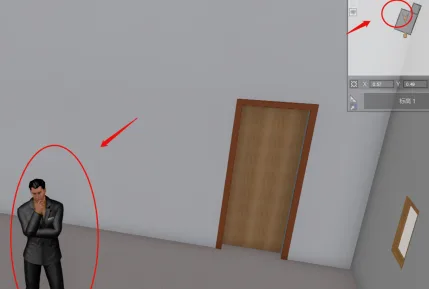
After placing the character, use the top-right flat view to position it accurately. Navigate through the model using the arrow keys, spacebar, and mouse buttons.
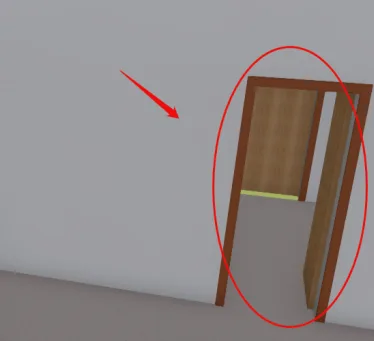
Tip: To open a door, simply right-click on it with your mouse.
Performing Net Height and Safety Analysis in Chinese for Fuzor 2019
Fuzor’s net height analysis detects vertical clearance issues within selected or user-defined rooms. You can configure detection height, grid spacing, and set a minimum threshold to ignore gaps below a certain height.
The safety analysis identifies hazardous boundaries with fall risks by setting obstacle heights, marking all risky areas. Both analyses generate detailed reports for easy review.
These tools effectively address common construction challenges such as ceiling clearance and fall hazards, making Fuzor unique in offering these capabilities.
For example, after resolving all collision conflicts and preparing to install mechanical and electrical equipment, if any pipes hang below ceiling heights, the net height analysis highlights all clearance issues.
During construction, safety analysis assists in developing fall prevention plans by quickly identifying hazard zones, generating reports, and enabling timely safety measures.
Exporting Animations from Fuzor 2020
Fuzor enables merging modified designs and schedules directly without reassociating components or altering imported P6 plans before importing into Primavera. If you lack scheduling software, you can create construction tasks directly within Fuzor.
The software supports rapid importing of multiple external schedule formats, facilitating quick creation of 4D construction simulations. When schedules update, simply import the revised plan without reassociating components, saving time and boosting efficiency.
For example, a general contractor receiving Revit files from architects, Navisworks files from engineers, and SketchUp files from landscape designers can import all into Fuzor. After exporting the Primavera P6 schedule as XML, it can be loaded into Fuzor.
Use Fuzor’s filtering tools to efficiently associate components with tasks and create detailed 4D simulations. When changes occur, merge updated files; Fuzor detects modifications and adjusts accordingly. Hide completed components, associate remaining ones, then export the 4D simulation as video or EXE files.
Fuzor 2020 Frequently Asked Questions
Fuzor 2020 Crash Issues: Some users experience crashes when launching the Fuzor mobile app on Android devices due to missing Google Framework. To fix this, install a Google Play app from the app store, restart your device, and then relaunch Fuzor.
Generating and Scanning QR Codes on Mobile Devices: Fuzor PC includes a QR code generation feature. Select any component in a model and click the QR code button to generate a code for easy sharing and access.
Supported File Formats:
- Revit (.rvt): Offers the smoothest integration with bidirectional real-time synchronization. After installing Fuzor, a plugin appears in Revit’s toolbar. Use the “Launch Fuzor” icon to sync models.
- Archicad (.pln): Also supports bidirectional real-time synchronization. Fuzor plugins in Archicad enable launching and syncing models.
- Navisworks: Supports dozens of file formats through one-way synchronization via Navisworks.
- FBX and SKP: Simply drag and drop these files into Fuzor’s main interface to open models without additional plugins.















Excuse me, the trial period has expired and I can’t open it. What should I do