
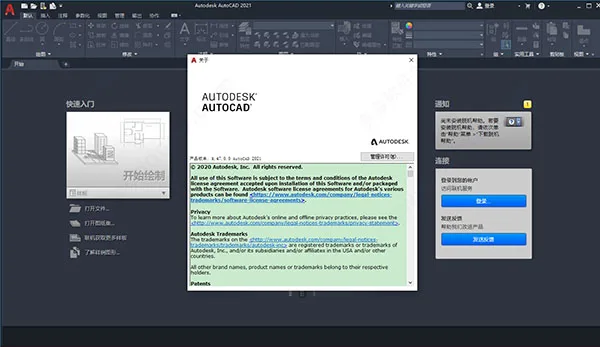
AutoCAD Series Software Officially Releases AutoCAD 2021
AutoCAD 2021 is a widely acclaimed computer-aided design software, packed with thousands of versatile tools. Its powerful toolset enables users to efficiently edit 2D geometric shapes, detailed 2D drawings, design documents, 3D models, and much more—catering easily to a broad range of user needs.
The DWG format used by AutoCAD remains one of the industry’s most popular design data formats. It supports seamless data sharing and reuse through importing, exporting, or attaching DGN files as reference maps. These references can be attached directly to current drawings as external reference files for added convenience.
In addition, AutoCAD 2021 boasts advanced 3D navigation, rendering tools, and robust drawing and 3D printing capabilities. This makes it a preferred choice across industries such as mechanical design, industrial and engineering drawings, civil engineering, construction, interior decoration, and apparel manufacturing.
Compared to previous versions, AutoCAD 2021 introduces numerous productivity enhancements. These include improved revision cloud lines, trimming, extending, measuring functions, and AutoLISP extensions compatible with Visual Studio Code, enabling seamless editing and debugging of AutoLISP source (LSP) files. Other improvements cover the block palette, touch gestures, graphic history, and overall user experience.
This site offers the AutoCAD 2021 Simplified Chinese 64-bit version along with necessary crack files, allowing users to unlock all software features free of charge. The editor has personally tested and verified its effectiveness. Detailed graphical and text-based cracking installation tutorials will be provided soon. Interested users are encouraged to download and try it at no cost.
CAD2021 Chinese Installation Tutorial:
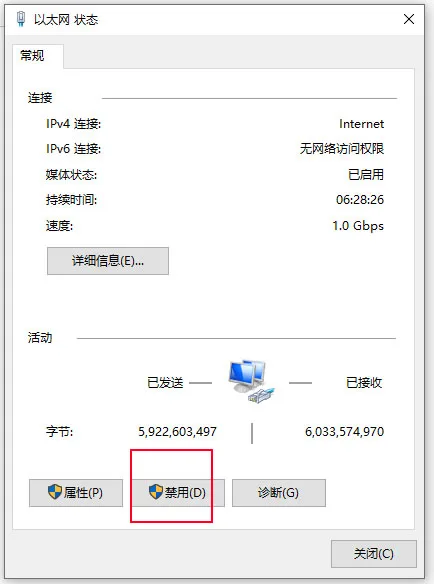
- For smooth installation and activation, disconnect your internet first by disabling your connection or unplugging the network cable.
- Download and unzip the original CAD2021 Simplified Chinese 64-bit software along with crack files. Double-click
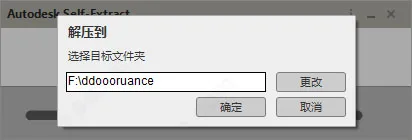
AutoCAD_2021_Simplied_ChineseWin_64bit-dlm.sfx.exeto start the installer. - The installer will begin decompressing files. The default installation folder is
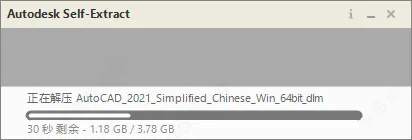
C:Autodesk, but the editor prefers installing onF:ddoorruanceto avoid using the system drive. - Please wait patiently as the decompression completes.
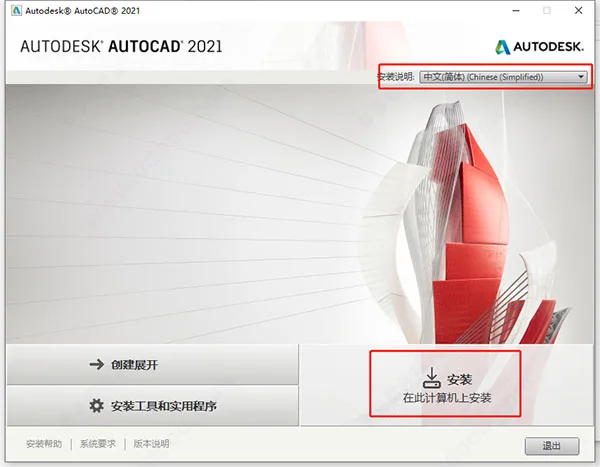
- Once decompressed, the default system language is Simplified Chinese. Click Install to proceed.
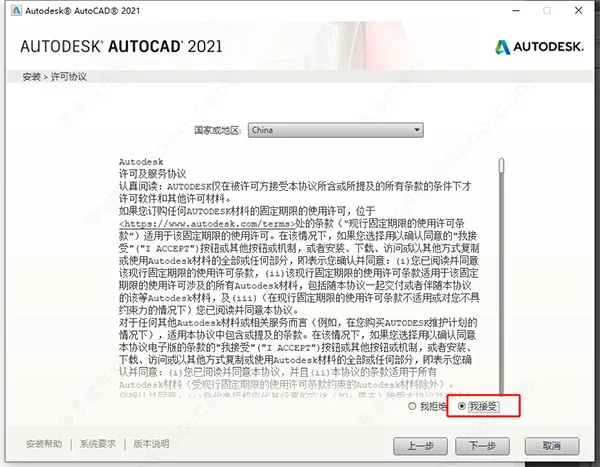
- Accept the software license by checking “I accept”, then follow the prompts to continue.
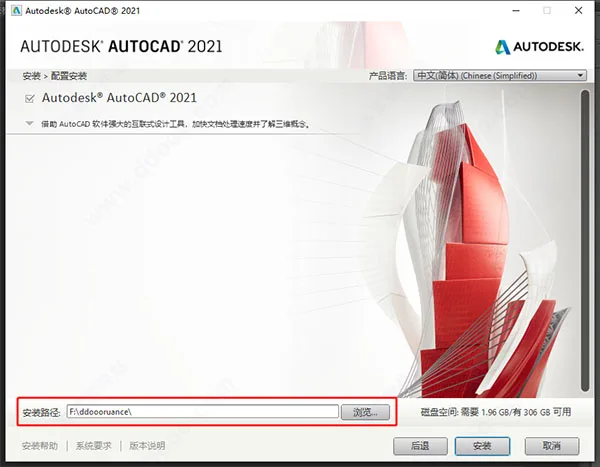
- Select your preferred installation path (the editor uses
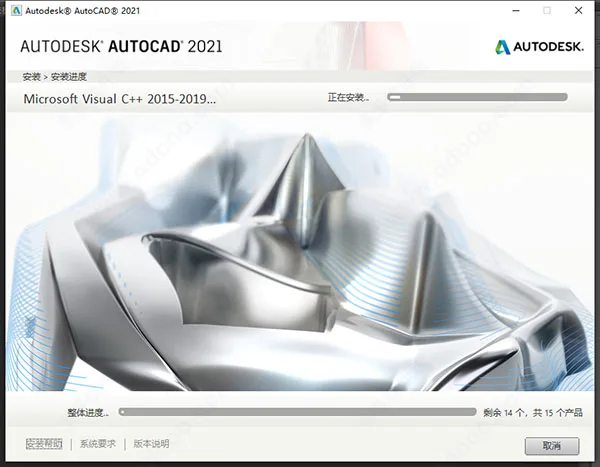
F:ddoorruance) and start the installation. - Wait patiently while AutoCAD 2021 installs.
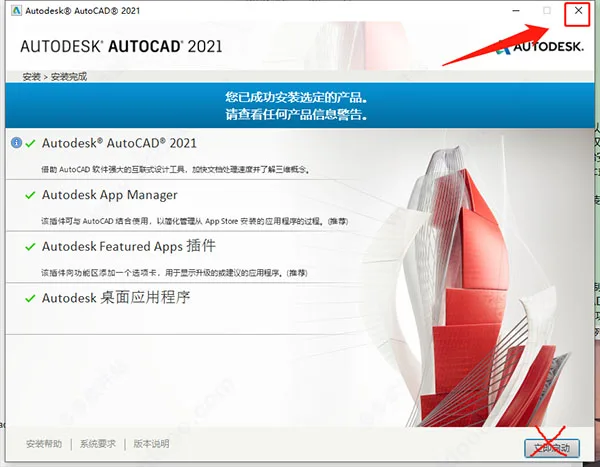
- After installation completes, do not launch the software yet. Close the installer by clicking the “X” in the upper right corner.
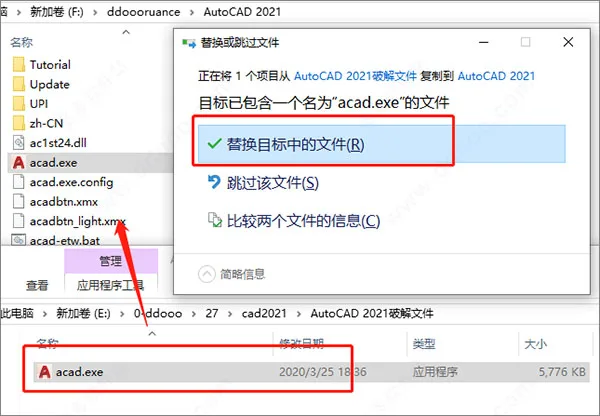
- To crack the program, copy
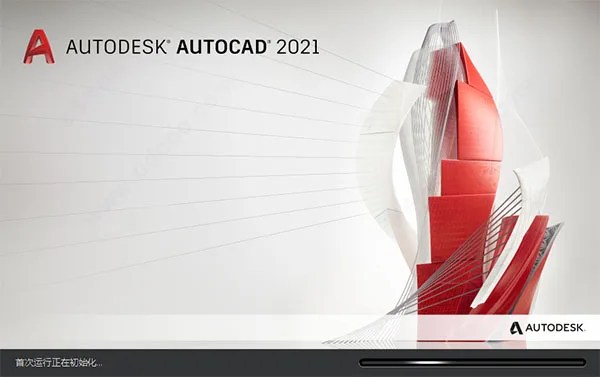
acad.exefrom the crack folder to the software installation directory, replacing the original file. Remember to back up the originalacad.exebefore replacing it. The editor’s installation path isF:ddoorruanceAutoCAD 2021. - After replacing the file, launch the software. The first run will take some time due to initialization.
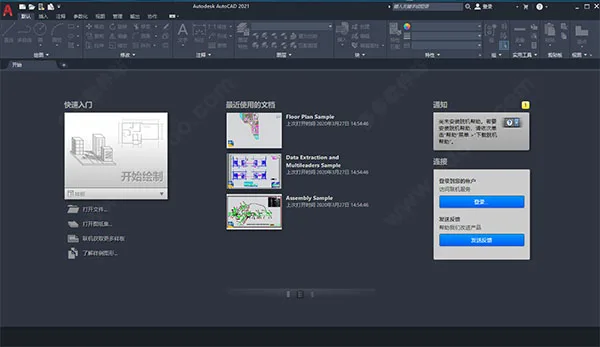
- Once opened, the software will be fully activated with all features unlocked. This concludes the editor’s CAD 2021 Simplified Chinese 64-bit installation tutorial.

Feature Overview
1. Extended Workflow
- New AutoCAD Applications: Create, edit, and view CAD drawings via web browsers across multiple devices.
- Flexible Access: Edit and view CAD drawings on mobile devices seamlessly.
- Save to Various Devices: Save desktop drawings for access from AutoCAD applications, including external references.
- Shared View: Publish design views to browsers for easy viewing and annotation.
2. 2D Sketches, Graphics, and Annotations
- Text Settings: Create single or multiline text with options for columns and boundaries.
- Dimension Annotations: Automatically generate dimensions with previews on hover.
- Leaders: Create leaders with text or blocks, fully customizable in style.
- Centerlines and Marks: Automatically update when related objects move.
- Tables: Create tables with data, formulas, and Excel spreadsheet linking.
- Revision Clouds: Draw clouds to highlight revisions and updates.
- View Management: Save named views for quick access and apply to layout viewports.
- Layouts: Define drawing sizes, add title blocks, and display multiple model views.
- Fields: Use dynamic text fields that update automatically.
- Data Links: Synchronize Excel sheets with drawing tables in real-time.
- Data Extraction: Extract block and attribute information efficiently.
- Dynamic Blocks: Add variability to blocks, modifying shape, size, or configuration.
- Arrays: Create and edit circular, rectangular, or path-based arrays.
- Parameterized Constraints: Apply geometric and dimensional constraints.
- Express Tools: Extend AutoCAD’s functionality with productivity-enhancing tools.
3. 3D Modeling and Visualization
- Modeling: Create solid, surface, and mesh 3D models.
- 3D Navigation: Explore models using ViewCube, control wheel, and dynamic viewing.
- Visual Styles: Control display, lighting, and shading for realistic presentation.
- Sectional Planes: Generate cross-sectional views from solids, surfaces, or meshes.
- Rendering: Apply lighting and materials for photorealistic visuals.
- Cloud Rendering: Render models online without burdening local resources.
- Point Clouds: Attach point cloud data from 3D scanners as reference.
- Model Documentation: Generate 2D views from 3D models, including projections and details.
4. Collaboration
- PDF Files: Import, export, or attach PDFs as reference overlays.
- DGN Files: Share and reuse data with DGN format support.
- DWG References: Attach external DWG files as references.
- Image References: Attach external image files.
- Drawing Sets: Manage multiple drawings as sheet sets.
- Model References: Attach Navisworks models and import others.
- Geographic Location: Insert geo-location info and display maps using online services.
5. Installation and Customization
- TrustedDWG™ Technology: Alerts users to potential compatibility issues with non-Autodesk saves.
- CUI Customization: Customize the user interface for enhanced efficiency.
- Security: Define restrictions on executable files to prevent malicious attacks.
- Action Recorder: Record and replay command sequences to automate workflows.
- Multi-user License Sharing: Pool licenses on a server to reduce costs.
- System Variable Monitor: Monitor and notify users of variable changes.
- CAD Standard Inspector: Define and enforce CAD standards consistently.
- APIs: Control graphics and data via ActiveX, VBS, AutoLISP, Visual LISP, ObjectARX, JavaScript, and .NET.
- Autodesk App Store: Access approved extensions to enhance functionality.
- Autodesk Desktop Application: Receive update notifications without disrupting workflow.
What’s New in CAD2021
Enhanced Block Palette
The Blocks palette now provides convenient access to your blocks anytime, anywhere by integrating your Autodesk account with cloud storage services such as Box, Dropbox, or Microsoft OneDrive. This enables quick access to recently used blocks across devices via AutoCAD desktop or web applications.
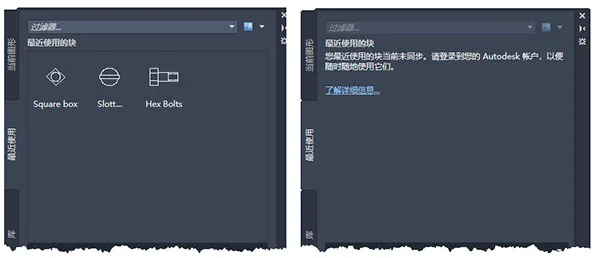
The Recently Used tab displays snapshots of recently inserted or created blocks. By clicking Sync Blocks and signing into your Autodesk account, you can sync these blocks to your cloud storage.
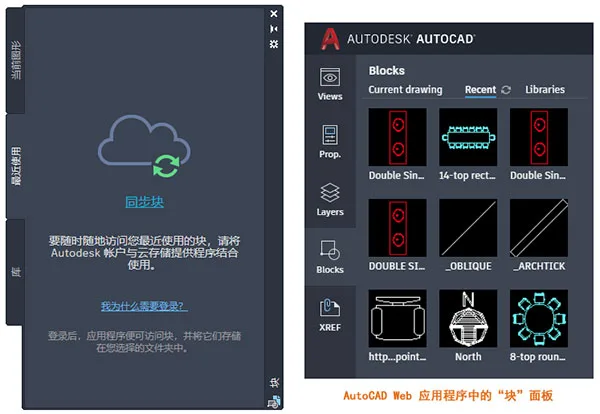
If the Synchronize Blocks option is not visible, you can specify the folder for recently used blocks in the Files tab of the Options dialog, selecting a cloud folder for synchronization.
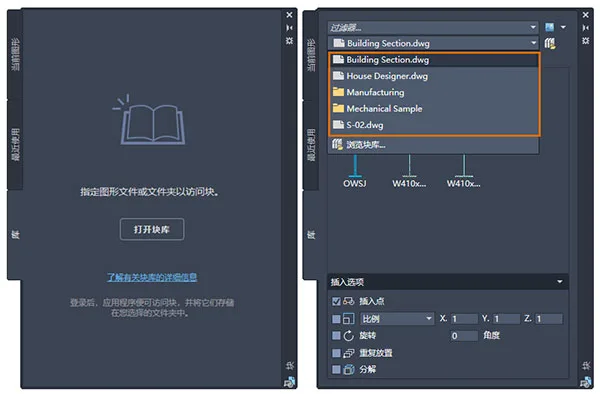
The Other Shapes tab has been renamed Library, allowing you to specify folders or drawings containing blocks for insertion. The dropdown lists five recently used block libraries for quick access, with cloud storage support for cross-device use.
Additional updates include new and modified commands and system variables to improve block management:
- New command
-INSERTMENT: Inserts graphics or blocks. - Modified command
BLOCKSPALETE: Displays the Blocks palette. - New system variable
BLOCKSRECENTFOLDER: Defines the path for recent blocks. - Modified system variable
BLOCKNAVIGATE: Controls display in the Library tab.
Touch Enhancements
AutoCAD 2021 improves gesture support, enabling:
- Pan and zoom using one or two fingers when no commands are active.
- Select objects by tapping or dragging fingers.
- Double-tap to cancel commands or clear selections.
- Precise object snap control by dragging fingers during command prompts.
Revision Cloud Improvements
The revision cloud now supports a single arc chord length value, controlling the distance between arc endpoints. Initially, the arc size is based on the diagonal length of the current view, ensuring appropriate sizing.
You can adjust the arc chord length via the Properties palette or the new REVCLOUDPROPERTIES command. The REVCLOUDARCVARIANCE system variable controls arc uniformity; turning it off restores previous behavior, while turning it on creates a hand-drawn appearance.
The Properties palette now treats revision clouds as objects with additional arc properties and grip style options.
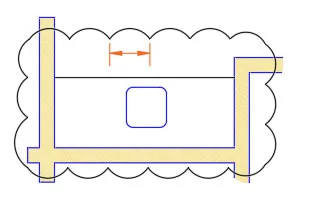
- New command
REVCLOUDPROPERTIES: Controls arc chord length. - Modified command
REVCLOUD: Creates or modifies revision clouds. - New system variable
REVCLOUDARCVARIANCE: Controls arc uniformity.
Simplified Trim and Extend Options
By default, the “Quick” mode selects all possible boundaries for the Trim and Extend commands without requiring prior boundary selection. Features include:
- Start Trim or Extend, then select objects directly.
- Selection modes include individual, freehand (drag), and two-point line selection.
- Objects that cannot be trimmed will be deleted.
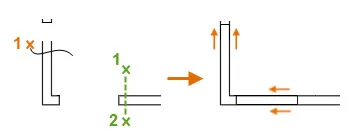
- Modified commands: Extend and Trim objects to connect with other object edges.
- New system variables:
TRIMEDCESandTRIMAppendMODEcontrol trimming behavior.
Break at Point Tool
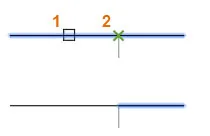
The new BREAKATPOINT command allows you to break a line, arc, or polyline into two parts at a specified point. You can repeat the command by pressing Enter.
Quick Measurement Enhancements
In plan view, the “Quick” option of MEASUREGEOM now measures area and perimeter within enclosed spaces. Clicking inside a closed area highlights it and displays measurements in the command window and tooltips. Holding Shift allows multiple selections, showing cumulative values.
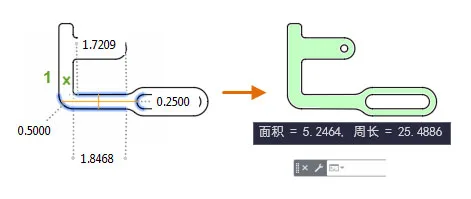
Access this feature via: CAD2021 Home tab > Tools panel > Measurements / Quick
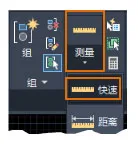
Modified command MEASUREGEOM: Added a “fast” option for real-time measurement of distances, angles, and areas.
Graphic History Support (Fixed Term License Advantage)
When saving drawings to cloud services such as OneDrive, Dropbox, or Box, version histories are automatically created. These versions appear in the new “Drawing History” palette for easy comparison.
After logging into your Autodesk account, notifications appear when opening drawings stored in supported cloud services.

The Drawing History palette lets you filter by time, user, or version and supports graphic comparison highlighting differences.
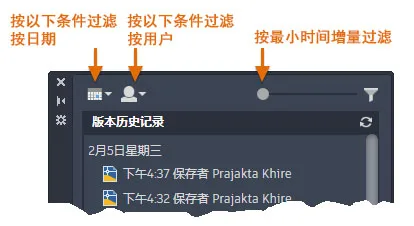
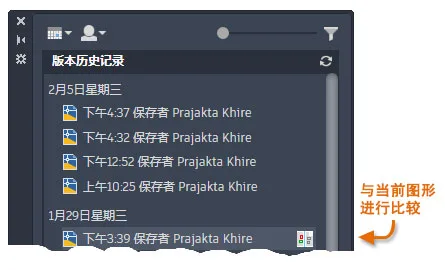
Access via: View tab > History panel > DWG History
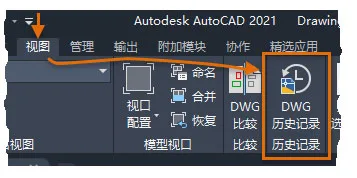
- New commands:
DWGHISTORY(open palette),DWGHISTORYCLOSE(close palette). - New system variable:
DWGHISTORYSTATEreports palette status.
Graphics Performance Improvements
AutoCAD 2021 boosts 2D pan and zoom speed by optimizing rendering for objects with similar properties and varying detail levels according to scale. For complex 3D models, multi-core processor support enhances responsiveness during dynamic viewing and navigation.
New system variable RTREGENAUTO controls automatic regeneration during real-time pan and zoom.
Security Enhancements
Through extensive internal and third-party testing, AutoCAD continues to strengthen defenses against cyber threats and maintain compliance with security standards.
AutoLISP Enhancements
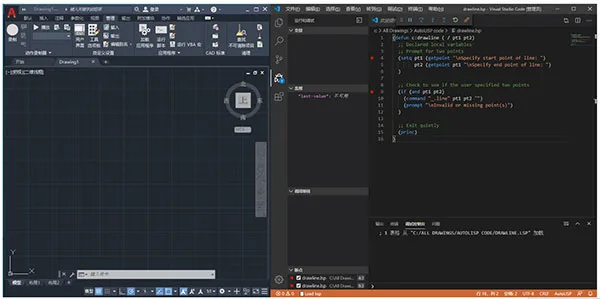
- Improved cross-platform development with Visual Studio Code.
- Unicode support.
- DCL support on both Windows and Mac.
- New command
MAKELISPAPPto compile AutoLISP files into protected VLX files. - Updated command
VLISPlaunches the AutoLISP development environment. - New system variable
LISPSYScontrols the default AutoLISP environment.
The AutoLISP extension for Visual Studio Code allows you to:
- Create and edit LSP files with features like auto-completion and snippets.
- Format code efficiently.
- Add watchpoints and breakpoints for debugging.
- Execute AutoLISP and AutoCAD commands within the debugging console.
External Reference Comparison
AutoCAD 2021 can now compare changes made to external reference files (xrefs) attached to drawings. Differences are highlighted with revision clouds. Notifications appear when referenced files change, with options to reload or compare.
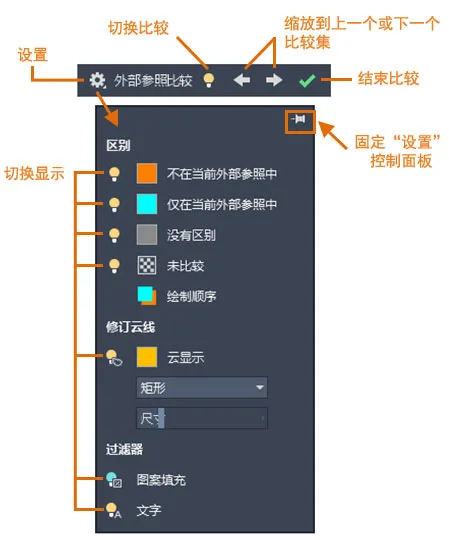
- New commands:
XCOMPARE– Compare attached xrefs with source drawings.
XCOMPARECLOSE– Close the comparison toolbar.
XCOMPARERCNEXT– Navigate to the next change set.
XCOMPARERCPRV– Navigate to the previous change set. - New system variables:
COMPARESHOWNEXT– Controls visibility of unused objects during comparison.
XCOMPAREBAKPATH– Backup path for xrefs.
XCOMPAREBAKSIZE– Backup folder size.
XCOMPARECOLORMODE– Visual effects mode during comparison.
XCOMPAREENABLE– Enables xref comparison.
CAD2021: Rotate and Scale Objects by Reference
Typically, rotating or scaling objects requires specifying a base point and then an angle or scale factor. The ‘Reference’ option allows you to rotate or scale relative to two points, specifying the final angle or length directly rather than relative increments.
The ALIGN command lets you move, rotate, and scale objects based on pairs of source and target points, allowing precise manipulation in a defined order.
Rotating Objects by Reference
- Draw lines at any angle.
- Click Home tab > Modify panel > Rotate.
- Select the line to rotate.
- Specify the base point (start of the line) for rotation.
- When prompted for the rotation angle, type
Ror select Reference. - For the first reference point, enter
@or click the base point. - Specify the endpoint of the line to define the current angle.
- Enter the new angle value (e.g., 0) to rotate the object to that absolute angle.
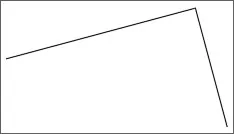
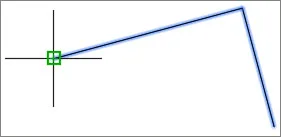
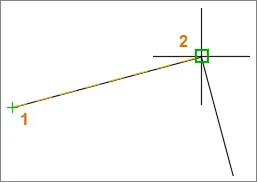

Note: If you enter 0 without selecting the Reference option, the object will not rotate.
Try repeating the steps with a new angle such as 45 degrees to see a different rotation.
Scaling Objects by Reference
- Draw a rectangle with annotations.
- Click Home tab > Modify panel > Scale.
- Select the rectangle.
- Specify the base point (corner intersection) for scaling.
- When prompted for the scale factor, type
Ror select Reference. - For the first reference point, enter
@or click the base point. - Select two corner points along the same side of the rectangle.
- Enter the desired new length (e.g., 1.5).
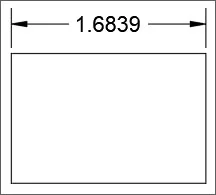
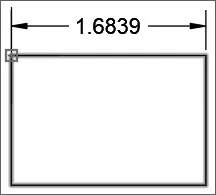
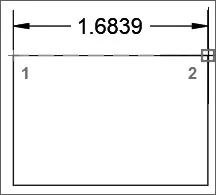
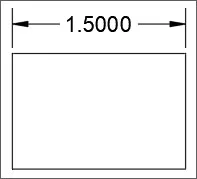
The object will scale proportionally based on the difference between the reference length and the new length you specify.
CAD2021 Software System Requirements
- Operating System: Microsoft Windows 7 SP1 (64-bit), Windows 8.1 (64-bit with KB2919355), or Windows 10 (64-bit, version 1803 or later).
- CPU: Minimum 2.5–2.9 GHz processor; recommended 3+ GHz; supports multiple processors.
- RAM: Minimum 8 GB; recommended 16 GB.
- Display Resolution: Standard 1920 x 1080 with True Color; supports up to 3840 x 2160 (4K) on Windows 10 64-bit with a powerful graphics card.
- Disk Space: 6.0 GB free space required.













It can be installed. I initially found the wrong folder, but later found the right one and it can be used
In the final replacement, we couldn’t find the corresponding replacement acad.exe and replaced a subordinate folder, but this doesn’t work and still requires a serial number, etc
Not able to install