
BIM Q&A | How to Check Which Template Was Used When Creating a Family in Revit?
In Revit, how can you determine which template was used to create a pre-built family?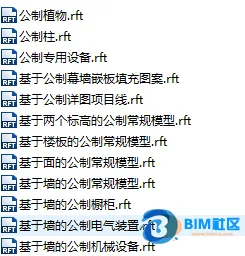
When creating a family in Revit, the software prompts you to select a family template that matches the type of family you want to create. For example, if you want to create a window, you would choose the “Metric Window.rft” family template.
This template acts as a foundational building block—essentially a family environment—that contains all the necessary information to start creating the family and allows Revit to place the family correctly within a project.
In Revit 2016, there are 80 model family templates, 6 title block family templates, 1 conceptual mass template, and 19 annotation family templates available. However, note that the number of default family templates varies across different Revit versions.
Most family templates are named according to the type of element they create, such as metric structural frames, structural foundations, metric doors, metric columns, and so on. This naming convention makes it straightforward to select the right template based on the component you want to create.
Some templates include descriptors following the family name indicating their base type, such as:
Wall-based template
Ceiling-based template
Floor slab-based template
Roof-based template
Line-based template
Surface-based template
Templates that are based on walls, ceilings, floors, or roofs are known as host-based templates. For these host-based families, elements can only be placed on the corresponding host type within the project.
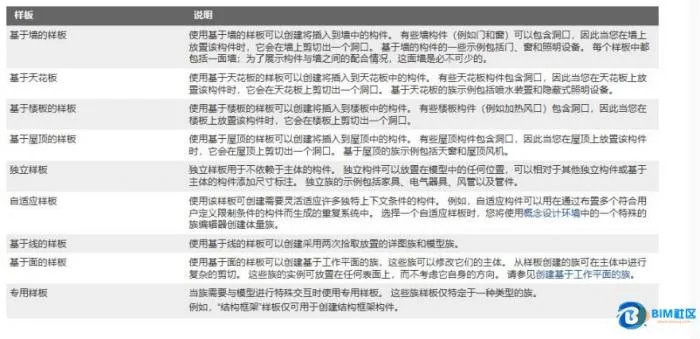
To work effectively with these host-based templates, it’s important to familiarize yourself with Revit’s template types and their descriptions, as illustrated below:
















Must log in before commenting!
Sign Up