
BIM Q&A | BIM2016 Installation Error: System Not Supported on WIN7 64-bit?
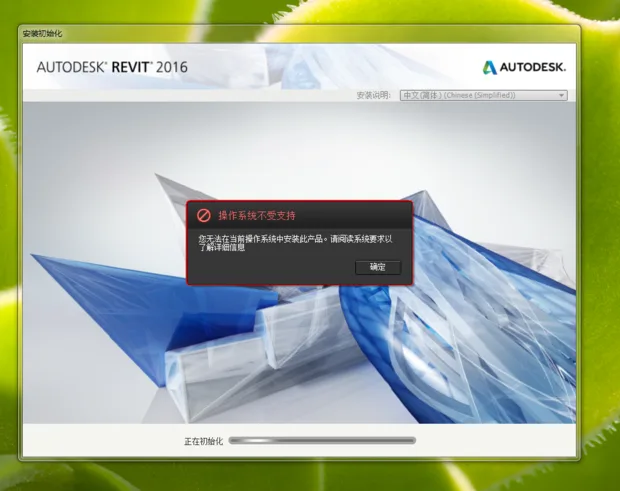
If you encounter an installation error stating that your system is not supported when installing BIM2016 on a Windows 7 64-bit system, here are some solutions to try:
Method 1: Right-click the Revit 2015 installation package’s Setup.exe file, select Properties, then set it to run in Windows 7 compatibility mode with administrator privileges. After applying these settings, run the installation again.
Method 2: Download and install the Windows 7 upgrade package (SP1). After upgrading your system to SP1, Revit 2015’s system requirements (Windows 7 SP1, Windows 8, or 8.1) will be met. If your Windows 7 system cannot install Revit initially, first install the SP1 upgrade package, then proceed with the Revit installation. Note that after upgrading, if the installation still prompts an error, check the compatibility settings: right-click Setup.exe, open Properties, and disable compatibility mode if it is enabled. Also, ensure that the installation path does not contain any Chinese characters, as this will cause installation errors.
Method 3: If the above methods fail, consider installing Revit 2014 instead. The functional differences and system requirements between Revit 2014 and 2015 are minimal, with few adjustments made. In contrast, Revit 2016 introduces many significant changes and system upgrades.
















Must log in before commenting!
Sign Up