
BIM Q&A | How to Adjust the Drawing Orientation of AutoCAD Drawings When Printing in CAD?
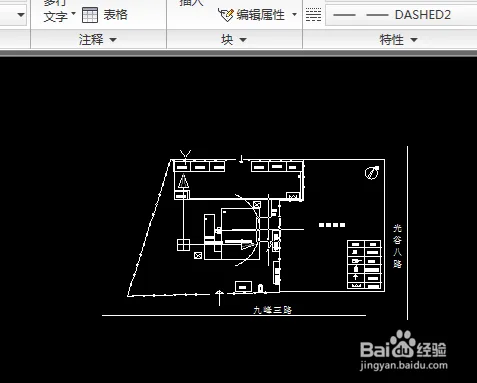
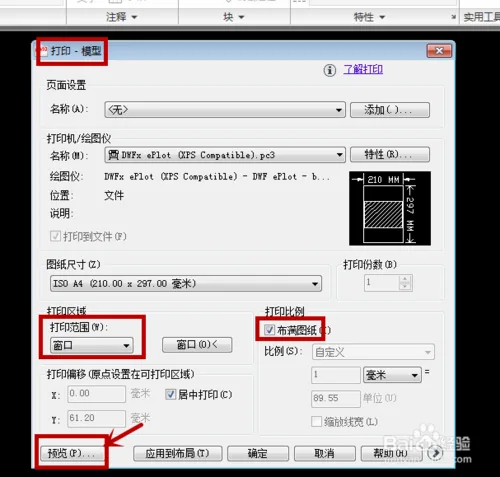
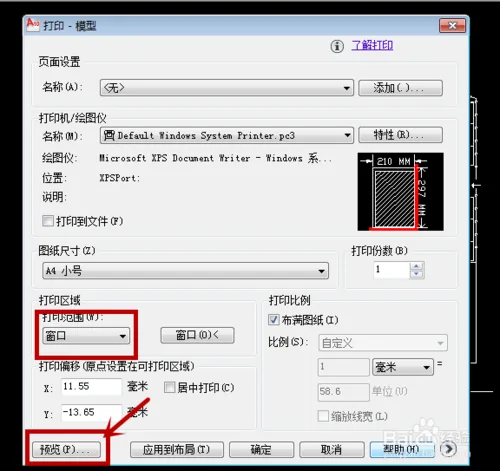
Start by opening the prepared drawing and selecting the ‘Window’ option when printing.
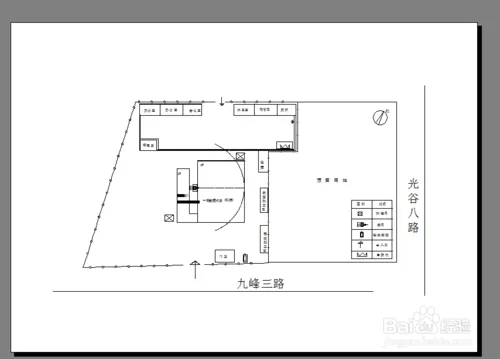
After configuring the settings, click on Preview Print to check the print preview.
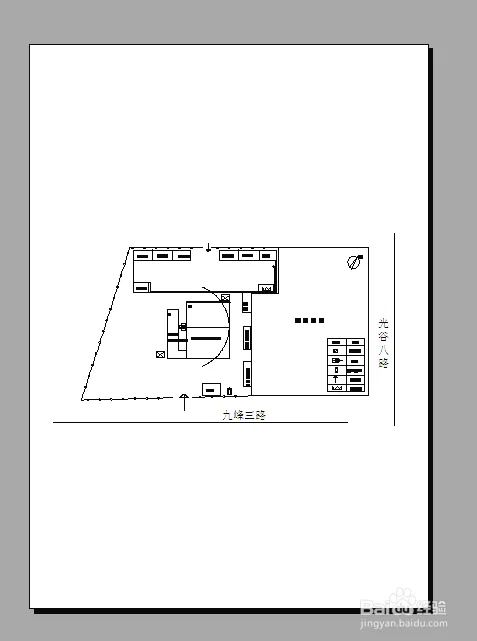
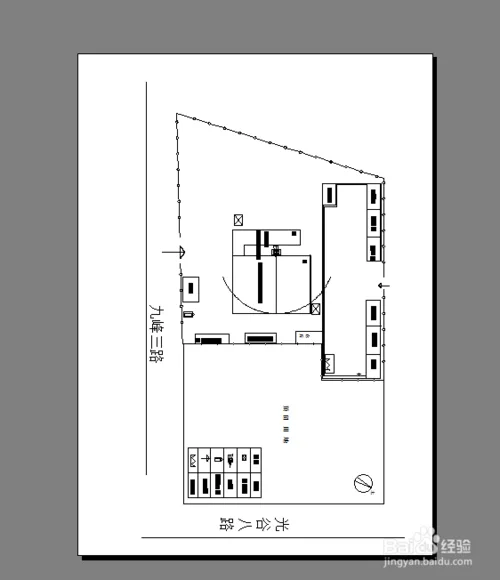
The drawing appears centered and oriented horizontally by default in the preview.
Close the preview and return to the print dialog. Then, click the expansion icon located at the bottom right corner, as shown below.
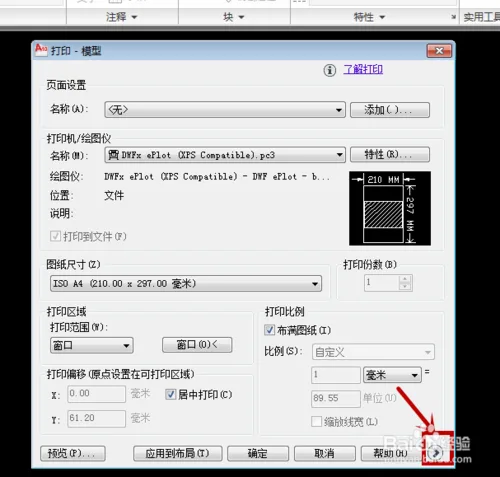
On the expanded settings panel, select Horizontal under the Shape Direction option.
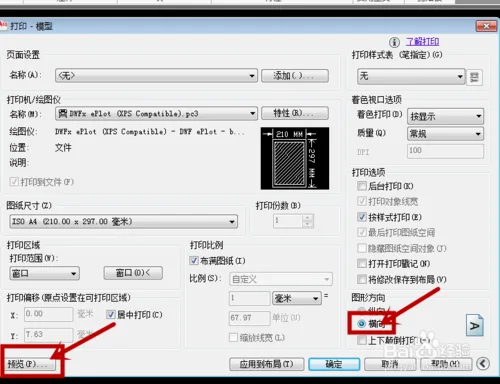
Click Print Preview again to confirm that the drawing is now displayed in horizontal orientation on A4 paper.
Alternatively, you can use AutoCAD’s built-in rotation tools to rotate the drawing vertically before printing.
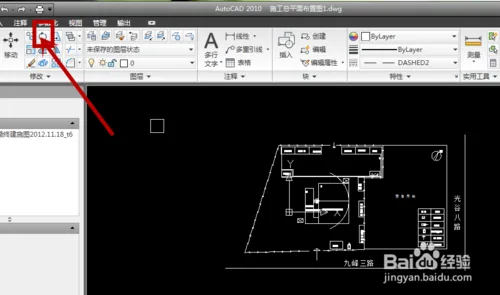
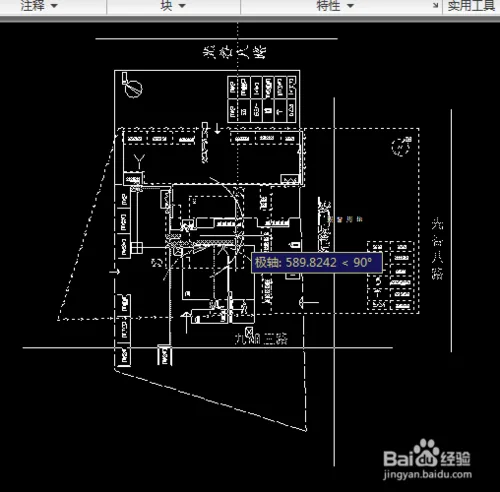
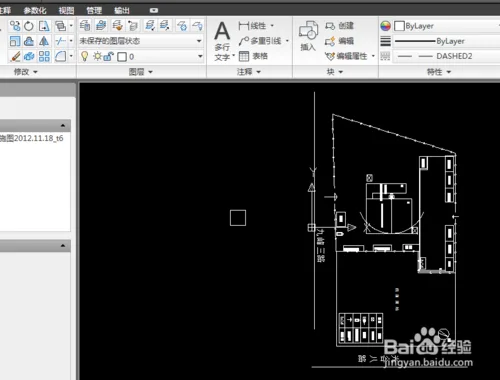
After rotating the drawing, go back to print. In the print preview, you will see the drawing fills the page vertically on A4 paper.
















Must log in before commenting!
Sign Up