
BIM Q&A | How to Improve CAD Drawing Speed When AutoCAD Opens Files Slowly
Method 1: Using the PURGE Command
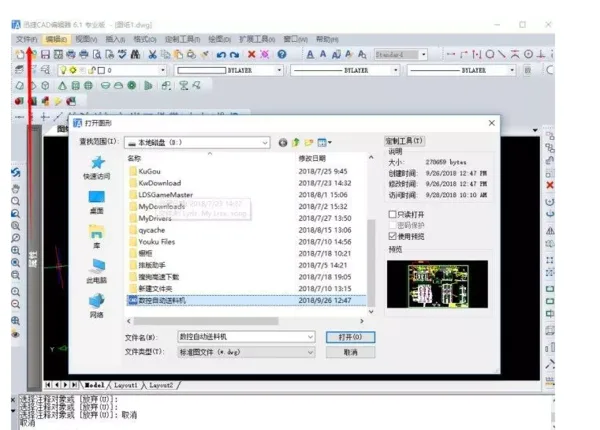
Step 1: Launch the Swift CAD Editor on your desktop, then open a CAD drawing file through the File menu.
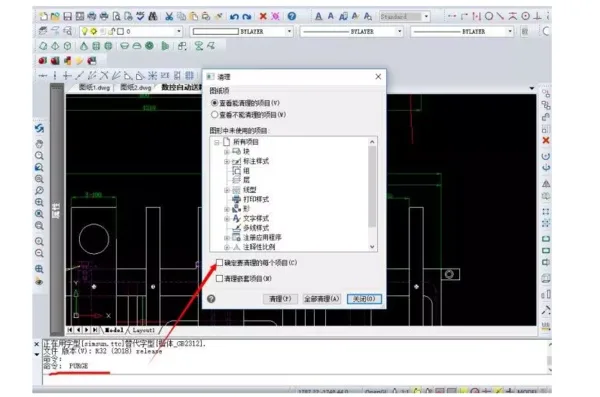
Step 2: With the drawing open, type the PURGE command into the command box at the bottom. This will remove unnecessary data such as unused layers, blocks, line types, and dimension styles. Running the PURGE command two to three times can significantly reduce the file size and improve performance.
Method 2: Using the WBLOCK Command
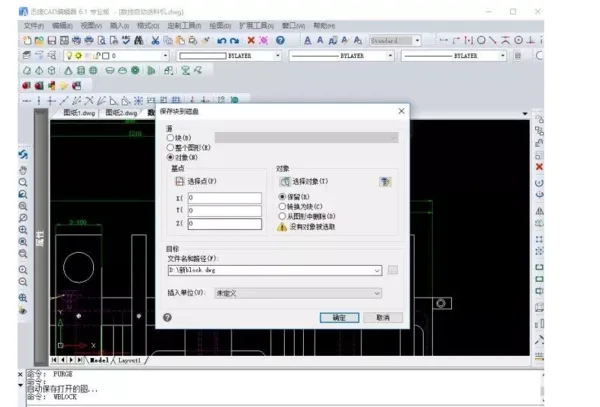
Type the WBLOCK command into the command bar to create a new block file from selected objects. This allows you to generate a new graphics file that can be used for transferring or archiving your drawing elements.
Specify the file name and save location, then pick a base point within the CAD drawing. Next, select the objects you want to include and press Enter. A new graphic file will be created at the specified folder.
















Must log in before commenting!
Sign Up