
BIM Q&A | Why Does the SU Import of LUMION Look Like This?
After importing a LUMION model into SketchUp (SU), you might notice that the model appears distorted or merged unexpectedly. What causes this issue, and how can it be resolved?
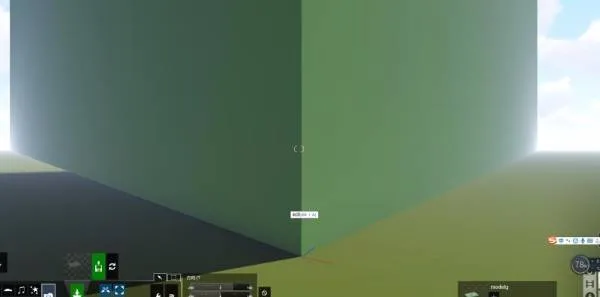
LUMION recognizes materials rather than individual model components. This means that any parts of your model sharing the same material will automatically merge into a single object. On the other hand, in SketchUp, if two materials look identical but have different names, LUMION treats them as separate materials and processes them as distinct objects.
To avoid issues, ensure that your SketchUp model is organized with clearly named, non-redundant materials. Clean up any unnecessary or “garbage” elements before exporting. For large models, export components separately by type or according to a consistent principle, and unify the origin point in LUMION.
Editing the model’s control points and setting coordinates to (0, 0, 0) helps to merge and align components properly, making further modifications easier. Following these steps can prevent unexpected merging and improve your workflow.
















Must log in before commenting!
Sign Up