
BIM Q&A | How to Change the Background Color of Revit’s Drawing Interface from White to Black
How to Set the Background Color in Revit
Follow these steps to change the background color of your Revit drawing interface:
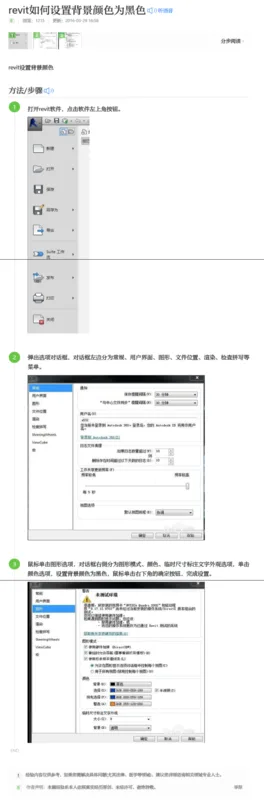
1. Open Revit and click the button located in the upper left corner of the software window.
2. An Options dialog box will appear. On the left side, you will see a menu including General, User Interface, Graphics, File Location, Rendering, Check Spelling, and more.
3. Select the Graphics option from the menu. On the right side of the dialog box, you will find sections for Graphic Mode, Color, and Temporary Dimension Text Appearance.
4. Click on the Color option, then set the background color to black.
5. Finally, click the OK button in the lower right corner to apply the changes.
















Must log in before commenting!
Sign Up