
BIM Q&A | How to Use Revit for Drawing Steel Structures
Unlike concrete structures that typically require flat drawings, Revit offers a different approach when it comes to steel structures.
There are several methods available in Revit to draw steel structures:
One approach is to export the Revit model to Advance Steel and perform node design within that software.
However, my preferred workflow is as follows:
1) Designers add commonly used nodes directly into the Advance Steel model, then export it back to Revit;
2) Secondary detail designers can further enhance the node designs based on your foundation, enabling direct generation of detailed drawings;
3) Additionally, a French-developed software offers steel structure tool blocks integrated into AutoCAD.
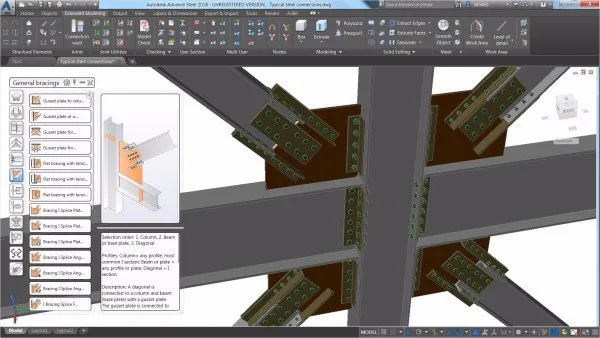
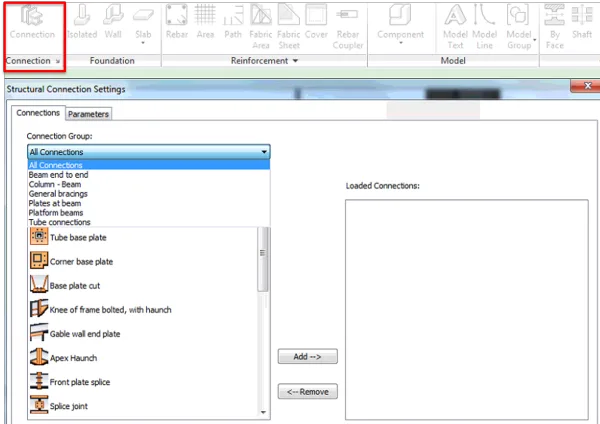
Starting with Revit 2017, node design functionality for steel structures was introduced, eliminating the need for additional plugins. This feature includes 22 commonly used steel structure node configurations from Advance Steel, which can be accessed directly within Revit via a dedicated button.
Regarding the Autodesk Revit Extension, before adopting Advance Steel, I frequently used this tool despite its limited functionality. It proved especially convenient for creating portal steel frames. Furthermore, modifying and generating new steel structure node family libraries using this extension is much easier than building them from scratch.
















Must log in before commenting!
Sign Up