
BIM Q&A | How to Customize the Revit Interface
First, let’s look at the Quick Access Toolbar, located at the top of the Revit interface.
You can customize this toolbar by clicking the down arrow on its right side.
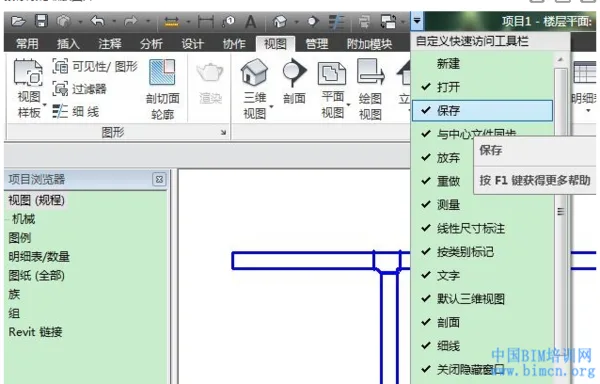
Next, there is the tool palette that we frequently use during the design process. On its right side, similar arrows allow you to choose from multiple display options for the dashboard.
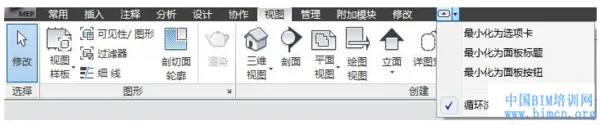
Besides the default expanded display mode, there are three additional styles available—making a total of four. Although we can’t show all these options here, feel free to switch between them yourself to find what suits you best. If you’re comfortable with shortcut keys, using them can be the most efficient way to save screen space.
Finally, in the View panel of the tool palette, you’ll find a User Interface command. This lets you toggle various elements such as the Project Browser, System Browser, Properties, Status Bar, and more.
Try clicking these options to explore each component and see how they affect your workspace.
















Must log in before commenting!
Sign Up